
Maximizing Weather Widgets on Wear OS: A Comprehensive Guide
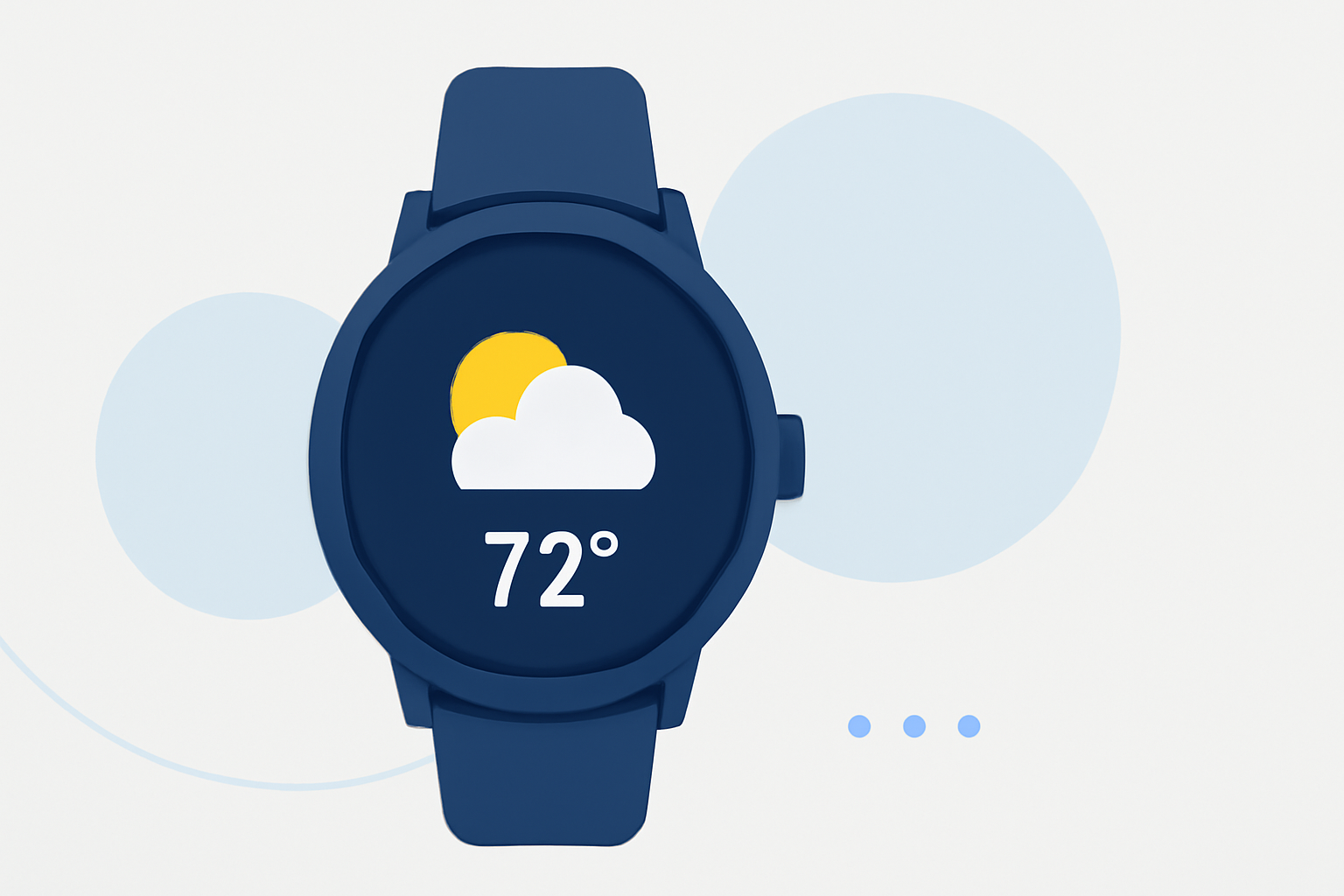
Weather widgets on Wear OS smartwatches provide quick access to current conditions, forecasts, and alerts, keeping you informed on the go. With the introduction of Wear OS 7, these widgets have become more dynamic and customizable, enhancing your smartwatch experience.
Understanding Wear OS Weather Widgets
In Wear OS 7, Google has replaced the static Tiles system with more flexible widgets, supporting various layouts such as 2x1 and 2x2 cards. These widgets offer real-time, persistent information like weather updates directly on your smartwatch display. (androidcentral.com)
Setting Up Weather Widgets on Your Wear OS Smartwatch
-
Accessing Widgets: Swipe left or right on your watch face to view your current widgets.
-
Adding a Weather Widget:
- Swipe to the end of your widgets and tap the "Add Widget" icon.
- Select the weather widget from the list.
- Customizing the Widget:
- Press and hold the weather widget to enter edit mode.
- Choose your preferred layout (e.g., 2x1 or 2x2) to display the information.
- Adjust the widget's position by dragging it to your desired location.
Utilizing the Weather Widget
-
Current Conditions: View real-time weather updates, including temperature, humidity, and wind speed.
-
Forecasts: Access hourly and daily forecasts to plan your activities accordingly.
-
Weather Alerts: Receive timely notifications about severe weather conditions in your area.
Enhancing Your Experience with Clime
Clime offers a comprehensive weather application designed to integrate seamlessly with Wear OS devices. With Clime, you can access detailed weather information, including current conditions, forecasts, and alerts, directly from your smartwatch. The app's intuitive interface and customizable widgets allow you to tailor your weather experience to your preferences.
Tips for Optimizing Your Weather Widget
-
Regular Updates: Ensure your smartwatch and the Clime app are updated to the latest versions to access new features and improvements.
-
Location Settings: Enable location services to receive accurate weather information based on your current location.
-
Widget Customization: Experiment with different widget layouts and sizes to find the configuration that best suits your needs.
-
Battery Management: Monitor the widget's impact on battery life and adjust update frequencies if necessary to conserve power.
By effectively setting up and customizing your weather widget, you can stay informed about the weather conditions that matter most to you, all from the convenience of your Wear OS smartwatch.