
Morning Weather Check Guide on Apple Watch
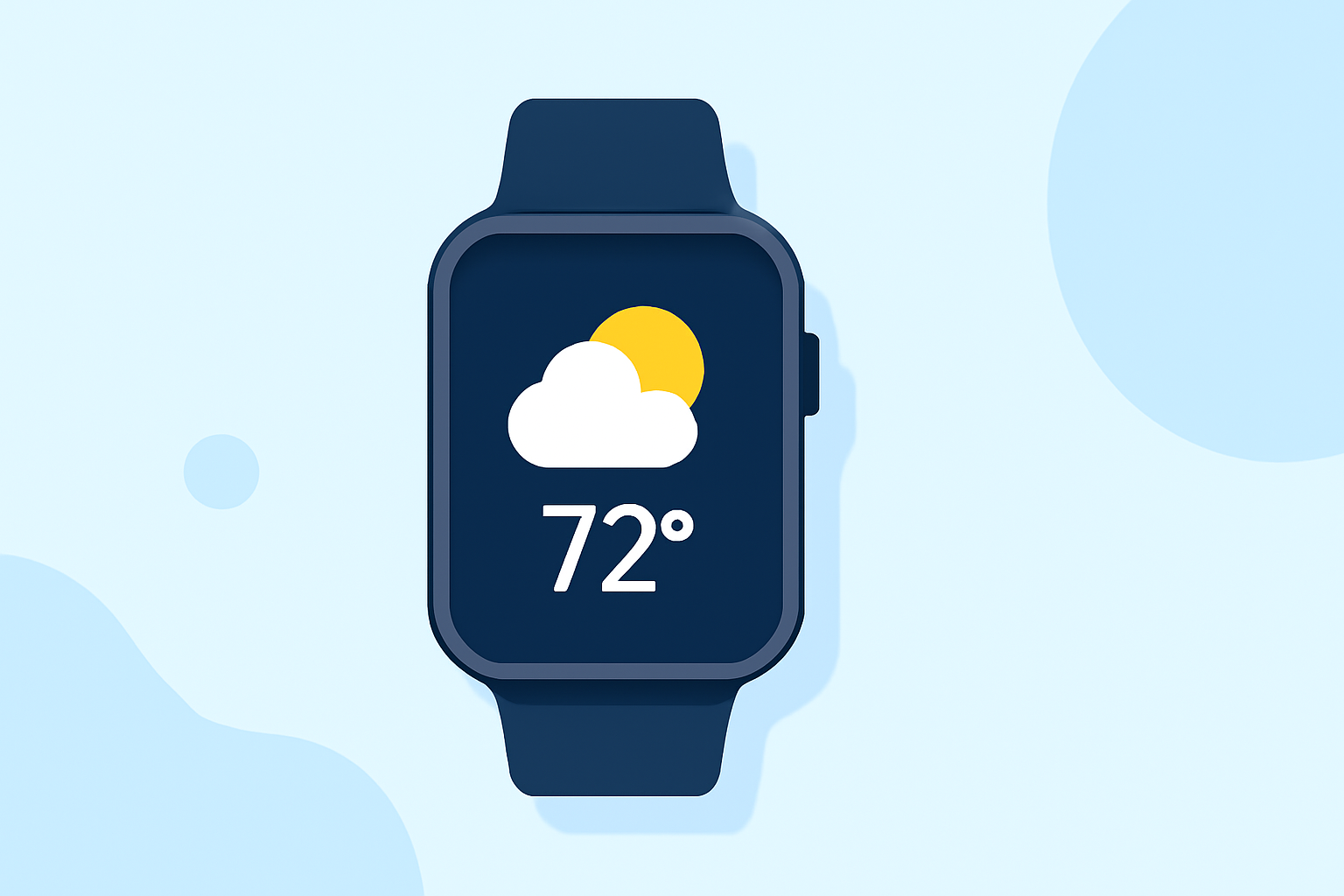
Starting your day with accurate weather information is essential for planning your activities. Your Apple Watch offers several features to help you check the morning weather quickly and conveniently.
1. Using the Weather App
The built-in Weather app on your Apple Watch provides detailed current conditions and forecasts. To access it:
-
Open the Weather App: Press the Digital Crown to view your apps, then tap the Weather icon.
-
View Current Conditions: The main screen displays the current temperature and weather conditions for your location.
-
Check Forecasts: Scroll down to see hourly and 10-day forecasts, including temperature, precipitation, wind speed, and UV index.
2. Adding a Weather Complication to Your Watch Face
For quick access, add a weather complication to your watch face:
-
Customize Watch Face: Press firmly on your current watch face, tap 'Edit,' then swipe to the 'Complications' section.
-
Select Weather Complication: Choose a weather complication to display current conditions or forecasts directly on your watch face.
3. Using Siri for Quick Weather Updates
Siri can provide instant weather information:
-
Activate Siri: Raise your wrist and say, "Hey Siri," or press and hold the Digital Crown.
-
Ask About the Weather: Say, "What's the weather like today?" or "What's the forecast for this morning?"
4. Ensuring Accurate Location Settings
For precise weather updates, ensure your location settings are correct:
-
On Your Apple Watch: Go to Settings > Privacy & Security > Location Services, and ensure it's turned on.
-
On Your iPhone: Navigate to Settings > Privacy & Security > Location Services, and ensure it's enabled for the Weather app.
5. Troubleshooting Weather App Issues
If the Weather app isn't displaying information correctly:
-
Check Connectivity: Ensure your Apple Watch is connected to your iPhone via Bluetooth and has internet access.
-
Restart Devices: Restart both your Apple Watch and iPhone to resolve potential glitches.
-
Update Software: Ensure both devices are running the latest versions of watchOS and iOS.
By utilizing these features and settings, you can efficiently check the morning weather on your Apple Watch, helping you plan your day effectively.