
Optimizing Your Weather App's Home Screen Workflow
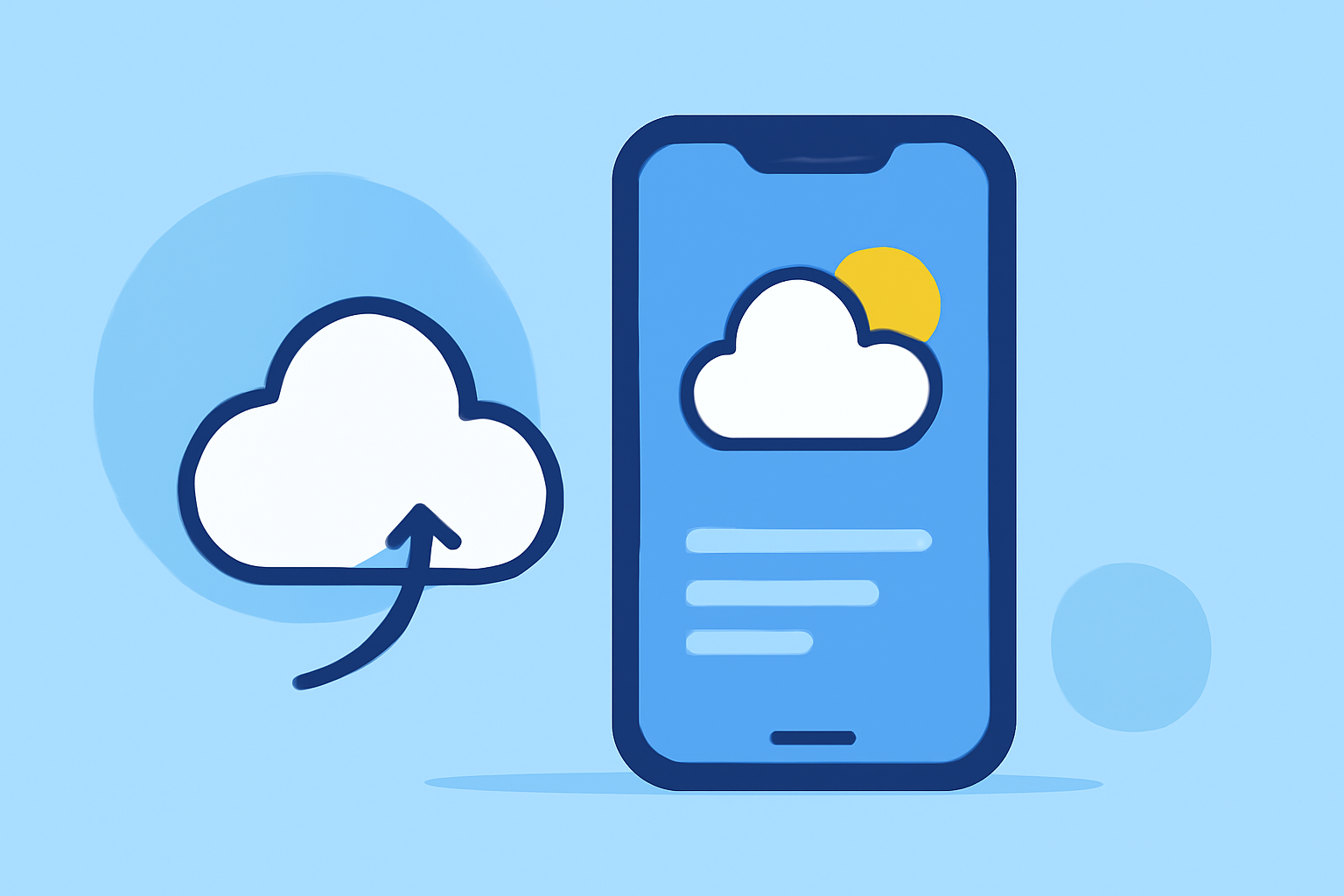
Designing an intuitive and efficient home screen for your weather app is crucial for user engagement and satisfaction. A well-organized home screen allows users to access essential weather information quickly and with minimal effort.
1. Prioritize Essential Information
Focus on delivering the most critical weather data at a glance. This typically includes current temperature, weather conditions (e.g., sunny, cloudy, rainy), and a brief forecast for the upcoming hours or days. Presenting this information prominently ensures users can quickly assess the weather without unnecessary navigation.
2. Utilize Widgets for Quick Access
Incorporate widgets that display real-time weather updates directly on the home screen. Widgets provide users with immediate access to weather information without opening the app, enhancing convenience and engagement. Ensure that widgets are customizable, allowing users to select the type of information they wish to see.
3. Implement Smart Stacks for Dynamic Content
Use smart stacks to combine multiple widgets into a single, space-saving stack. This feature allows users to swipe through different weather-related information, such as hourly forecasts, radar images, and severe weather alerts, without cluttering the home screen. Smart stacks can dynamically update content based on user preferences and location, providing a personalized experience.
4. Maintain a Clean and Organized Layout
An organized home screen enhances usability and reduces cognitive load. Group related information together and avoid overcrowding the screen with excessive widgets or information. Use clear labels and intuitive icons to guide users seamlessly through the app.
5. Ensure Responsiveness and Performance
Optimize the app's performance to ensure that the home screen loads quickly and updates weather information in real-time. Slow or unresponsive interfaces can lead to user frustration and decreased engagement. Regularly test the app on various devices to maintain consistent performance.
6. Personalize User Experience
Allow users to customize their home screen by selecting preferred locations, units of measurement (e.g., Celsius or Fahrenheit), and the type of weather information displayed. Personalization fosters a sense of ownership and can increase user retention.
7. Integrate Interactive Elements
Incorporate interactive elements such as touch gestures or voice commands to enable users to access detailed forecasts, radar maps, or severe weather alerts with ease. Interactive features can enhance user engagement and provide a more immersive experience.
8. Regularly Update and Improve
Continuously gather user feedback and monitor app analytics to identify areas for improvement. Regular updates that address user needs and incorporate new features can keep the app relevant and maintain user interest over time.
By implementing these strategies, you can create a weather app home screen that is both functional and user-friendly, leading to higher user satisfaction and engagement.