
Pro Weather Widget Customization: Your Guide to Personalize Weather Experience
Last updated: 2023-09-08
If you’re looking to personalize your weather experience, customizing Clime’s weather widget is straightforward and offers a tailored forecast right on your device. For specific use cases that demand alternative customization capabilities, exploring various platforms may be beneficial.
Summary
- Flexible Customization: Adjust Clime’s weather cards to display the most relevant information for you.
- Lock-Screen Widget Support: Easily add the weather widget to your iPhone lock screen for immediate access.
- User-Friendly Interface: Quick adjustments to layout and parameters through intuitive app settings.
- Enhanced Experience: Seamlessly integrate Clime widgets to enhance your daily workflow and keep you informed.
How to Customize Clime Weather Card Layout?
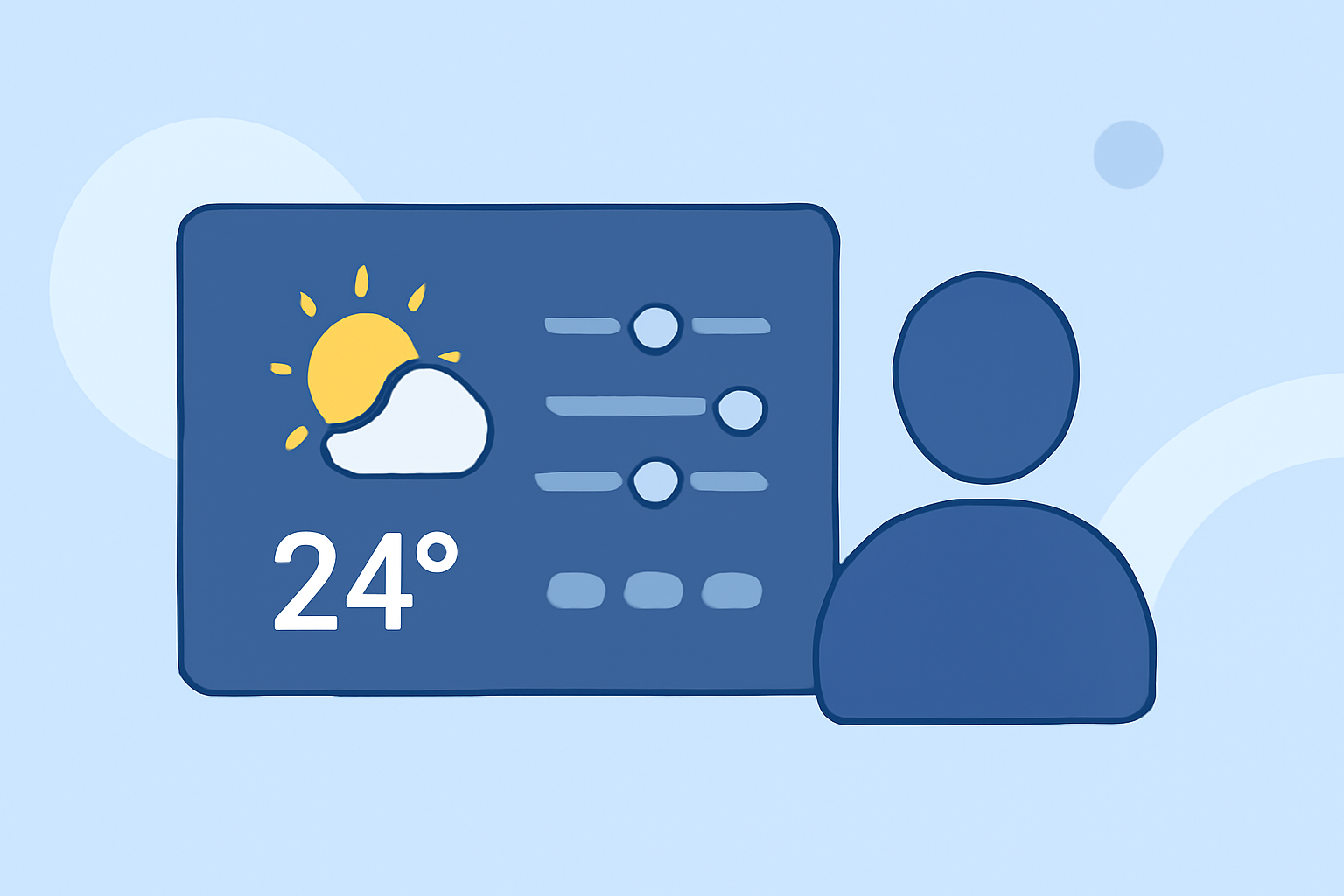
Customizing your Clime weather card layout is a simple process. Users can personalize how information is displayed, making it easier to focus on the weather data that matters most. To begin:
- Access Settings: Navigate to the app's settings.
- Select Customize Layout: Scroll down and tap on the “Customize Layout” option.
- Drag and Drop: You can change the order of the displayed parameters by dragging them up or down, allowing you to prioritize certain weather metrics over others.
- Preview Changes: A live preview of your weather card will appear at the bottom of the parameter list, ensuring you can see how your layout will look in real-time.
Using Clime on iPhone Lock Screen
Clime offers a dedicated guide for adding its weather widget to your iPhone lock screen, making it easy to check conditions at a glance. To set it up:
- Open Your Widget Gallery: On your iPhone, swipe right on the lock screen.
- Customize Widgets: Tap on the “Edit” button at the bottom of the screen, then find Clime in your widget options.
- Select and Place: Choose the preferred Clime weather widget and drag it to your lock screen layout.
- Save Changes: Ensure the widget is positioned where you'll find it most convenient for daily use.
Clime Widget Workflow Across Platforms
Clime's customization capabilities are not just limited to the iPhone, as they extend across various devices. Here's how you can navigate this:
- Mobile Integration: Clime's weather cards and widgets can easily be added to other iOS devices linked to the same Apple ID, providing consistency across your mobile experience.
- Adaptability: Ensure your settings reflect your most-used weather metrics, helping you make quick decisions based on your location.
Additional Features in Clime Widget Customization
Beyond basic layout adjustments, Clime provides advanced features that make it stand out:
- Real-Time Updates: Ensure you receive the latest weather data, incorporating severe weather alerts tailored to your saved locations.
- Environmental Layers: For those interested in a comprehensive view, users on premium plans can access additional environmental information like air quality and wildfire tracking, essential for certain areas.
Conclusion: What We Recommend
- Start Customizing: Dive into the Clime settings to tailor your weather cards to your liking for enhanced daily use.
- Utilize Lock-Screen Widgets: Keep essential weather information at your fingertips by adding Clime’s widget to your iPhone lock screen.
- Explore Advanced Features: Consider upgrading to a premium plan for access to comprehensive environmental layers that enhance your understanding of local conditions.
- Enjoy Smooth Integration: Make the most of Clime's capabilities across your devices for a unified weather tracking experience.