
Quick Weather Widget Basics in the Car
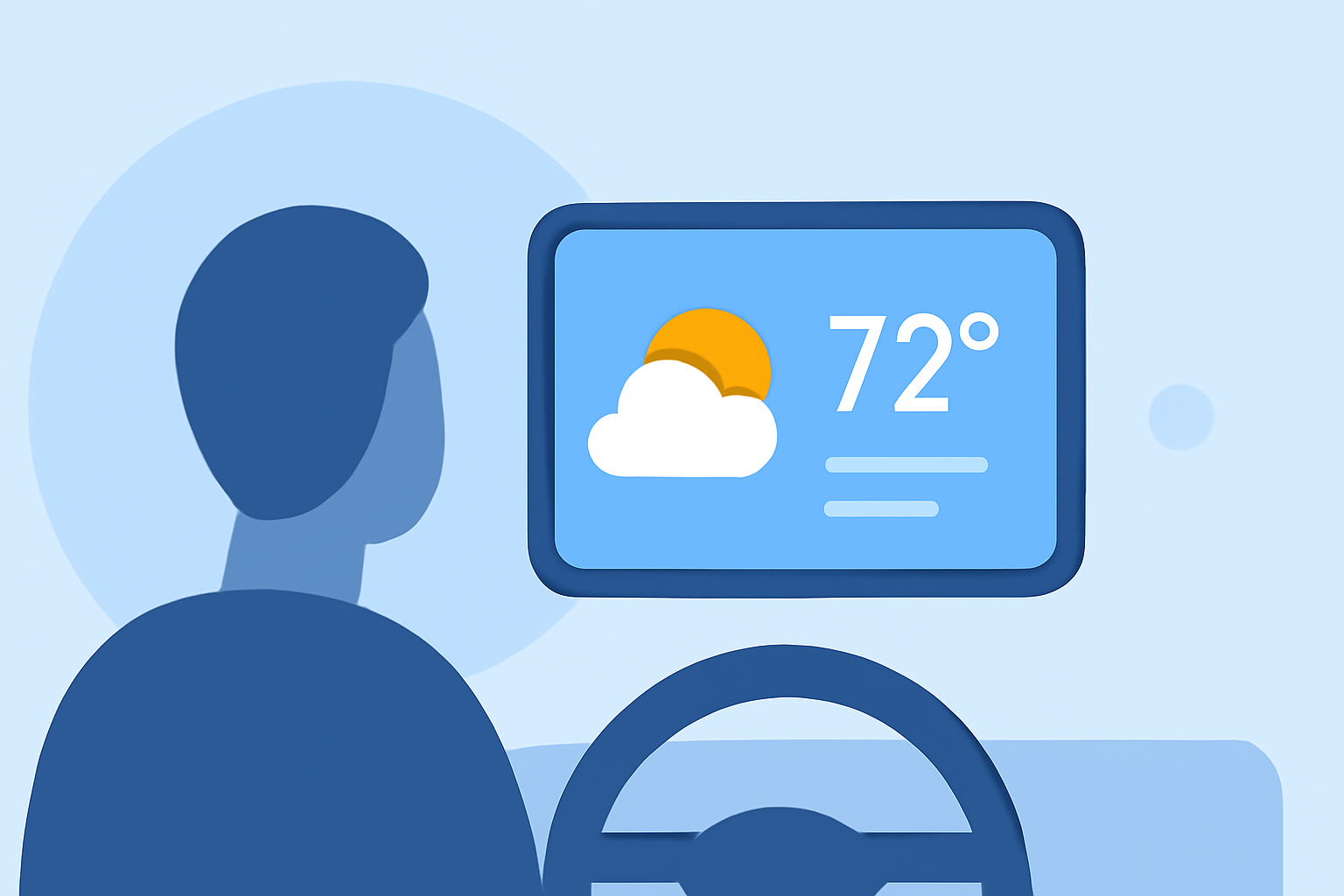
Integrating a weather widget into your car's infotainment system can provide real-time updates, enhancing your driving experience and safety. Here's how to set it up:
1. Check Your Vehicle's Compatibility
Ensure your car's infotainment system supports weather applications. Many modern systems, especially those with Android Automotive OS or Apple CarPlay, offer this functionality.
2. Install a Compatible Weather App
Depending on your system, you can install a weather app from the respective app store:
-
Android Automotive OS: The Weather Channel app is available, providing hourly forecasts and radar maps. (9to5google.com)
-
Apple CarPlay: Weatherology offers a voice-activated weather app with real-time audio reports and emergency notifications. (apps.apple.com)
3. Set Up the Widget
After installation, add the weather widget to your home screen or dashboard for quick access. This allows you to view current conditions, forecasts, and alerts without navigating through menus.
4. Enable Notifications
Activate notifications to receive timely updates on severe weather conditions, ensuring you're always informed while on the road.
5. Use Voice Commands
Utilize voice-activated features to request weather updates hands-free, promoting safer driving practices.
By integrating a weather widget into your car's infotainment system, you can stay informed about changing conditions, plan your routes effectively, and drive safely.
Highlights:
- Android Auto Adds Zoom, Weather Network, And Amazon Prime To In-Car Offerings | Carscoops, Published on Thursday, September 14
- Android Auto gets a full weather app [Video], Published on Monday, February 06
- Android Auto will now tell you if you're heading into bad weather -, Published on Wednesday, September 13