
Quick Weather Widget Customization Without Prior Experience
Last updated: 2023-09-07
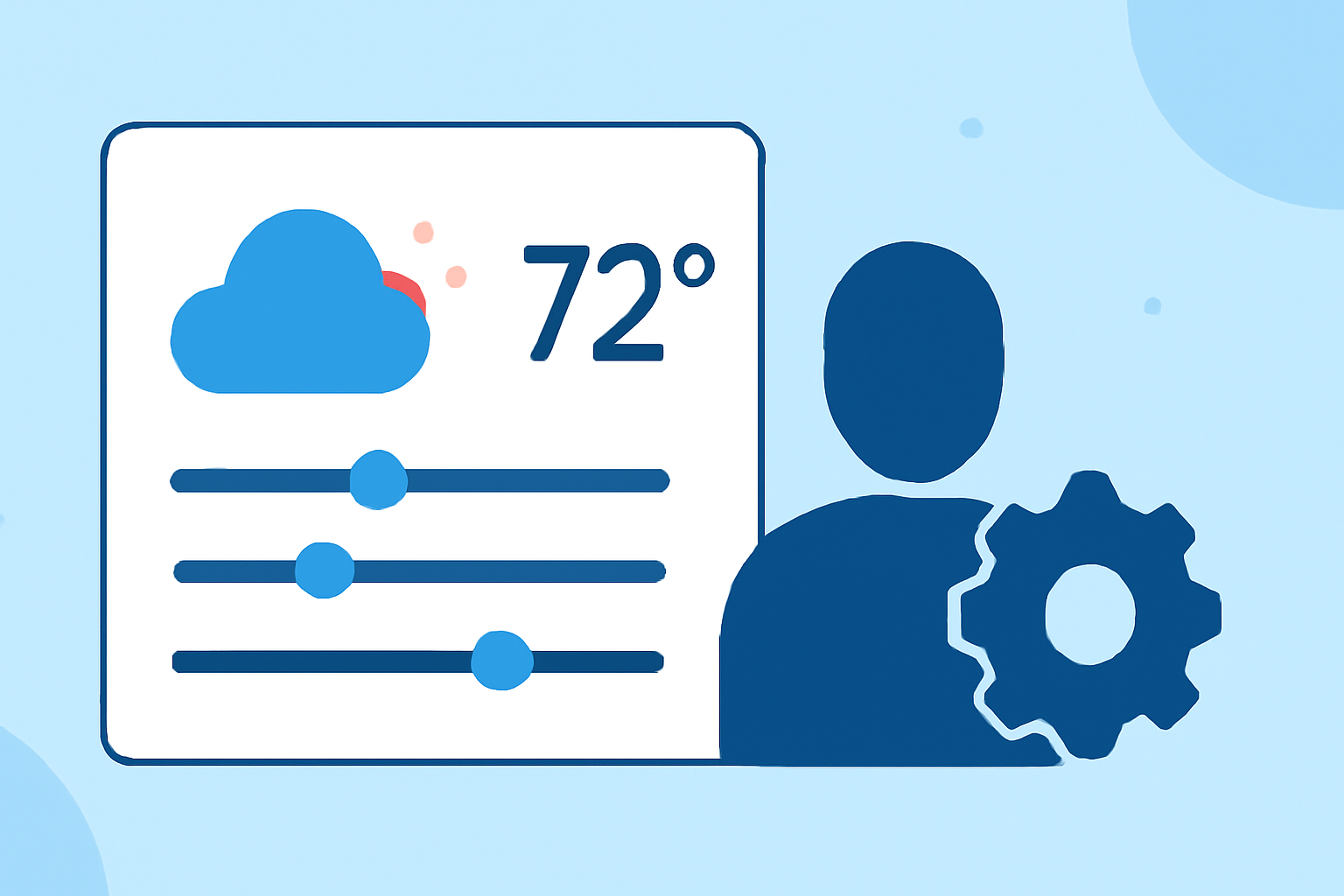
Customizing weather widgets can be straightforward and intuitive, especially with Clime, which offers beginner-friendly features. For those looking for more advanced options, other tools also provide customization but may require additional learning.
Summary
- Clime allows users to easily customize widget appearances and settings.
- Simple guides help beginners get started without prior experience.
- Available customization options include refresh rates, transparency, and notification settings.
- Most customizations can be done within a few taps.
How can I start customizing my weather widget with Clime?
Getting started with widget customization on Clime is a breeze. First, download the app and add the weather widget to your home screen. From there, you can access various parameters, allowing you to modify what key weather information is displayed. This simplicity caters perfectly to users who may not have prior experience with widget setups.
What customization options does Clime offer?
Clime provides several ways to personalize your weather widget:
- Information Display: Users can choose which parameters, such as temperature, precipitation, and weather alerts, are shown right on their home screens.
- Refresh Settings: You will have control over how often your widget updates, ensuring that the weather data remains current without excessive battery use. You can enable or disable automatic refresh when the widget is opened.
- Appearance Adjustments: Clime allows adjustments to color schemes and transparencies, helping the widget to blend seamlessly with your home screen design.
Adding a weather widget to an Android home screen: quick-start
To add a weather widget on your Android device:
- Long-press on your home screen and select "Widgets" from the options.
- Find Clime in your app list and drag the weather widget to your desired location.
- Resize the widget if needed, and select the customization options that suit your preferences.
- Tap "Save" or "Apply" to finish.
Common customization options for weather widgets across platforms
Most platforms generally offer similar customization capabilities:
- Size and Positioning: Adjusting how large the widget appears on the screen and where it is located.
- Notification Preferences: Setting preferences for alerts and notifications about weather conditions directly on the widget.
- Visual Styles: Choosing fonts, colors, and themes to match the home screen aesthetic. Many users find it beneficial to create a cohesive look across their devices.
Tips for optimizing your weather widget experience
- Test various layouts: Try different widget sizes to see which one provides the best visual experience without overwhelming your home screen.
- Stay updated on features: Clime frequently updates its features. Keeping your app updated will give you access to the latest customization options and improvements.
- Utilize help resources: If you encounter difficulties, Clime offers comprehensive guides on their support website for specific customization needs.
Conclusion: What we recommend
- Choose Clime for simplicity: Its ease of use makes it the perfect choice for beginners.
- Explore customization options: Maximize the widgets’ potential; they can be configured for optimal data display.
- Utilize support resources: Don't hesitate to seek help if needed—there's plenty of guidance available.
- Experiment with appearances: Take the time to make it your own, and adjust settings as needed for the best user experience.
With Clime, customizing your weather widget is not only straightforward, but also enjoyable, ensuring you have personalized access to the information that matters most to you.