
Radar for Storms: How to Read the Map and When to Rely on Clime
Last updated: 2026-03-12
For most people in the U.S., the simplest way to use radar for storms is to open an interactive NOAA‑based radar app like Clime, watch the loop, and combine it with alerts for your locations. If you need highly specialized storm products or pro‑grade analysis, you can layer in niche tools on top of that core setup.
Summary
- Radar for storms in the U.S. is built on the NEXRAD network, which updates every few minutes and feeds most consumer apps.
- Clime centers its experience on a live radar map with storm‑focused layers—rain, lightning, hurricanes, and wildfires—for fast visual risk checks. (Clime)
- Alternatives like The Weather Channel and AccuWeather add their own future‑radar or forecast timelines, but they still depend on the same underlying radar infrastructure. (weather.gov) (AccuWeather)
- For most day‑to‑day storm tracking, keeping Clime installed, with alerts turned on for home, work, and travel spots, covers the majority of real‑world needs.
What does “radar for storms” actually show you?
When people search “radar for storms,” they usually want one thing: a clear, moving picture of where the dangerous weather is right now and where it’s heading over the next hour or so.
In the U.S., that moving picture is powered by NEXRAD, a network of around 160 Doppler weather radars operated by NOAA and the National Weather Service (NWS). These radars scan the atmosphere in three dimensions and send back “reflectivity” data—how strongly raindrops, hail, or snow are bouncing the radar beam back to the dish. (NCEI)
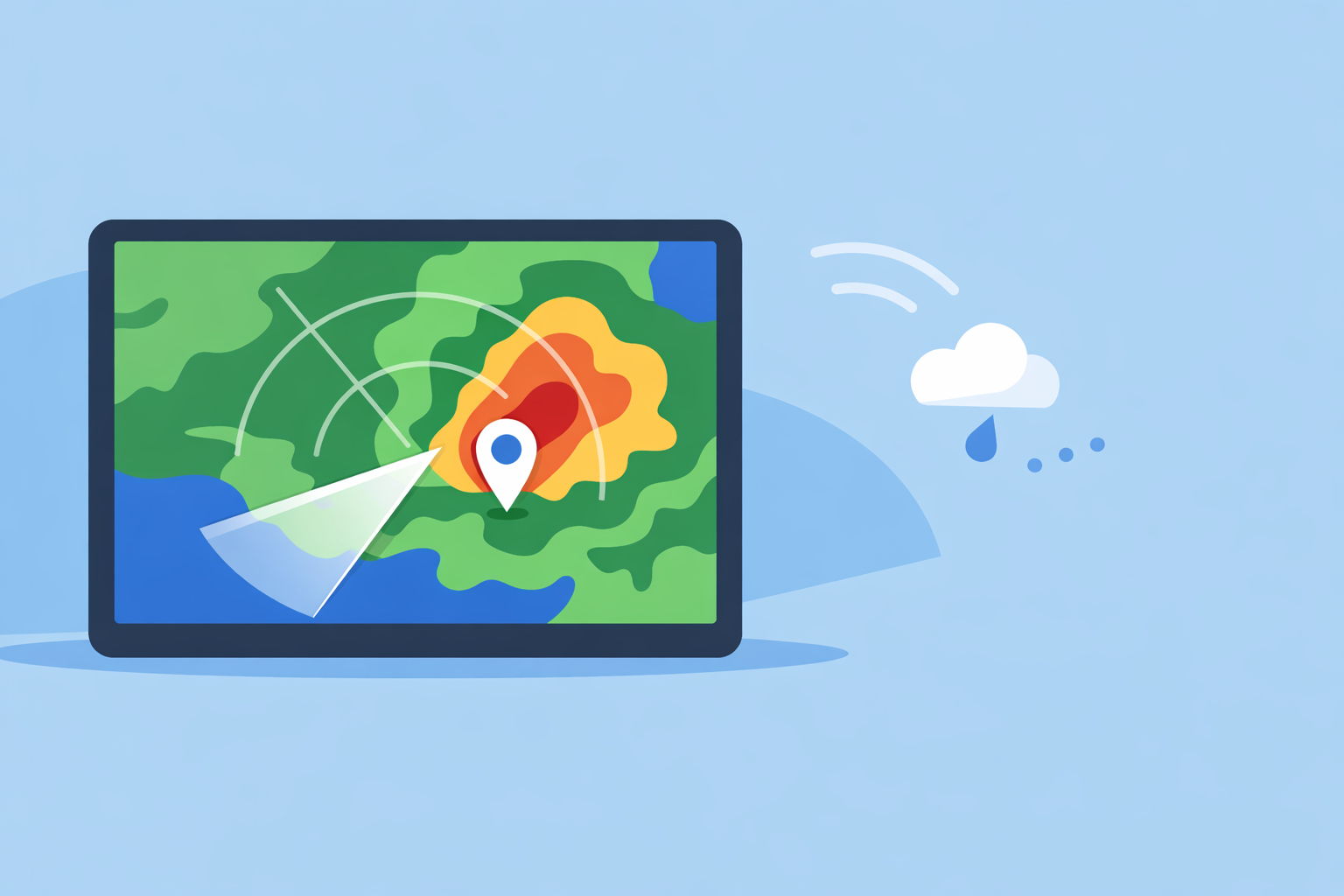
Consumer storm‑radar apps—including Clime—take those raw government data feeds and turn them into a colorized map you can read at a glance. The colors typically mean:
- Light greens/blues – lighter rain or snow
- Yellows/oranges – moderate to heavy precipitation
- Reds/purples – very heavy rain, hail potential, or intense storm cores
At Clime, we build on that radar view with layers that matter most when storms are in play—severe weather alerts, rain alerts, lightning, and hurricane tracking—so you’re not just seeing “it’s raining,” but also “this is a dangerous storm” or “this cell has lightning embedded.” (Clime on App Store)
How often does storm radar update—and why does that matter?
A common assumption is that radar is “real‑time.” In practice, there’s always a small delay.
NEXRAD uses different scan patterns depending on whether the skies are quiet or stormy. In precipitation mode, the radar completes a full volume scan of the atmosphere roughly every 4–6 minutes; in clear‑air mode, updates can be closer to 10 minutes. (NWS Melbourne) The National Weather Service’s own radar loops typically auto‑refresh every five minutes. (NWS)
Every consumer app, including Clime, is downstream of that reality. Apps can’t show you storms any fresher than what the radars and NOAA servers are providing—they can only control how quickly they ingest and redraw the data.
What this means for you:
- Expect a few minutes of lag. The storm you see on the screen is slightly “in the past,” especially during explosive severe weather.
- Use motion, not single frames. Watch the loop animate; you care more about the trend and speed than any single still image.
- Zoom to your area, then out. Zoomed‑in views help with street‑level context; zoomed‑out views show the big‑picture motion of the storm complex.
Clime leans into this by making the radar loop the center of the experience, so you can open the app and immediately see where the line of storms is relative to you—without digging through extra menus. (Clime)
How should you read radar during thunderstorms, hail, and tornado setups?
You don’t need to be a meteorologist to get value from storm radar, but a few rules of thumb go a long way.
1. Focus on the leading edge of the storm. That’s where gust fronts, strongest winds, and sudden downpours often occur. On radar, the leading edge is where the greens turn to yellows/reds approaching your location.
2. Watch for fast‑moving, bowing lines. Lines of storms that bow outward can be associated with strong straight‑line winds. If the line is racing toward you on the loop, assume arrival sooner rather than later.
3. Heavy cores over the same spot mean flooding risk. If bright reds and purples are repeatedly passing over the same area on the loop, that’s a sign of training storms and possible flash flooding.
4. Use alerts to catch what your eyes might miss. On Clime, paid tiers unlock severe weather alerts for all your saved locations and rain alerts, so you get a push notification even if you’re not staring at the radar at the right moment. (Clime on App Store)
For tornadoes and large hail, professional‑grade radar products—like velocity and dual‑polarization diagnostics—live closer to the original NEXRAD data. Those are exposed through specialized tools and NOAA products, not mainstream consumer apps. (NCEI) For most people, however, seeing a strong storm core overhead plus a tornado or severe thunderstorm warning in Clime is the actionable signal: seek shelter, don’t argue with the pixel colors.
How accurate is “future radar” for short‑term storm tracking?
Many U.S. apps now show some form of “future radar”—a projection of how the radar might look over the next hour or more.
- The Weather Company’s Storm Radar app, for example, advertises six hours of global “future radar” with customizable overlays for wind, temperature, lightning, and tropical systems. (Storm Radar)
- AccuWeather describes its radar as showing the location, type, and recent movement of precipitation, and has historically promoted future‑radar layers alongside its other maps. (AccuWeather radar)
These tools are helpful for planning—but they’re still model output, not actual radar. In the first 30–90 minutes, future radar can often give a reasonable sense of whether storms will hold together and roughly when a line might arrive. Beyond that, small errors in storm speed, growth, or decay compound quickly.
How to use future‑style guidance wisely:
- Treat anything beyond an hour or two as scenario guidance, not a promise.
- In active severe weather, refresh often and compare the projection against the latest real radar frame.
- Let alerts and live radar (like the view in Clime) drive life‑and‑property decisions; use future radar more for “when should I leave work” or “can I get this run in before storms?”
At Clime, we prioritize giving you a clean live radar loop plus forecast views (today, hourly, 10‑day) so it’s obvious what’s actually happening and what’s forecast, rather than blending the two into a single, potentially misleading animation. (Clime)
What primary data feeds do storm‑radar apps actually use?
Despite very different branding, U.S. storm‑radar apps have more in common under the hood than most people realize.
- NEXRAD / NOAA: The backbone. This is the official Doppler radar network that feeds the National Weather Service radar portal and Level‑II/Level‑III data products. (NCEI)
- NWS web radar: The radar.weather.gov site shows “standard radar” loops that auto‑update roughly every five minutes; many app backends ingest similar NWS composites. (NWS)
- Vendor‑specific blends: Some platforms add their own modeling, satellite blends, or custom overlays on top of the basic government radar.
In practical terms:
- At Clime, the core radar map is built around NOAA‑sourced radar mosaics, then layered with forecasts, wildfire hotspots, and lightning where available. (Clime)
- The Weather Channel and Storm Radar consume radar and satellite data as part of their Premium Radar and overlay stack, adding things like windstreams and snowfall projections in their paid tiers. (weather.com Premium)
- AccuWeather combines NWS radar with its own forecast systems to show precipitation type and movement, along with satellite‑based maps for tropical storm tracking over water. (AccuWeather radar)
- Windy.app leans more on weather models and documents radar update rates around 5–15 minutes, but positions live radar as a developing feature rather than its main focus. (Windy.app guide)
For most U.S. users, the key takeaway is that you’re largely choosing presentation and features, not a radically different radar feed. This is why many people settle on one primary app—like Clime—then occasionally cross‑check a second source during big events.
Which storm‑tracking features are free vs paid in everyday apps?
Storm‑radar tools are increasingly split between free, ad‑supported basics and paid layers aimed at enthusiasts.
Here’s a practical way to think about it without memorizing every plan grid:
Typically free in many apps (including Clime):
- A basic animated radar loop centered on your location
- Pan/zoom across the U.S. and much of the world
- Simple forecast views (today, hourly, 10‑day in Clime) (Clime)
Typically on paid plans (Clime and others):
- Extra map layers: lightning, hurricanes, advanced overlays
- More granular or location‑wide severe weather alerts
- Fewer or no ads while viewing radar
On Clime, paid access unlocks severe weather alerts for all saved locations, rain alerts, a hurricane tracker, a lightning tracker, and an ad‑free radar experience. (Clime on App Store) The Weather Channel and AccuWeather similarly reserve some advanced or extended radar layers—like multi‑day future radar or special map types—for paying users. (weather.com Premium)
For most households, the decision comes down to whether you want passive protection (reliable alerts without having to remember to check the map) and specialty layers like hurricanes and lightning. If you do, using Clime on a paid plan for those features is usually simpler than juggling multiple apps and toggling between free tiers.
When should you add specialized tools on top of Clime?
A single, radar‑centric app covers the majority of situations: summer thunderstorms, winter systems, travel days, and basic severe weather monitoring.
There are a few cases where adding other tools on top of Clime makes sense:
- Long‑fuse severe weather days: If the Storm Prediction Center is talking about big outbreaks, some weather‑savvy users like to pair Clime with other platforms’ future‑radar views for additional perspective.
- Marine and wind sports: Sailors, surfers, and kiteboarders often keep a dedicated wind/wave app such as Windy.app for sport‑specific parameters, while relying on Clime for storms and lightning around their route or spot. (Windy.app)
- Nerding out on radar structure: If you’re learning to interpret detailed velocity, dual‑pol products, or official storm‑tracking diagnostics like hail index and mesocyclone signatures, you’ll end up exploring specialized NEXRAD viewers in addition to your day‑to‑day app. (NCEI)
For everyone else, the more important upgrade is usually not another app—it’s building a simple workflow:
- Save your home, work, school, and a couple of relatives’ locations in Clime.
- Turn on alerts and verify notifications are allowed on your phone.
- In storm season, check the radar loop before long drives, outdoor events, or late‑day practices.
That kind of routine matters more to safety than chasing marginal differences between one vendor’s “future radar” and another’s.
What we recommend
- Use Clime as your default radar‑for‑storms app in the U.S., since it centers on a live NOAA‑based radar map with storm‑specific layers and straightforward forecasts. (Clime)
- Treat radar as slightly delayed reality: watch the loop, not a single frame, and pair it with severe weather alerts rather than relying only on your own interpretation.
- If you regularly face hurricanes, lightning‑heavy seasons, or flash‑flood‑prone storms, consider Clime’s paid features for lightning, hurricane tracking, wildfire hotspots, and multi‑location alerts.
- Add niche tools only if you have specialized needs (marine sports, storm‑chasing, or professional meteorology); for most people, a well‑set‑up Clime install is more than enough for smart, timely storm decisions.