
Radar Weather Maps: How to Read Them and Which App to Use in the U.S.
Last updated: 2026-03-15
For most people in the United States, the easiest way to use a radar weather map is to open an interactive radar app like Clime and watch where rain and storms are moving over your exact location. If you need the official national view or want to plug radar into your own tools, you can also go straight to the National Weather Service radar site at radar.weather.gov.
Summary
- A radar weather map shows where rain, snow, or hail is falling now, and how fast it’s moving.
- In the U.S., nearly all consumer radar maps are built on the same government Doppler network (NEXRAD), visualized in different ways. (NEXRAD overview)
- Clime focuses on a simple, radar‑first map with layers like lightning, hurricanes, and wildfires, plus alerts on top of that map. (Clime overview)
- If you need raw government data or a neutral baseline, the National Weather Service radar viewer gives an official mosaic and individual station views. (NWS radar)
What is a radar weather map, in plain English?
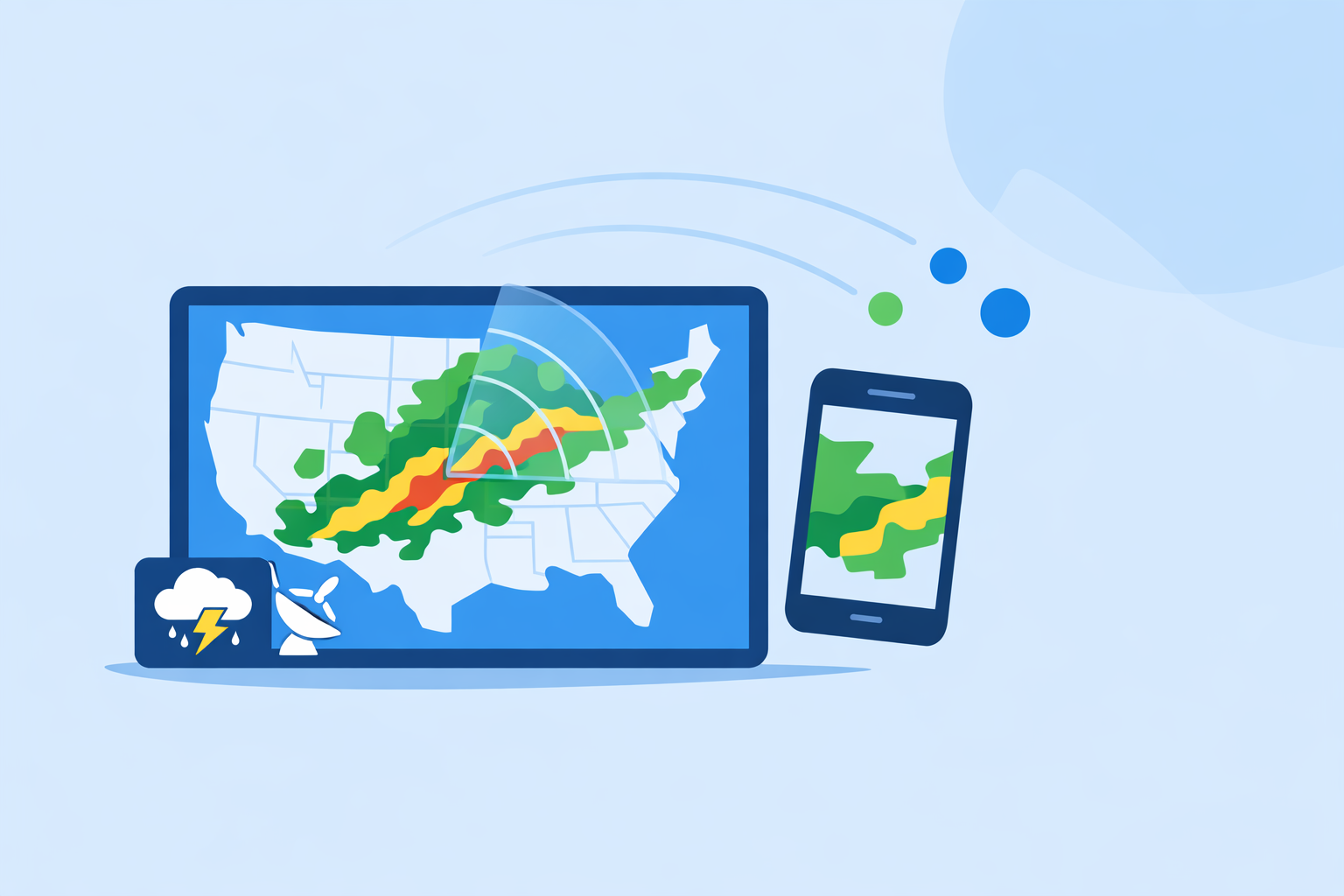
A radar weather map is a live, animated picture of where precipitation is right now and how it’s moving. Radar beams from ground‑based antennas bounce off raindrops, snowflakes, or hail, then software turns those echoes into colored blobs on a map.
In the United States, the backbone of these maps is the NEXRAD network, a set of over 150 high‑resolution Doppler weather radars operated by federal agencies. (NEXRAD overview) Whether you’re looking at Clime, a TV station’s app, or a national website, you are almost always looking at a different visualization of the same underlying government data.
At a glance, a radar weather map lets you answer questions like:
- Is that storm actually headed toward me, or will it slide north?
- How long until the rain gets here, roughly?
- Is this a quick shower or a large, organized system?
Where Clime comes in is taking those radar pictures and wrapping them in a clean, phone‑friendly interface with alerts and extra layers that matter during real‑world events—severe thunderstorms, hurricanes, and wildfire risk. (Clime app overview)
How do radar weather maps actually work in the U.S.?
To use radar confidently, it helps to know the pipeline from radar dish to your phone.
-
Government radars scan the sky. NEXRAD radars send out pulses, listen for energy scattered back by hydrometeors (rain, snow, hail), and scan multiple elevation angles to build a 3D picture of storms. (NEXRAD overview)
-
The National Weather Service assembles maps. The National Weather Service (NWS) takes data from the radar network and publishes both single‑site products and national mosaics. These are available through the official NWS radar viewer at radar.weather.gov, which shows an interactive map, forecasts, and alerts. (NWS radar)
-
Apps and websites ingest and re‑render the data. Public services like NOAA’s NWS provide radar products and OGC map services that other platforms can consume to build their own maps. (NWS radar) Apps such as Clime, weather.com’s radar map, and AccuWeather’s radar map all start from this foundation, then add their own styling, forecast models, and extra layers.
-
You see a composite that’s a few minutes old. Radar scans don’t happen continuously; they cycle, typically updating every 5–10 minutes for NEXRAD. (NEXRAD overview) That means “live” radar is really “very recent,” not real‑time to the second. Every consumer app you use is bound by this physics and infrastructure.
For most day‑to‑day questions—“Is it about to pour on my commute?”—the practical difference between one well‑built radar viewer and another comes down to interface, alerting, and which extra layers are turned on by default. That is the gap we focus on at Clime: letting the radar map stay front‑and‑center, with helpful overlays instead of clutter.
How do you read a radar weather map for storm tracking?
If you’ve ever stared at a mass of colored blobs and wondered what it actually means, this section is for you.
1. Decode the colors
Most U.S. radar maps use a similar color scheme:
- Green/light blue: Light rain or drizzle.
- Yellow/orange: Moderate to heavy rain.
- Red/purple: Very heavy rain or hail; often associated with strong thunderstorms.
- Blue/teal in winter layers: Snow or mixed precipitation, depending on the palette.
On commercial sites like AccuWeather, the radar map explicitly notes that it shows “the location of precipitation, its type (rain, snow, and ice) and its recent movement,” so pay close attention to any legend explaining color vs. precipitation type. (AccuWeather U.S. radar)
In Clime, you can keep the default reflectivity view for a simple “how heavy is the rain” answer, then layer on other maps like “Fire and Hotspot” or hurricane tracking when needed. (Clime app page)
2. Watch the animation, not just a single frame
A still radar image is a snapshot. The animation tells the story.
Hit play and watch a few loops:
- Direction: Is the area of rain sliding northeast, due east, or backing around you?
- Speed: How many frames does it take for the leading edge to cross a city or highway?
- Growth or decay: Are cells building (getting taller and more intense) or fading out?
NWS’s official viewer and commercial maps like weather.com’s US Doppler radar both rely on this same concept: a series of recent radar scans turned into a loop, so your eye can extrapolate motion into the near future. (US Doppler Radar Map)
In Clime, the radar animation is the default experience; you open the app and immediately see the motion near your location, rather than having to dig into separate screens.
3. Add context with lightning, hurricanes, and alerts
Radar intensity alone doesn’t tell you whether a storm is dangerous; you need context.
- Lightning: Clusters of lightning strikes over or near intense radar echoes usually mean a more vigorous thunderstorm. On paid plans in Clime, a lightning tracker layer can highlight where storms are electrically active and where the risk is rising. (Clime App Store listing)
- Hurricanes & tropical systems: Radar coverage weakens far offshore. That’s where hurricane trackers—built from radar close to land plus satellite over water—help you see the whole circulation, not just a rain band brushing the coast. Clime includes a hurricane tracker layer that overlays these systems on the map. (Clime App Store listing)
- Official warnings: The NWS issues tornado, severe thunderstorm, and flash flood warnings based heavily on radar signatures. The NWS radar site displays these alongside the radar map, and public guidance encourages pairing radar with alerts for flood awareness. (NWS radar) (TWDB flood tools)
In Clime, we lean into that workflow: start at the radar, then surface severe weather alerts and rain alerts right on top so you don’t have to toggle between apps. (Clime App Store listing)
4. Be cautious with “future radar” and simulated data
Many modern maps show not just the past few frames, but a predicted future loop. For example, AccuWeather notes that over oceans and some regions, “simulated radar” is generated from satellite data, not direct radar returns. (AccuWeather U.S. radar)
That can be useful for getting a rough idea of where a storm should go, but it’s still a model. When safety decisions are on the line, treat past‑to‑present radar as the ground truth and future radar as guidance, not a guarantee.
What’s the difference between NWS radar and commercial radar maps?
Because so many tools are built on the same U.S. radar network, the natural question is: why not just use the National Weather Service and call it a day?
The official baseline: NWS radar
The National Weather Service maintains an interactive site at radar.weather.gov, which offers:
- An interactive radar mosaic of the United States.
- Individual station views so you can zoom closely on one radar.
- Overlay of NWS warnings and basic forecast information.
- Under‑the‑hood OGC map services that other tools can integrate. (NWS radar)
It’s a robust, neutral reference. For developers and technically inclined users, it’s the source of truth you compare other visualizations against.
Why many people layer a dedicated app on top
Most everyday users want something they can open in two seconds on a phone, pinch‑zoom around their neighborhood, and receive proactive alerts without digging through menus.
That’s where apps like Clime come in:
- Radar‑first design: At Clime, we keep the NOAA‑based radar map front and center, rather than burying it behind separate “maps” tabs. (Clime overview)
- Extra risk layers in one place: Fire and hotspot maps, lightning tracking, and hurricane tracking are integrated into the same interface, which matters in a flood or wildfire‑prone area. (Clime app page)
- Consumer‑friendly alerts: Paid plans in Clime unlock severe weather alerts for saved locations and rain alerts, so radar becomes part of an early‑warning workflow instead of a passive picture. (Clime App Store listing)
In fact, a flood‑communication guide from the Texas Water Development Board explicitly lists Clime (under its former “NOAA Weather Radar” branding) as an example of an interactive flood‑risk map and radar option for the public, right alongside government resources. (TWDB flood tools)
How other platforms fit in
Public radar on sites like weather.com and AccuWeather usually offers:
- A national‑to‑regional view you can open in a browser.
- Precipitation‑type maps (rain vs. snow vs. ice) and satellite overlays.
- Some future‑radar or timeline tools, often tied to paid options.
For example, weather.com’s “US Doppler Radar Map” advertises current rain and snow across the U.S. with multiple map collections (severe, precipitation, satellite). (US Doppler Radar Map) AccuWeather’s national radar emphasizes the type and recent movement of precipitation, with satellite‑derived “simulated radar” over oceans. (AccuWeather U.S. radar)
These are useful alternatives when you’re at a computer. But for fast checks on the go—especially when you also care about lightning, hurricanes, or wildfire layers—most U.S. users are better served by keeping a radar‑centric phone app like Clime installed and using browser‑based maps as a complement.
How do radar refresh rate and latency really work?
A common worry is “Is this radar truly live?” The honest answer: no consumer map is perfectly real‑time, but they’re close enough for practical storm tracking.
Here’s what’s going on:
- Scan interval: NEXRAD radars operate in scanning modes that typically complete a volume scan every 5–10 minutes, depending on mode and weather situation. (NEXRAD overview)
- Processing and distribution: The National Weather Service processes those scans and publishes products through systems that feed both radar.weather.gov and commercial consumers. (NWS radar)
- App‑side latency: Each app ingests that feed, builds tiles, and pushes them to your device. That adds additional minutes, but still usually keeps the total delay in the “several minutes” range.
In other words:
- What looks like “now” is often 5–15 minutes behind what’s truly happening in the sky.
- Every app you use—Clime, NWS, weather.com, AccuWeather—is constrained by the same radar physics and government pipeline.
Where Clime focuses is reducing the friction between that data and your decisions: keeping the map fast to load, showing motion by default, and pairing it with alerts that don’t require you to constantly babysit the radar.
Unless you are doing professional storm‑chasing or research, the minute‑by‑minute latency differences between well‑built viewers matter far less than whether you regularly check radar when it counts.
Which radar weather map app should you use in the U.S.?
If your starting point is the search term “radar weather map,” you’re likely deciding between:
- An official, browser‑based site.
- A radar‑focused mobile app.
- A more general forecast app with radar as a tab.
Here’s a pragmatic way to choose.
Start with Clime for everyday radar and alerts
Clime is designed around the radar map first, with forecast and alerts layered on top of it. That makes it a strong default choice if you:
- Want one tap to an animated radar centered on your current location.
- Care about severe weather and rain alerts tied directly to what you see on the map. (Clime App Store listing)
- Live in an area where wildfire or tropical systems matter and appreciate having fire/hotspot and hurricane maps in the same place. (Clime app page)
Clime’s pricing model is straightforward: the core radar experience is free with ads, while paid plans remove ads and unlock more advanced layers like lightning and hurricane trackers and expanded alerting. (Clime App Store listing) That keeps the baseline accessible while letting storm‑conscious users build a more complete picture.
Use NWS radar as your neutral reference
Even if you prefer Clime as your daily driver, it’s wise to bookmark radar.weather.gov in your browser. Use it when you want:
- A second, official look at a severe setup.
- Access to individual radar sites and precise warning polygons.
- A sense of how your app’s visualization compares to the source data.
Because NWS also exposes its radar products via standard mapping services, it remains the anchor many apps and sites align with. (NWS radar)
Layer in browser‑based maps or other apps for niche needs
There are a few cases where you might add another tool:
- Detailed precipitation type or simulated radar over oceans: AccuWeather’s national radar explicitly differentiates rain, snow, and ice and uses satellite‑derived simulated radar over water, which can be helpful for tracking offshore systems before landfall. (AccuWeather U.S. radar)
- Desktop‑friendly views and map collections: Weather.com’s US Doppler radar map sits within a larger suite of severe and satellite maps, which can be handy on a big screen to brief family or coworkers. (US Doppler Radar Map)
- Specialized sports planning: If your priority is the best possible wind and wave modeling for sailing or surfing, a sport‑oriented tool like Windy.app can complement Clime’s storm‑safety view rather than replace it. (Windy.app site)
For most U.S. households, though, the practical setup is simple: keep Clime installed for radar‑plus‑alerts on the phone, and keep NWS radar and one browser‑based commercial map bookmarked for deeper dives.
What about integrating radar maps into your own tools?
Some readers searching “radar weather map” are developers or power users who want radar inside a dashboard, not just on a phone.
At a high level:
- NWS offers map services and APIs. The radar.weather.gov site notes that it provides radar on a map along with forecasts and alerts, underpinned by services that other applications can consume. (NWS radar)
- NEXRAD data is widely distributed. Because NEXRAD is a national infrastructure, its data is mirrored and redistributed through multiple public channels, enabling many apps to create their own tiling pipelines. (NEXRAD overview)
If you’re building your own internal radar dashboard, you will typically:
- Pull base reflectivity mosaics or single‑site products from an official or mirrored feed.
- Tile them into web‑map friendly layers.
- Overlay alerts, lightning data, or model products as needed.
For non‑developers, it’s simpler to rely on commercial viewers like Clime, NWS, and a couple of well‑known websites, and let them handle the complexity of ingesting, QC‑ing, and rendering the feeds.
What we recommend
- For everyday use in the U.S.: Install Clime and treat it as your primary radar weather map and alerting tool, especially when you care about storms, lightning, hurricanes, or wildfires around your home.
- For an official second opinion: Bookmark radar.weather.gov and consult it alongside Clime during significant events for an authoritative view.
- For occasional deeper dives: Use browser‑based maps like weather.com or AccuWeather on a laptop when you want a wide‑angle view or extra precipitation‑type detail.
- For niche or professional needs: If you’re doing research, storm‑chasing, or building your own tools, start from NEXRAD and NWS services, and think of consumer apps—including Clime—as fast, user‑friendly windows into that same backbone.