
Mastering Resort Weather Forecasts on Your Apple Watch
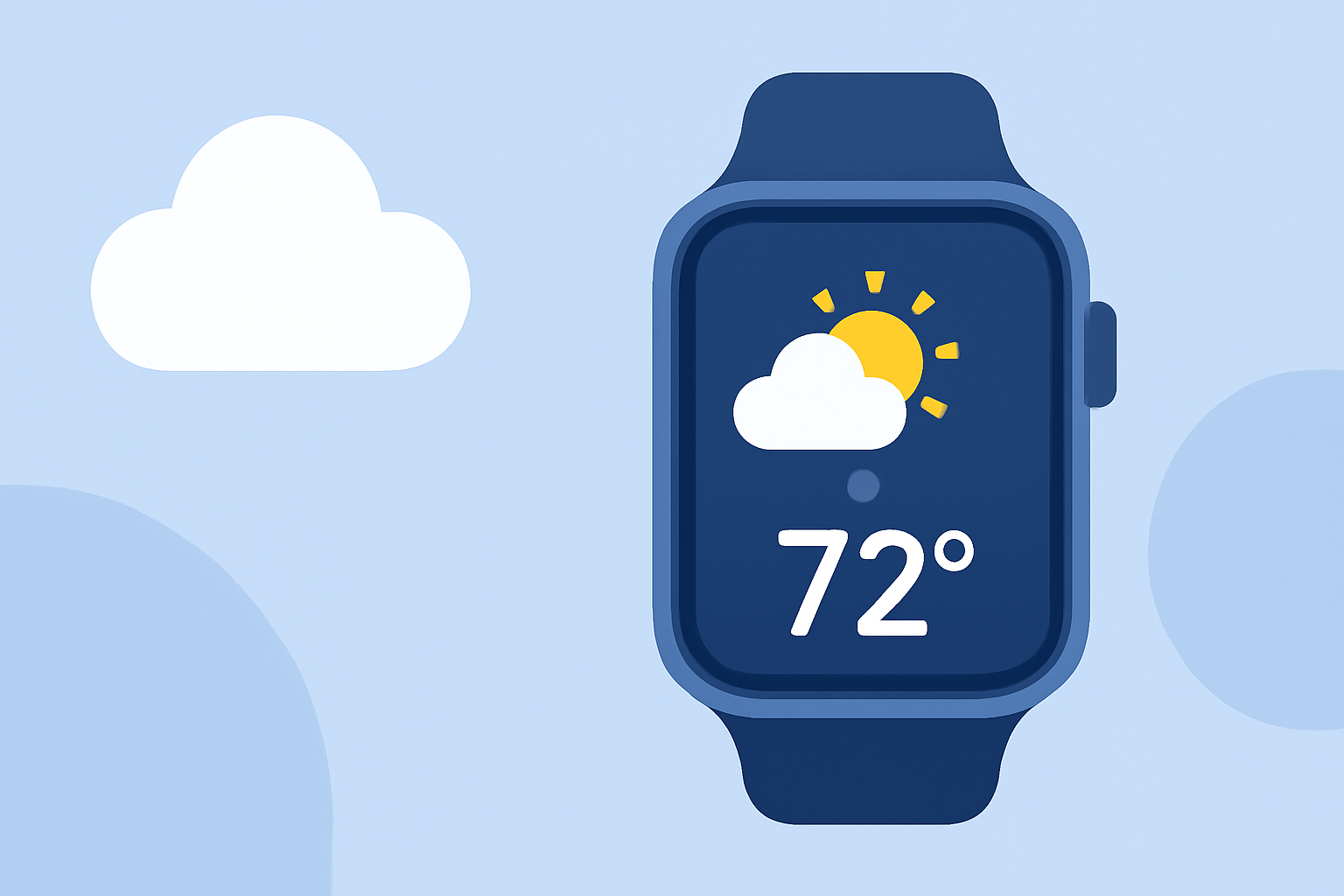
Planning a trip to a resort involves anticipating the weather to make the most of your experience. With your Apple Watch, you can conveniently access up-to-date weather information for any resort destination. Here's how to set up and utilize your Apple Watch for resort weather forecasts:
1. Setting Up Resort Locations on Your Apple Watch
To receive accurate weather updates for your chosen resort:
-
Add Resort Locations: Open the Weather app on your iPhone, tap the '+' icon, and enter the resort's name to add it to your list of locations. This ensures your Apple Watch syncs with the latest weather data for that resort.
-
Set Default Location: On your iPhone, navigate to Settings > Weather > Default City, and select your preferred resort. This sets it as the default location for quick access on your Apple Watch.
2. Accessing Resort Weather Information
With your resort added and set as the default, you can easily check its weather details:
-
Using the Weather App: Press the Digital Crown on your Apple Watch to open the Weather app. Your default resort's current conditions, including temperature, precipitation, wind speed, and UV index, will be displayed.
-
Using Siri: Activate Siri by saying, "Hey Siri, what's the weather like in [Resort Name]?" Siri will provide the current weather conditions for that location.
3. Viewing Detailed Forecasts
For more comprehensive weather information:
-
Hourly Forecast: In the Weather app on your Apple Watch, scroll down to view the hourly forecast, which includes conditions and temperatures for the next 12 hours.
-
10-Day Forecast: Further down, you'll find the 10-day forecast, offering a broader outlook on upcoming weather patterns.
4. Utilizing Weather Complications on Your Watch Face
To have resort weather information readily available:
- Add a Weather Complication: Press firmly on your watch face, tap 'Customize,' and select a complication slot. Turn the Digital Crown to choose the Weather complication, which will display the current temperature and conditions for your default resort.
5. Troubleshooting Common Issues
If your Apple Watch isn't displaying weather information correctly:
-
Check Connectivity: Ensure your Apple Watch is connected to your iPhone via Bluetooth and has access to Wi-Fi or cellular data.
-
Enable Location Services: On your iPhone, go to Settings > Privacy & Security > Location Services, and make sure it's turned on for both the Weather app and Apple Watch Faces.
-
Update Software: Verify that both your iPhone and Apple Watch are running the latest versions of iOS and watchOS, respectively.
By following these steps, you can effectively monitor resort weather forecasts directly from your Apple Watch, ensuring you're always prepared for your next adventure.