
Setting Up Weather Widgets for Multiple Locations: A Step-by-Step Guide for Commuters
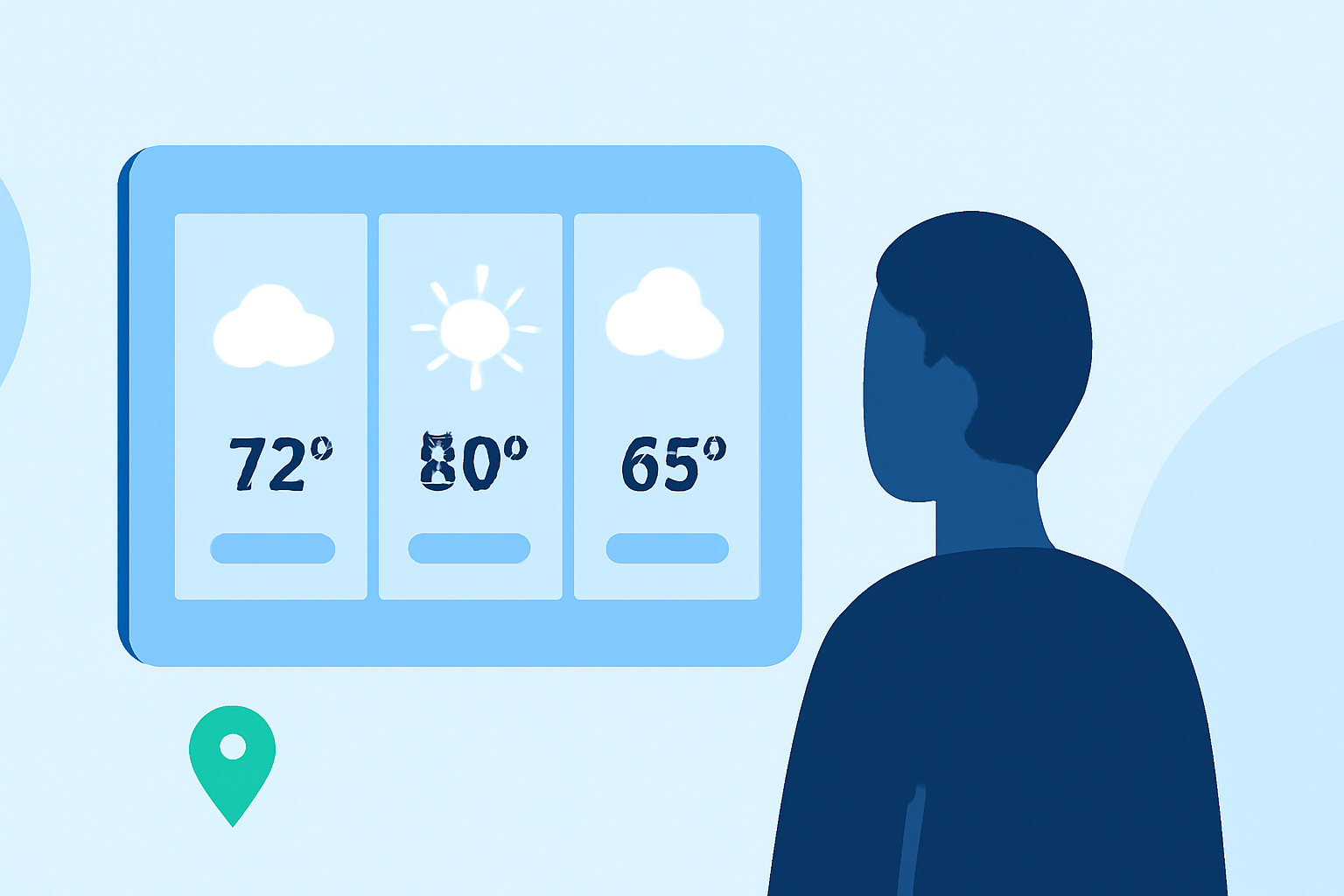
As a commuter, staying informed about weather conditions along your route is essential. Configuring weather widgets to display multiple locations can provide real-time updates for various areas you travel through. Here's how to set up weather widgets for multiple locations on your device:
For iPhone Users:
- Add Multiple Locations in the Weather App:
- Open the Weather app.
- Tap the list icon (three horizontal lines) at the bottom right.
- Tap the plus (+) icon to add a new location.
- Enter the city name or ZIP code and select the desired location.
- Repeat this process for each location you want to monitor.
- Add the Weather Widget to Your Home Screen:
- Long-press on an empty space on your home screen.
- Tap Widgets.
- Scroll to find the Weather widget.
- Choose the widget size and tap Add Widget.
- Customize the Widget to Display Multiple Locations:
- Long-press the Weather widget on your home screen.
- Tap Edit Widget.
- In the Location field, select Multiple Locations.
- Choose the locations you added earlier.
- The widget will now display weather information for all selected locations.
For Android Users:
- Add Multiple Locations in the Weather App:
- Open the Weather app.
- Tap the menu icon (three horizontal lines) or plus (+) icon.
- Enter the city name or ZIP code and select the desired location.
- Repeat this process for each location you want to monitor.
- Add the Weather Widget to Your Home Screen:
- Long-press on an empty space on your home screen.
- Tap Widgets.
- Scroll to find the Weather widget.
- Choose the widget size and tap Add Widget.
- Customize the Widget to Display Multiple Locations:
- Long-press the Weather widget on your home screen.
- Tap Settings or Edit.
- In the Location or Cities section, select the locations you added earlier.
- The widget will now display weather information for all selected locations.
Alternative Solutions:
If your device's default weather widget doesn't support multiple locations, consider using third-party weather apps that offer this feature. Many of these apps provide customizable widgets that can display weather information for multiple locations simultaneously.
By setting up weather widgets for multiple locations, you can ensure you're always prepared for your commute, regardless of the weather conditions along your route.