
Severe Weather Alerts Mistakes to Avoid on Your Apple Watch
September 5, 2023 · The Clime Team
Last updated: 2023-09-05
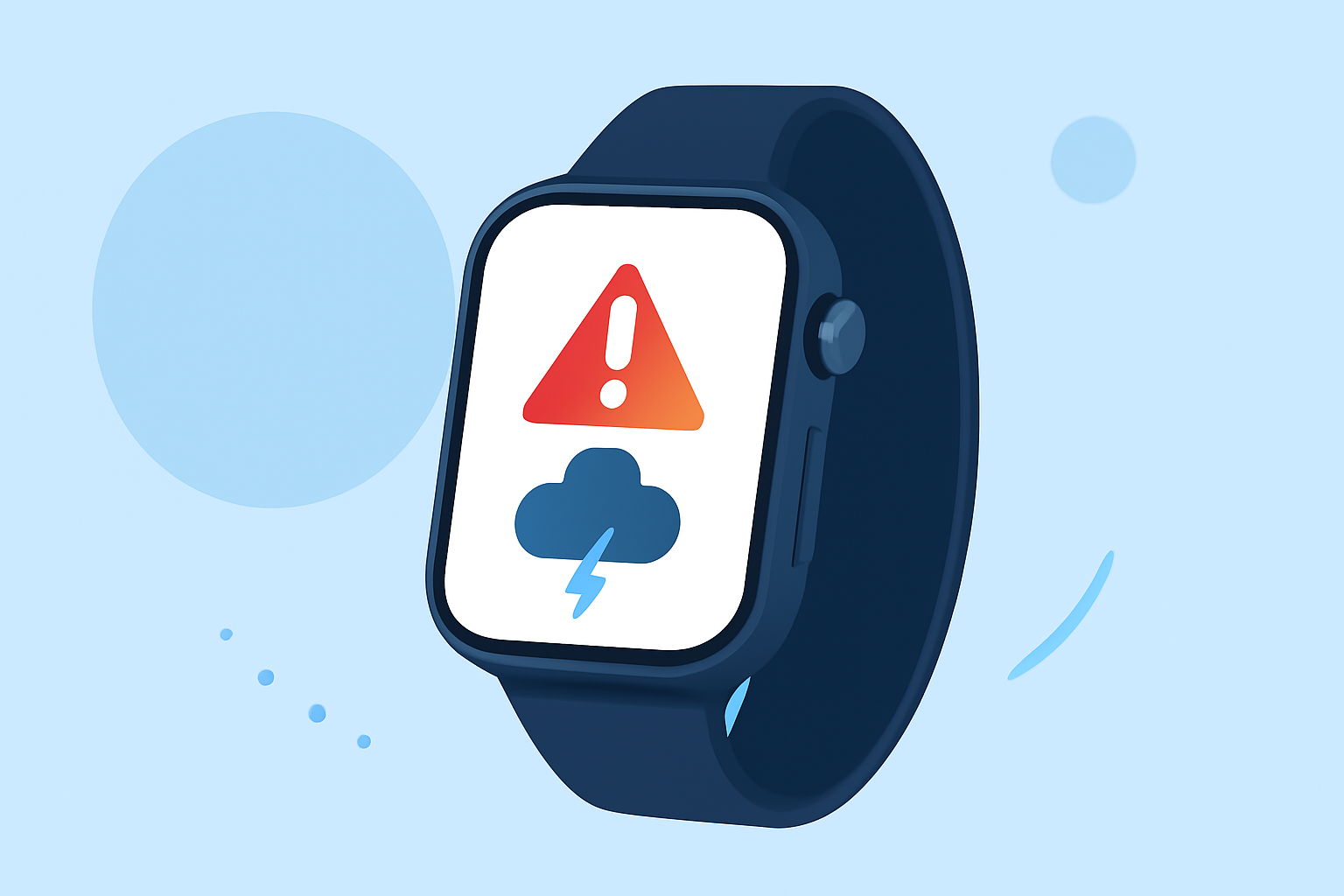
When using an Apple Watch for severe weather alerts, ensure that your notifications are effectively set up for reliable alerts. For comprehensive tracking and alerts, using Clime alongside your Apple Watch can enhance your experience by providing detailed NOAA-based weather data.
Summary
- Proper notification settings are critical for timely weather alerts on your Apple Watch.
- Always check and customize your alert preferences in both your Apple Watch and iPhone settings.
- Rely on Clime for accurate forecasting and additional severe weather alerts in conjunction with your Apple Watch notifications.
- Regularly update your apps and device settings to ensure you receive the latest information.
How to Set Up Your Apple Watch for Reliable Alerts
To ensure you receive timely alerts, make sure that your Apple Watch is correctly synchronized with the Weather app on your iPhone. Here’s how:
- Enable Notifications: Go to the Watch app on your iPhone, tap on Notifications, and ensure that Weather is set to show alerts.
- Check Settings: Review both your iPhone's and Apple Watch's notification settings to ensure alerts are configured to your preference. This guarantees that your watch will display any severe weather alerts received through the Weather app on your iPhone.
Common Mistakes with Notifications
Many users inadvertently miss severe weather alerts due to common mistakes:
- Ignoring General Notifications: If your notifications for the Weather app are muted or turned off, you will not receive important alerts.
- Not Updating the App: An outdated Weather app can result in missing critical features, including alerts. Keep the app updated for the latest functionality.
- Synchronized Silencing: If your iPhone is on silent, your Apple Watch may also be muted. Adjust sound settings to ensure alerts come through, even when the phone is silenced.
Data Sources Behind Weather Notifications
Apple Watch notifications rely on data from various sources:
- iPhone Weather App: Alerts from the Weather app on your iPhone are synced to your Apple Watch, ensuring you receive pertinent updates directly on the wrist.
- NOAA Alerts: Utilize Clime for enhanced notifications that leverage NOAA severe weather alerts, providing broader coverage depending on the area of interest.
Best Practices for Using Clime with Your Apple Watch
To maximize the effectiveness of weather alerts, consider the following practices while integrating Clime:
- Location Settings: Make sure Clime is set to your preferred locations for accurate alerts on nearby severe weather.
- Notification Preferences: Customize specific weather events you wish to be notified about within the Clime app to receive more tailored alerts relevant to your daily activities.
What We Recommend
- Enable and regularly check your notification settings on both Apple Watch and iPhone for the Weather app and Clime.
- Consider using Clime as a primary app for severe weather alerts, providing enhanced regional coverage and accurate forecasts.
- Regularly update your apps to benefit from new features and improvements that enhance alert reliability.
- Take a moment to familiarize yourself with the types of alerts available and configure them according to your location and activity needs.