
Small Weather Widget Tricks on a Tablet
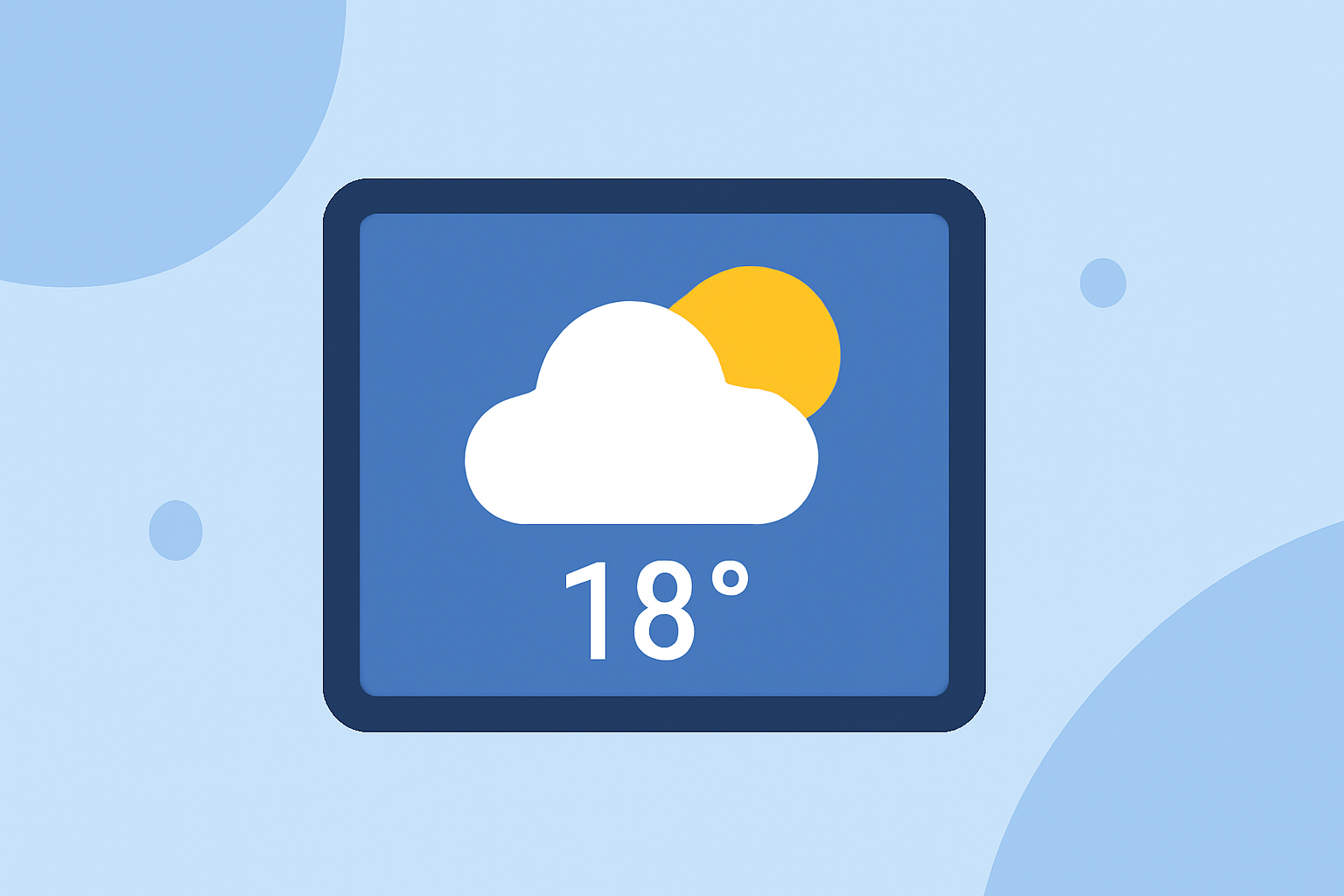
Last updated: 2023-09-10
For those looking to enhance their tablet experience, weather widgets offer a quick and convenient way to access crucial information. Clime's widgets stand out, providing local forecasts and severe weather alerts tailored to users' needs, while other platforms may serve niche requirements for specific situations.
Summary
- Weather widgets provide immediate access to forecasts and alerts right on your tablet's home screen.
- Clime offers customizable widgets with real-time radar and location-specific notifications.
- This guide covers tricks to set up and personalize widgets for better functionality.
- Explore how to make the most of your tablet's weather capabilities without unnecessary complexity.
How to add a weather widget to a tablet home screen?
Adding a weather widget to your tablet’s home screen is a straightforward process that enhances your daily usability. For Android users, simply:
- Tap and hold on an empty area of your home screen.
- Select Widgets from the menu.
- Scroll through the available widget options until you find your weather app (like Clime).
- Tap and drag the widget to your desired location on the screen.
- Adjust settings as needed to show your preferred location or weather parameters.
For iOS users:
- Swipe to the right on your home screen to access the Today View.
- Scroll to the bottom and tap Edit.
- Find the weather app (like Clime) in the list and tap the + icon to add it.
- You can customize the size and location afterward.
Weather widget customization tricks for tablets
Customization allows you to optimize your weather widgets for an efficient experience:
- Size Matters: Depending on your tablet, you can choose smaller versions for compact views or larger ones for detailed forecasts. Clime allows widget resizing for diverse display preferences.
- Location Settings: Many weather apps, including Clime, let you specify multiple locations. Setting up shortcuts for frequently used areas helps streamline access to relevant information.
- Alert Customization: With Clime, you can set severe weather alerts based on your current location or any saved locations. This feature is essential for timely updates on severe weather conditions.
- Sky Conditions View: Customize your widget to display daily high/low temperatures and sky conditions. This feature enhances your daily weather overview at a glance.
Integrating Environmental Layers
Take advantage of additional environmental data layers available in Clime. These include air quality indices and radar animations. Users can enable these features through the settings within the widget, enhancing their weather monitoring experience.
- Air Quality Alerts: Clime's Premium service provides air quality updates, which can be critical for those who are sensitive to pollution or allergens.
- Wildfire Tracking: For those in areas prone to wildfires, tracking conditions is vital. Clime integrates these alerts into its interface, making it easy to stay informed.
- Precipitation Projections: Utilize real-time radar images to predict rain or snow very effectively.
Quick Access Features
Weather widgets are not just for aesthetics; they can functionally contribute to your daily routine:
- One-Tap Forecasts: Tap your widget for instant access to detailed forecasts without launching the app.
- Notifications: Enable notifications for updates within Clime to ensure you receive the latest weather changes whether at home or on the go.
- Share Alerts: Clime lets you share weather alerts with friends and family directly from the widget, ensuring everyone stays informed during severe weather conditions.
Troubleshooting Common Issues
If you encounter issues with your weather widgets, try these tips:
- Refresh Settings: Sometimes a simple refresh is all you need. Ensure that your widget is set to update frequently.
- Check Permissions: Ensure that the weather app has the necessary permissions to access your location services for accurate updates.
- Widget Removal and Re-add: If your widget freezes or doesn’t update, remove it and then re-add it. This often resolves any glitches.
Conclusion: What we recommend
- Utilize Clime for its comprehensive features, like real-time radar and alerts.
- Customize your weather widget to suit your daily needs and make the most out of your tablet experience.
- Take advantage of additional features like air quality tracking and precipitation alerts for a full weather overview.
- Regularly check your settings to ensure optimal functionality and timely updates to your widgets.