
Mastering Small Weather Widgets on Your Apple Watch
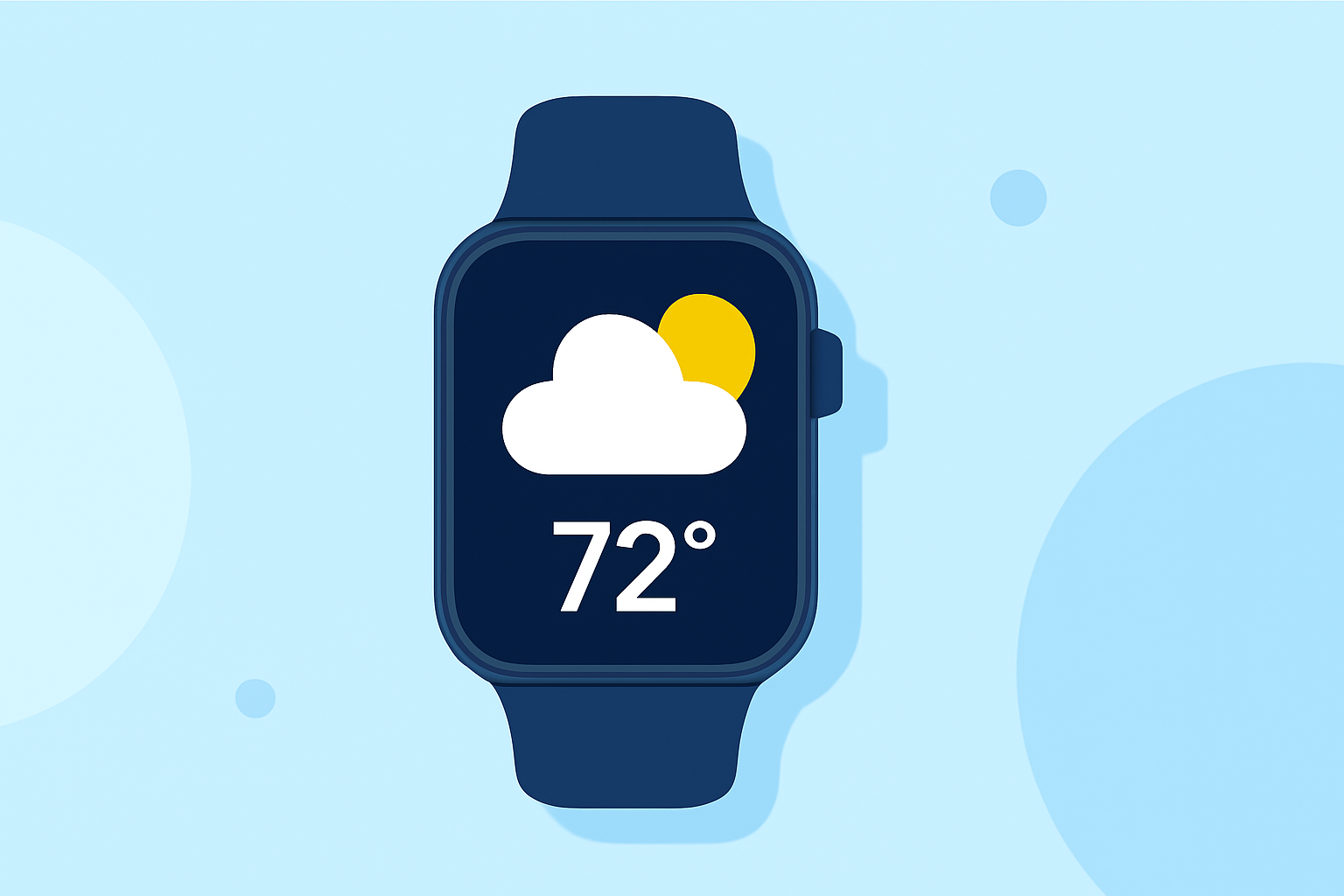
Apple Watch offers a convenient way to access weather information directly from your wrist. By utilizing small weather widgets, you can quickly view current conditions, forecasts, and more without opening the Weather app.
What Are Small Weather Widgets on Apple Watch?
Small weather widgets, also known as complications, are compact elements that display weather information on your Apple Watch face. They provide at-a-glance details such as current temperature, conditions, and forecasts, allowing you to stay updated without navigating through apps.
How to Add a Small Weather Widget to Your Apple Watch Face
- Press Firmly on Your Watch Face: This action will enter customization mode.
- Tap 'Customize': This will allow you to modify your watch face.
- Select the Complication Area: Navigate to the area where you want to add the weather widget.
- Choose the Weather Widget: Scroll through the available complications and select the weather widget.
- Press the Digital Crown: Confirm your selection and exit customization mode.
For a visual guide on adding weather widgets to your iPhone Home Screen, you can refer to this tutorial:
How To Add Weather Widgets To The iPhone Home Screen [iOS 14]
Customizing the Weather Widget's Location
To ensure the weather widget displays information for your preferred location:
- Open the Settings App on Your Apple Watch: Navigate to the Settings app.
- Scroll to 'Weather': Tap on the 'Weather' option.
- Select 'Default City': Choose the city you want to display.
This setting will synchronize across your devices, ensuring consistency in weather information. (support.apple.com)
Using the Smart Stack for Quick Access
With watchOS 10, Apple introduced the Smart Stack, a feature that provides quick access to widgets, including weather updates:
- Access the Smart Stack: Rotate the Digital Crown or swipe up from the bottom of the watch face.
- View Weather Information: The Smart Stack will display the current weather conditions and forecasts.
This feature allows you to stay informed without navigating through multiple apps. (macrumors.com)
Troubleshooting Common Issues
If your weather widget isn't displaying information correctly:
- Check Internet Connectivity: Ensure your Apple Watch is connected to your iPhone, which should have a working Wi-Fi or cellular data connection.
- Verify Location Services: Make sure Location Services are enabled on both your Apple Watch and iPhone.
For more detailed troubleshooting steps, refer to Apple's support page. (support.apple.com)
By effectively utilizing small weather widgets on your Apple Watch, you can stay informed about current and upcoming weather conditions with ease.