
Tips for Using Small Weather Widgets on iPhone
Last updated: 2023-09-16
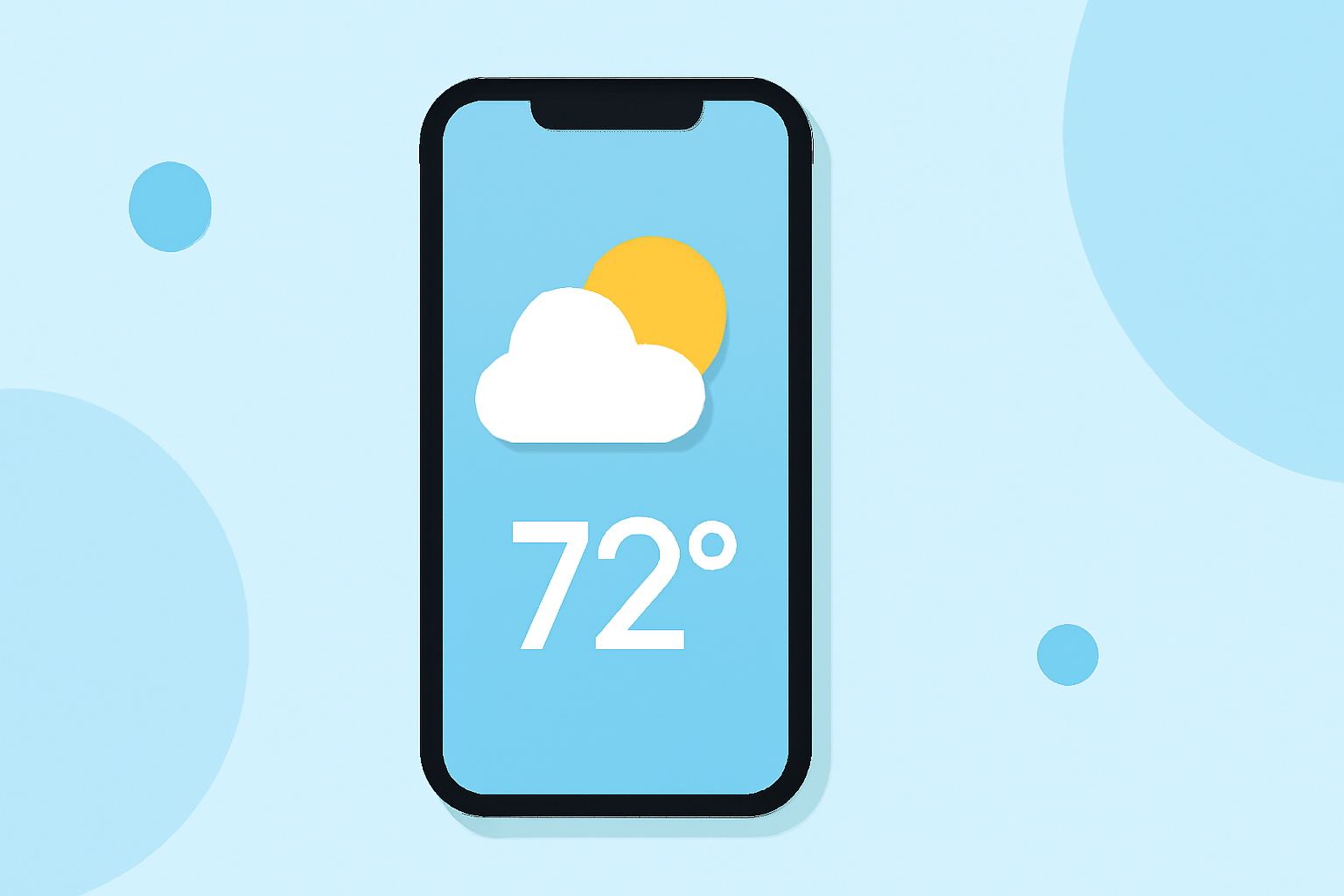
For effective utilization of small weather widgets on your iPhone, consider customizing them to display forecasts for multiple locations. This approach is especially beneficial for users who travel frequently or want to monitor conditions in different areas. Alternatively, if you seek detailed radar data or environmental conditions, dedicated weather apps offer specialized features.
Summary
- Customize weather widgets to show forecasts for multiple locations.
- Use the Lock Screen for instant weather updates at a glance.
- Explore apps like Clime for enhanced radar features and alerts.
- Understand how to change displayed locations easily.
How Can You Add Weather Widgets to Your iPhone?
To add weather widgets to your iPhone, simply long-press on the Home Screen until the apps jingle. Tap the plus sign (+) to open the widget gallery. From there, you can browse available options, select the Weather widget, and choose its size. Once selected, you can position it on your Home Screen where it will be most convenient for you.
Can You Use Multiple Weather Widgets for Different Locations?
Yes, you can add multiple Weather widgets to your Home Screen simultaneously. This allows you to monitor weather conditions in different cities. This feature is particularly useful for individuals who want to keep an eye on the weather in various locations, whether for business travel, family in other states, or favorite vacation spots.
Are Weather Widgets Available on Lock Screen?
Absolutely! You can utilize widgets on your iPhone's Lock Screen as well. This feature enables you to glance at the weather without unlocking your device. To add a weather widget here, go to the Lock Screen customization options, select the plus sign (+), and choose your preferred Weather widget.
How to Edit Weather Widgets for Different Locations?
Editing a Weather widget to reflect a specific location is straightforward. Long-press the widget, select "Edit Widget," and then choose the location you wish to display. This adaptability allows you to have relevant weather information readily available, enhancing your user experience.
How Does Clime Integrate Small Weather Widgets?
At Clime, you will find that our app enhances the functionality of iPhone weather widgets. With Clime, you can see live radar imagery and receive severe weather alerts. This integration offers a comprehensive view of current conditions, making it beneficial for users who want to stay informed about potential weather hazards.
Exploring Other Features of Clime's Weather App
Besides small weather widgets, Clime provides a suite of features that enhance your weather-tracking experience. Users can access hourly and 14-day forecasts, along with environmental layers like air quality and wildfire tracking. These features together provide a holistic view of weather conditions tailored to your preferences.
What We Recommend
- Use multiple weather widgets to get quick updates from different locations.
- Regularly customize your widgets to ensure they provide the most relevant information for your needs.
- Explore Clime for comprehensive weather data and alerts that keep you ahead of changing conditions.
- Don’t forget to utilize Lock Screen widgets for instant weather updates without unlocking your iPhone.