
Step-by-Step Guide to Smart Stack Weather Widgets
August 12, 2023 · The Clime Team
Last updated: 2023-08-12
To set up weather Smart Stack widgets on iOS, users can leverage Clime for up-to-date weather information in an accessible format. If you need weather data for specific advanced uses, consider exploring other alternatives that may focus on niche features.
Summary
- What is Smart Stack?: A feature that allows multiple widgets in a single stack on iOS devices, rotating through them for convenience.
- Clime's Key Offerings: It provides NOAA-based weather radar, hourly and extended forecasts, and severe weather alerts.
- Setting Up Widgets: Easy integration of Clime's weather data into Smart Stacks enhances user experience.
- Limitations: Users may experience some restrictions in features available without a subscription.
What is a Smart Stack Widget?
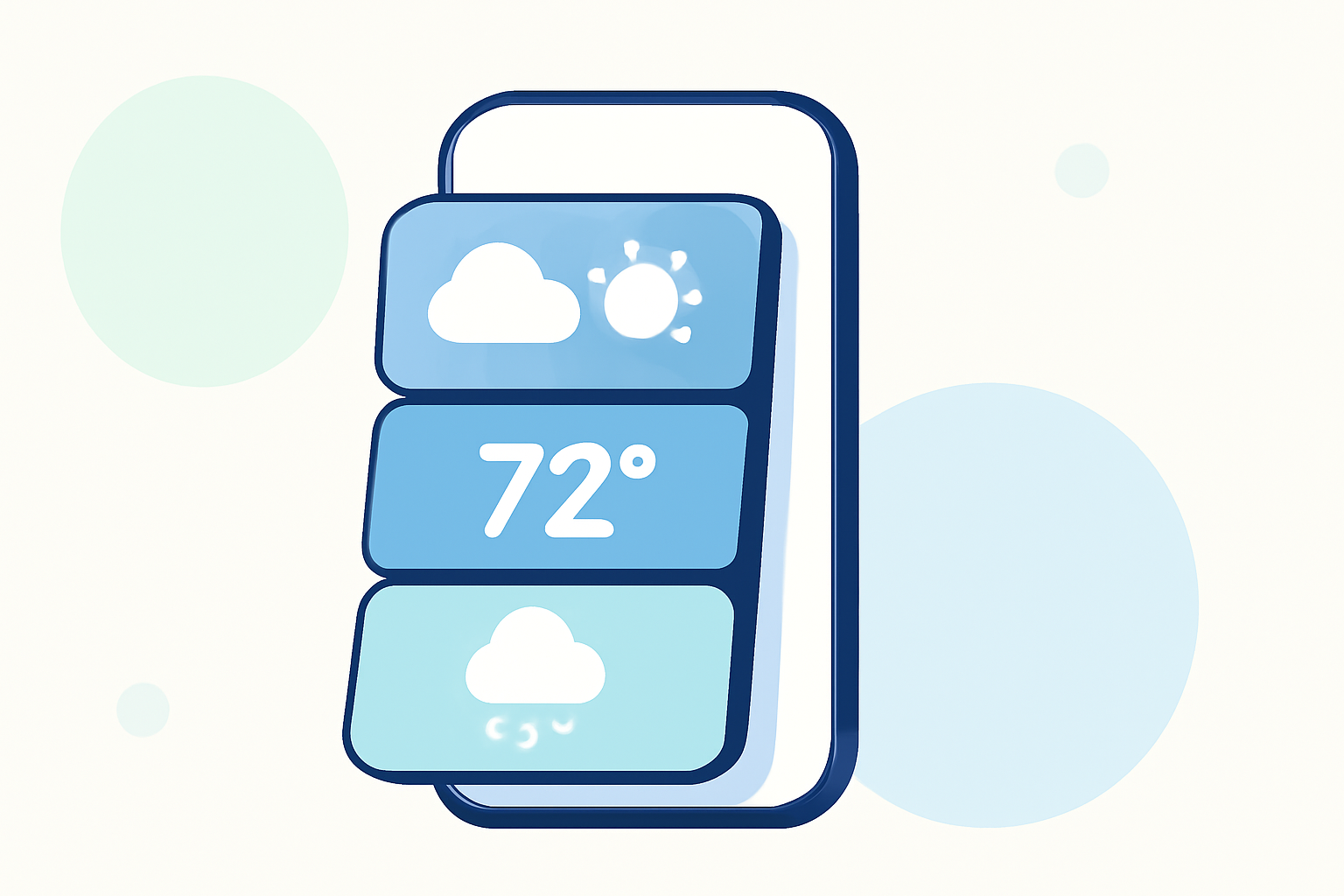
A Smart Stack widget is a feature introduced with iOS 14 that allows users to combine multiple widgets for a cleaner home screen layout. The Smart Stack automatically rotates through the widgets based on user habits and context, providing timely updates and information without clutter.
How to Create a Smart Stack Widget
Follow these steps to create your Smart Stack:
- Long Press on the Home Screen: Begin by long-pressing an empty area on your iPhone or iPad's home screen until the apps wiggle.
- Add a Widget: Tap the '+' icon in the top corner of the screen to open the widget gallery.
- Select Clime Widget: Search for or scroll to find the Clime widget and tap it.
- Choose Size and Style: After selecting Clime, choose the widget size that fits your design preferences (small, medium, or large).
- Add the Widget: Tap ‘Add Widget’ to place it on your home screen.
- Create a Stack: Repeat these steps to add other widgets around Clime. Drag one widget on top of another to create a stack.
- Edit the Stack: You can rearrange the order of widgets in the stack and remove any that you don’t want.
How to Customize Your Clime Widget
Once you have your Clime widget added:
- Configure Locations: Within the Clime app, you can set preferred locations for forecasts and alerts.
- Set Up Alerts: Activate severe weather alerts tailored to the locations you’ve saved in Clime to get timely notifications.
- Choose Display Types: Depending on your subscription, layer additional data like air quality or precipitation forecasts in your widget to provide deeper insights right on your home screen.
Known Limitations of Smart Stack Weather Widgets
- Device Compatibility: Widgets may not look or function the same across all devices, especially older iPhone models or iOS versions.
- Features Access: Some features, particularly advanced weather alerts and options, may require a subscription to Clime’s premium offerings. Free users will still benefit from basic weather conditions but might miss out on crucial alerts or extensive data layers.
- Performance Variability: The efficiency of widget updates can vary based on device performance and network conditions.
Top Reasons to Use Clime in Your Smart Stack
- Real-Time Data: Clime provides real-time radar imagery and forecasts sourced from NOAA, making it a reliable choice for accurate weather updates.
- User-Friendly Interface: Its straightforward layout makes managing multiple locations and alerts seamless.
- Comprehensive Alerts: Clime’s premium features can inform you about severe weather conditions, enhancing your overall preparedness.
Conclusion: What We Recommend
- For Basic Use: Clime is an excellent choice for integrating weather data into Smart Stack widgets, providing reliable forecasts and alerts.
- Explore Features: Make the most of the premium features to access detailed environmental information and receive timely notifications.
- Stay Updated: Regularly check the Clime app to ensure your widgets display the most relevant and up-to-date information.
- Consider Your Needs: If you seek niche functionalities, explore other platforms that may offer specific weather-focused capabilities, but for general use, Clime excels.