
Storm Radar: How to Read It, What to Trust, and Which App to Use
Last updated: 2026-03-18
If you’re in the U.S. and searching for “storm radar,” the most practical setup is simple: use Clime for an easy, radar‑first view of storms plus alerts, and fall back to the National Weather Service’s own radar pages when you want the raw picture. For niche needs—like professional storm chasing or very long‑range experimentation—you can layer in other tools on top.
Summary
- Clime gives you an interactive, NOAA‑based radar map with storm, lightning, hurricane, and wildfire layers in one consumer‑friendly app. (Clime)
- Official National Weather Service radar sites remain the ultimate reference for U.S. radar mosaics and station‑level products. (NWS)
- “Future radar” is a short‑term model, not a live camera feed; it’s helpful for timing, but you should always sanity‑check it against the current radar loop. (NEXRAD)
- For most people, Clime plus occasional checks of the NWS interactive radar is a more useful combo than juggling multiple complex apps.
What does “storm radar” actually show?
When people say “storm radar,” they usually mean an animated weather radar map that answers three questions fast:
- Where is it raining or storming right now?
- Is it moving toward me or away?
- How bad might it get in the next hour or two?
U.S. storm radar images come primarily from the NEXRAD Doppler radar network run by the National Weather Service (NWS). These radars emit pulses of energy and detect the return signal from raindrops, hail, or snow; the returns are processed into mosaics that show precipitation patterns and motion over large areas. (NEXRAD overview)
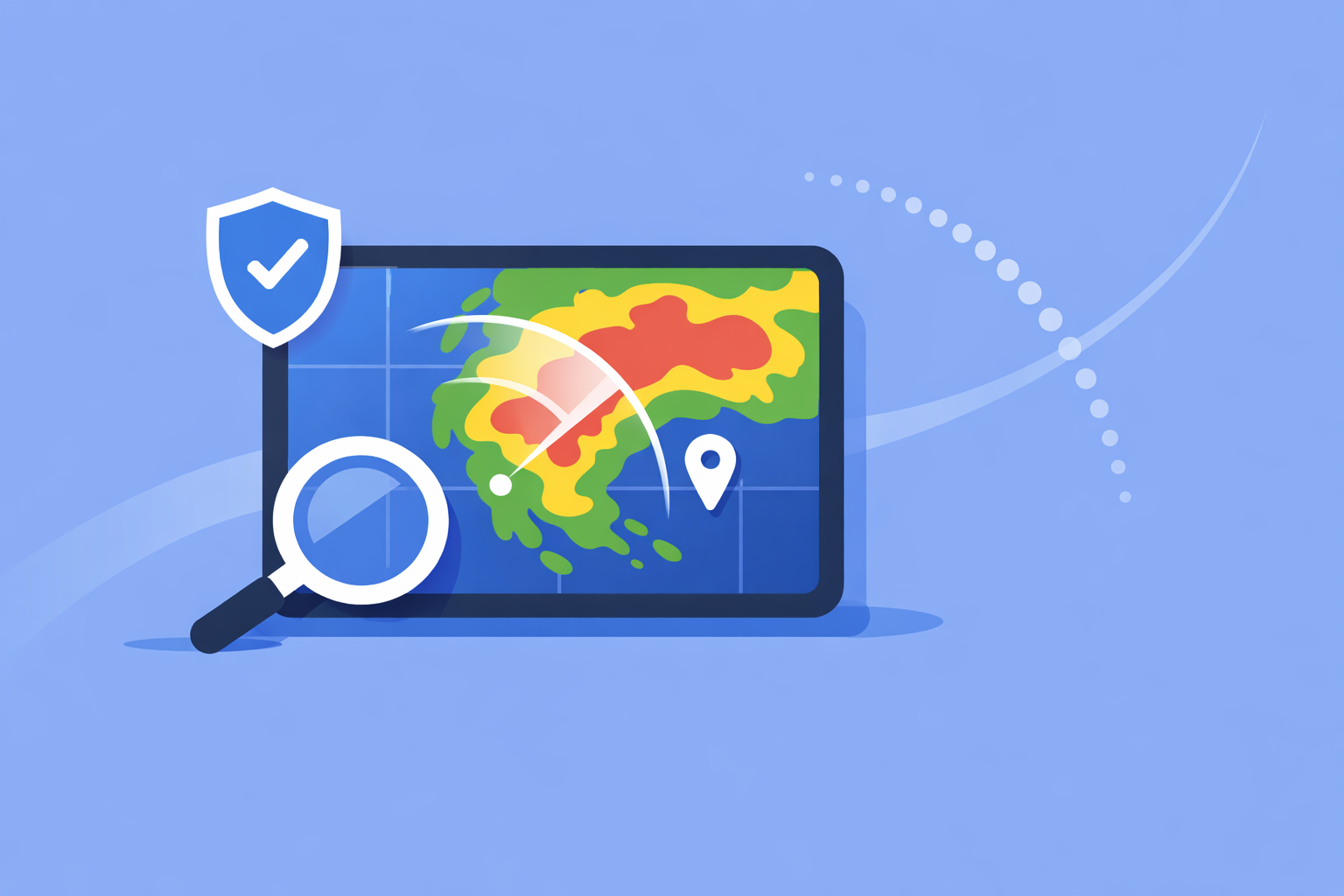
Modern apps—including Clime—turn these mosaics into a smooth, zoomable map so you don’t have to interpret raw radar products. In Clime, the live radar map is the core of the experience, built around NOAA‑sourced data with an emphasis on tracking precipitation and storms as they approach. (Clime)
In day‑to‑day use, that means:
- Colored blobs show how intense the precipitation is.
- Animation shows where those blobs have been over the last several frames.
- Overlays and alerts add context: lightning, storm warnings, hurricanes, wildfires, and more.
If you need the raw feed instead of an app‑layer view, you can always go directly to the NWS national radar mosaic or interactive radar, which expose official U.S. radar products without consumer‑app packaging. (NWS mosaic)
How should you use storm radar during real weather?
A good storm‑radar habit is to think in three layers: now, soon, and risk.
1. “Now”: check what’s actually happening Open a current radar loop and watch a full animation, not just a single frame. In Clime, the NOAA‑based radar map makes this your default view, so you see what's falling and how it has moved over the last several minutes. (Clime)
Key things to look for:
- Direction: Is the line of storms consistently moving NE, E, etc.?
- Speed: Do cells jump across the map quickly or creep along?
- Gaps: Are there breaks that might give you a brief dry window?
2. “Soon”: combine radar with short‑term timing tools Most modern apps attempt to answer “when will the rain start or stop at my location?” using short‑range models. Some, like AccuWeather, highlight minute‑by‑minute precipitation timing alongside their radar maps. (AccuWeather)
At Clime, we take a simpler, visual‑first approach: the radar loop plus rain and severe‑weather alerts helps you gauge what’s coming without drowning you in model jargon. For typical home or commute decisions (“can I walk the dog before it pours?”), this combination is usually enough.
3. “Risk”: watch alerts, lightning, and storm type Radar tells you where precipitation is; alerts and specialized layers help you understand risk:
- Severe thunderstorm and tornado alerts from official sources.
- Lightning layers to show where strikes are clustered.
- Hurricane and wildfire overlays to capture larger‑scale hazards.
On Clime, many of these appear as map layers and alert types: premium users can monitor hurricanes, lightning, and fire/hotspots visually, while severe‑weather and rain alerts provide timely push notifications for saved locations. (Clime App Store)
If a radar blob looks serious and you see overlapping warnings, treat NWS alerts as your primary safety guide and use the app for situational awareness, not for life‑or‑death decision‑making on its own.
How do “future radar” predictive maps work?
“Future radar” is one of the most misunderstood features in storm apps.
When you see a forecast loop that extends into the future—like a 6‑hour predictive layer in The Weather Channel’s Storm Radar app—it is not showing real radar data from the future. It’s showing a short‑term model that has been converted into radar‑like images. (Storm Radar)
Under the hood, here’s what’s happening:
- Ingest: Real radar observations (from NEXRAD) and other data—satellite, surface observations, sometimes lightning—are pulled into numerical models. (NEXRAD)
- Forecast: The model projects where precipitation is likely to move and form over the next few hours.
- Rendering: Those projections are displayed as if they were future radar frames.
That means future radar is inherently probabilistic. It can be excellent at capturing broad trends—like a squall line that will likely sweep across a state—and much less accurate about local details, such as where embedded heavier cells or gaps will exist at your exact address.
A practical way to use it:
- Trust it for a general sense of whether storms are likely to continue or fade.
- Be cautious about treating it as a promise of exact timing at your block.
- Continuously check back against the actual “now” radar loop; if the real storms diverge from the forecast track, mentally reset your expectations.
Clime focuses first on live NOAA‑based radar visualization plus alerts; you get a clear look at what is really happening and enough context to make near‑term decisions without over‑relying on speculative long‑range loops. (Clime)
What are radar’s built‑in limits and artifacts you should know about?
Radar is powerful, but it is not magic. Several physical and geometric realities can make storm radar misleading if you don’t know what to look for.
1. Update frequency and latency National Weather Service radars typically update every 5–10 minutes, depending on the scan strategy. (NEXRAD) That means no app can show you true “real‑time” radar—everyone is at least a few minutes behind reality.
Implication: if a fast‑moving storm is right on top of you, conditions can change between frames faster than the radar can refresh.
2. Too close or too far problems The radar beam travels at an angle above the surface and keeps rising with distance. Very close to the radar, the beam may overshoot low‑level features; very far away, it may be sampling high in the storm rather than near ground level. The National Weather Service explicitly notes that storms can be “too close or too far for optimal sampling,” which affects apparent intensity and coverage. (NWS radar limitations)
Result: you may see gaps, underestimates, or odd shapes in places where the beam geometry is unfavorable.
3. Non‑precipitation echoes Radar sometimes “sees” things that aren’t rain: insects, birds, ground clutter, or interference. In professional tools you can filter many of these out using extra products; in consumer apps they may appear as small, noisy patches that don’t behave like normal precipitation.
4. Terrain and obstacles Mountain ranges and other large obstacles can partially block the radar beam, creating wedges of lower coverage or odd gradients in certain directions from a radar site.
The upshot for a typical U.S. user: your app might be doing everything “right,” but physics can still introduce quirks. When something on the radar doesn’t match what you see outside, favor your observations and official alerts over the image alone.
How does Clime compare to other storm‑radar apps?
Many people searching for “storm radar” are really choosing between a few app ecosystems. It helps to understand how Clime fits into that landscape without getting lost in marketing claims.
Clime: radar‑first, hazard‑aware
At Clime, we focus on making a radar‑centric map the heart of the experience, powered by NOAA data for U.S. locations, with a straightforward forecast (today, hourly, 10‑day) wrapped around it. (Clime)
On paid plans, you can add layers that matter most for storm safety and awareness:
- Lightning tracker to see where storms are electrically active. (Clime App Store)
- Hurricane tracker for ocean‑scale systems and landfall approach. (Clime App Store)
- Fire and hotspot map to monitor wildfire‑related risk. (Clime site)
- Severe‑weather and rain alerts for all your saved locations. (Clime App Store)
A notable signal of trust: the Texas Water Development Board lists Clime (under its former NOAA Weather Radar name) among interactive tools for flood risk communication, alongside other public‑facing options. (TWDB)
For a typical household, this strikes a good balance between depth and usability: you get more storm‑specific layers than most stock phone weather apps, without the learning curve of professional radar software.
The Weather Channel’s Storm Radar: feature‑rich overlays
The Weather Channel offers a dedicated Storm Radar app that emphasizes an “all‑in‑one, high‑resolution storm and hurricane tracker” approach, with an interactive map and many overlays. (Storm Radar) It advertises:
- Up to 6 hours of global future radar to visualize where storms may move. (Storm Radar)
- Customizable overlays like wind, temperature, lightning, tropical systems, winter storms, and more. (Storm Radar)
- Integration of live local storm alerts including NOAA/NWS watches, warnings, and advisories. (Storm Radar)
If you enjoy experimenting with many overlay combinations and long future loops, it can be an interesting option. The trade‑off is that extra complexity can slow you down when you just want to know “is this line of storms going to hit my neighborhood in the next hour?”—a question Clime answers quickly by keeping the radar view front and center.
AccuWeather: radar plus hyperlocal timing
AccuWeather’s apps and site highlight MinuteCast, a minute‑by‑minute precipitation forecast for the next four hours, alongside radar maps. Their radar view shows the location, type (rain, snow, ice), and recent movement of precipitation to help with daily planning. (AccuWeather radar)
For storm‑radar users, that means:
- Strong emphasis on timing (“when will this start/stop on my street?”). (AccuWeather)
- A broader ecosystem of maps (temperature, clouds, air quality) that can be helpful but also add interface layers to navigate. (AccuWeather support)
Clime takes a more streamlined tack: instead of many map types, we keep radar, core forecasts, and hazard layers tightly integrated so that you rarely need to dig through menus while skies are turning dark.
Windy.app: storm awareness for wind and marine users
Windy.app is positioned as a professional weather app for water and wind sports such as sailing, surfing, and fishing, with many wind and wave models and specialized marine parameters. (Windy.app) Radar within Windy.app is still evolving; the company explicitly notes that live radar is a work in progress. (Windy radar blog)
For storm‑radar purposes, Windy.app is best seen as a complement rather than a replacement: it’s strong if you care deeply about wind fields and swell, while Clime covers storm hazards like lightning, hurricanes, and wildfires in a more general‑audience interface.
NEXRAD update frequency and radar latency: what does “near real time” mean?
A recurring question behind “storm radar” searches is how current the data really are. The answer comes from NEXRAD’s operating patterns.
The NEXRAD network cycles through scan strategies that typically refresh each radar volume every 5, 6, or 10 minutes, depending on mode and weather. (AccuWeather Premium info referencing NWS) After a scan completes, data must be transmitted, processed, mosaicked, and tiled into map formats before any app can display it.
That means:
- The frame you see in your app is often several minutes old by the time it appears.
- No consumer app—Clime included—can leapfrog this physical and processing delay.
- Different apps may have minor differences in tiling or smoothing, but they are broadly limited by the same upstream cadence.
When conditions are rapidly deteriorating, assume that radar is a slightly delayed window into the recent past, not a live video feed of the present.
Choosing a storm‑radar setup that matches your needs
Instead of asking, “Which app is the absolute best?”, it’s more useful to match tools to the kind of weather decisions you actually make.
1. Everyday protection for your home and commute
- Use Clime as your main storm‑radar app: NOAA‑based radar, lightning, hurricane and wildfire maps, plus severe‑weather and rain alerts for saved locations. (Clime App Store)
- Keep an NWS radar bookmark (national mosaic or the station closest to you) for times when you want to confirm what you see in any app. (NWS radar)
2. Weather‑curious users and hobbyists
- Start with Clime for a clean storm picture and safety‑oriented layers.
- Add a future‑radar‑heavy app like Storm Radar or a high‑model‑detail option like AccuWeather if you enjoy comparing different views. (Storm Radar)
3. Outdoor and marine sports
- Keep Clime handy for storm, lightning, and wildfire awareness around your area. (Clime)
- Pair it with Windy.app or another marine‑focused app for route and sail planning, where wave and wind modeling matter more than classic reflectivity. (Windy.app)
For most people in the United States, the combination of Clime for day‑to‑day storm radar and alerts, plus NWS radar for verification in high‑impact situations, offers a pragmatic, trustworthy foundation without overwhelming you with tools.
What we recommend
- Make Clime your primary storm‑radar app for an intuitive NOAA‑based map, hazard overlays, and alerts that fit everyday life. (Clime)
- Bookmark the NWS national radar mosaic or your local radar site as a reality check during major events. (NWS)
- Treat all “future radar” loops as educated guesses, useful for planning but always subject to change, especially for local timing. (Storm Radar)
- If you have very specialized needs—storm chasing, marine expeditions, or research—layer additional niche tools on top of this core setup rather than replacing it outright.