
Understanding and Utilizing Weather Widgets on Android
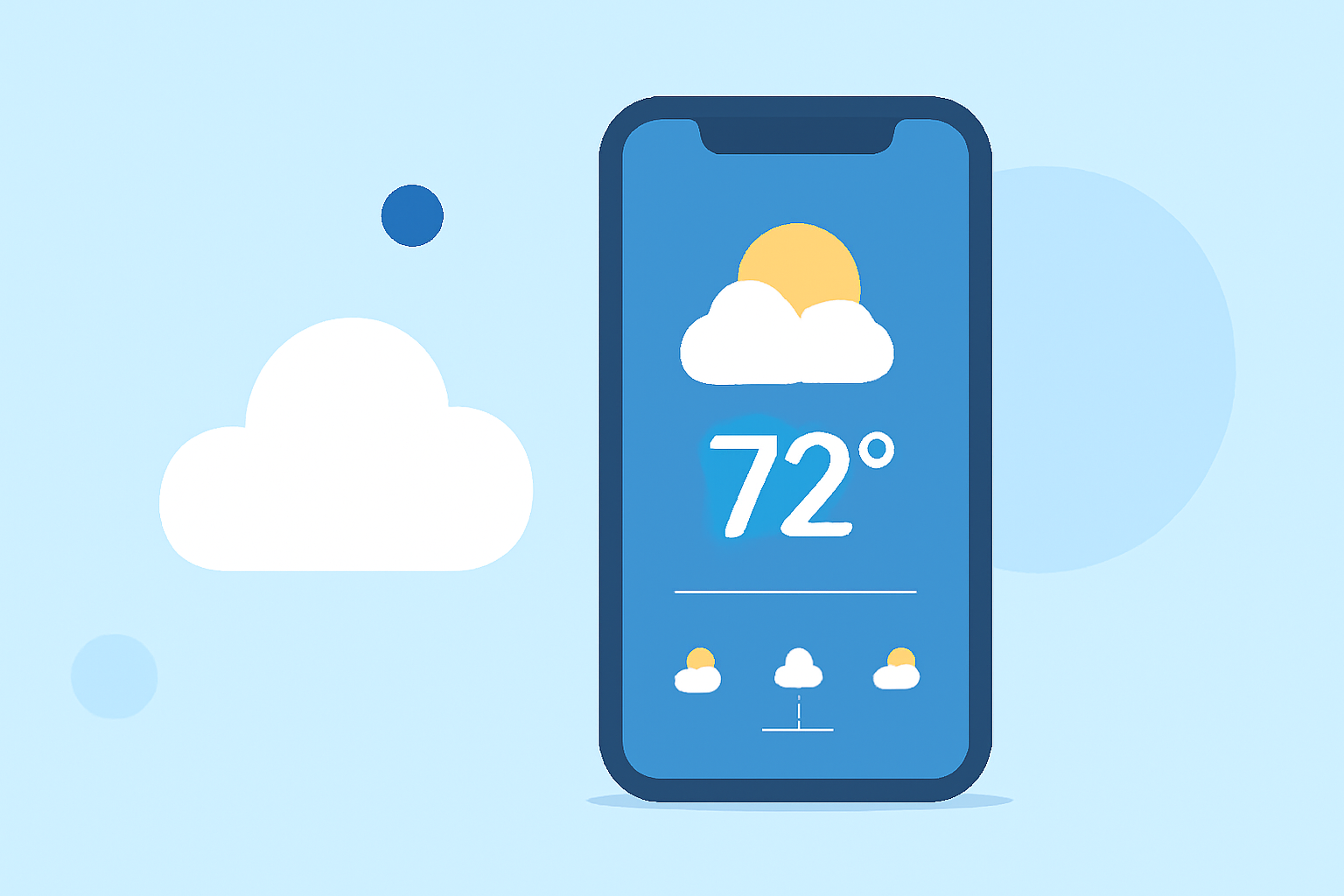
Weather widgets on Android devices provide at-a-glance information about current weather conditions and forecasts, enhancing user convenience by eliminating the need to open dedicated weather apps. These widgets display essential data such as temperature, humidity, wind speed, and forecasts directly on your home screen.
What Are Weather Widgets?
Widgets are interactive elements that display live information from apps on your home screen, allowing quick access to key data without launching the full application. In the case of weather widgets, they offer real-time updates on weather conditions, forecasts, and other relevant information. (androidcentral.com)
How to Add and Customize Weather Widgets on Android
For Android 12 and Newer:
- Access Widgets: Long-press on an empty area of your home screen.
- Select Widgets: Tap on "Widgets" from the menu that appears.
- Choose Weather Widget: Scroll to find the weather widget section, such as "Pixel Weather."
- Add Widget: Press and hold your preferred widget, then drag it to your home screen.
- Resize Widget: Adjust the widget size by dragging its edges to display more or less information.
For Android 11 and Older:
If your device doesn't include a built-in weather widget, you can download third-party weather apps that offer widget functionality. After installing the app, follow similar steps to add the widget to your home screen. (androidauthority.com)
Benefits of Using Weather Widgets
- Instant Access: View current weather conditions and forecasts without opening an app.
- Customization: Adjust widget size and information displayed to suit your preferences.
- Real-Time Updates: Receive timely weather information, including severe weather alerts, directly on your home screen.
Optimizing Widget Performance
To ensure your weather widget operates efficiently:
- Update Frequency: Set an appropriate data refresh interval to balance accuracy and battery life.
- Location Settings: Enable automatic location detection for accurate local weather updates.
- Data Usage: Be mindful of data consumption, especially if your widget updates frequently.
By effectively utilizing weather widgets, you can stay informed about weather conditions and forecasts directly from your home screen, enhancing your daily planning and preparedness.