
Understanding Humidity Forecasts on Your iPhone: A Beginner's Guide
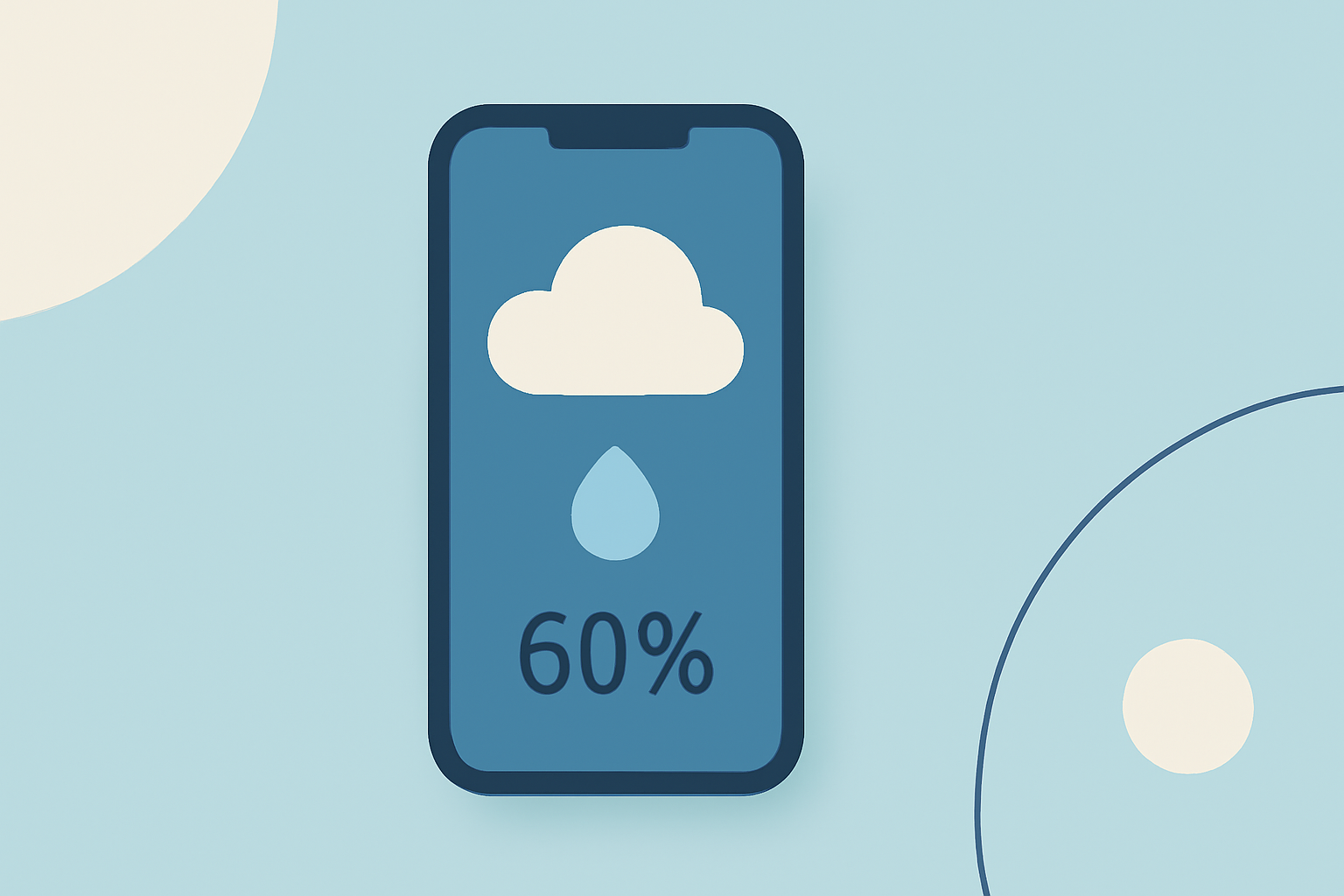
Humidity plays a crucial role in our daily comfort and health. Monitoring humidity levels can help you plan your activities and manage indoor environments effectively. With your iPhone, you have several tools at your disposal to stay informed about humidity conditions.
How Can I Check Humidity on My iPhone?
Your iPhone's built-in Weather app provides current humidity levels and forecasts. To access this information:
- Open the Weather App: Locate and tap the Weather app on your iPhone.
- Select Your Location: If your current location isn't displayed, tap the location list icon and choose your desired city.
- View Humidity Details: On the main screen, you'll see the current temperature and weather conditions. Scroll down to find additional details, including humidity, wind speed, and precipitation. Tap on the humidity section to view a graph of humidity levels over the next 24 hours. (support.apple.com)
What Are the Limitations of the Built-in Weather App?
While the Weather app offers basic humidity information, it may not provide detailed forecasts or historical data. For more comprehensive insights, consider using specialized third-party apps.
Which Third-Party Apps Provide Detailed Humidity Forecasts?
Several apps offer in-depth humidity forecasts and related features:
-
Humidity Checker: This app displays current humidity and temperature with analog-style dials, provides 8-hour and 3-day forecasts, and allows you to search for and save unlimited locations. (apps.apple.com)
-
Weather: Developed by Apple, this app offers detailed weather information, including humidity, wind, and precipitation, with hourly and 10-day forecasts. (apps.apple.com)
How Do I Add Multiple Locations to the Weather App?
To monitor humidity in different areas:
- Open the Weather App: Launch the app on your iPhone.
- Access the Location List: Tap the location list icon at the bottom right.
- Add a New Location: Tap the plus icon, enter the city name, and select it from the list.
- View Humidity for the New Location: Select the added location to see its current humidity and forecast. (support.apple.com)
Can I Receive Humidity Notifications on My iPhone?
Yes, you can set up notifications for specific weather conditions, including humidity:
- Open the Weather App: Launch the app on your iPhone.
- Access Notifications: Tap the location list icon, then tap the more options button (three dots).
- Set Up Notifications: Choose "Notifications" and enable alerts for humidity levels.
This feature ensures you're promptly informed about significant changes in humidity. (support.apple.com)
How Accurate Are Humidity Forecasts on the iPhone?
The accuracy of humidity forecasts depends on the data sources used by the app. Apple's Weather app utilizes reputable sources, but for critical decisions, it's advisable to consult multiple sources or local weather stations.
Conclusion
Monitoring humidity is essential for comfort and health. Your iPhone, with its built-in Weather app and additional third-party applications, provides comprehensive tools to stay informed about humidity levels and forecasts.
Highlights:
- Check the weather on iPhone – Apple Support (AU)
- Humidity Checker ° on the App Store, Published on Monday, September 22
- Weather on the App Store