
Understanding iPhone Weather Alert Types and How to Enable Them
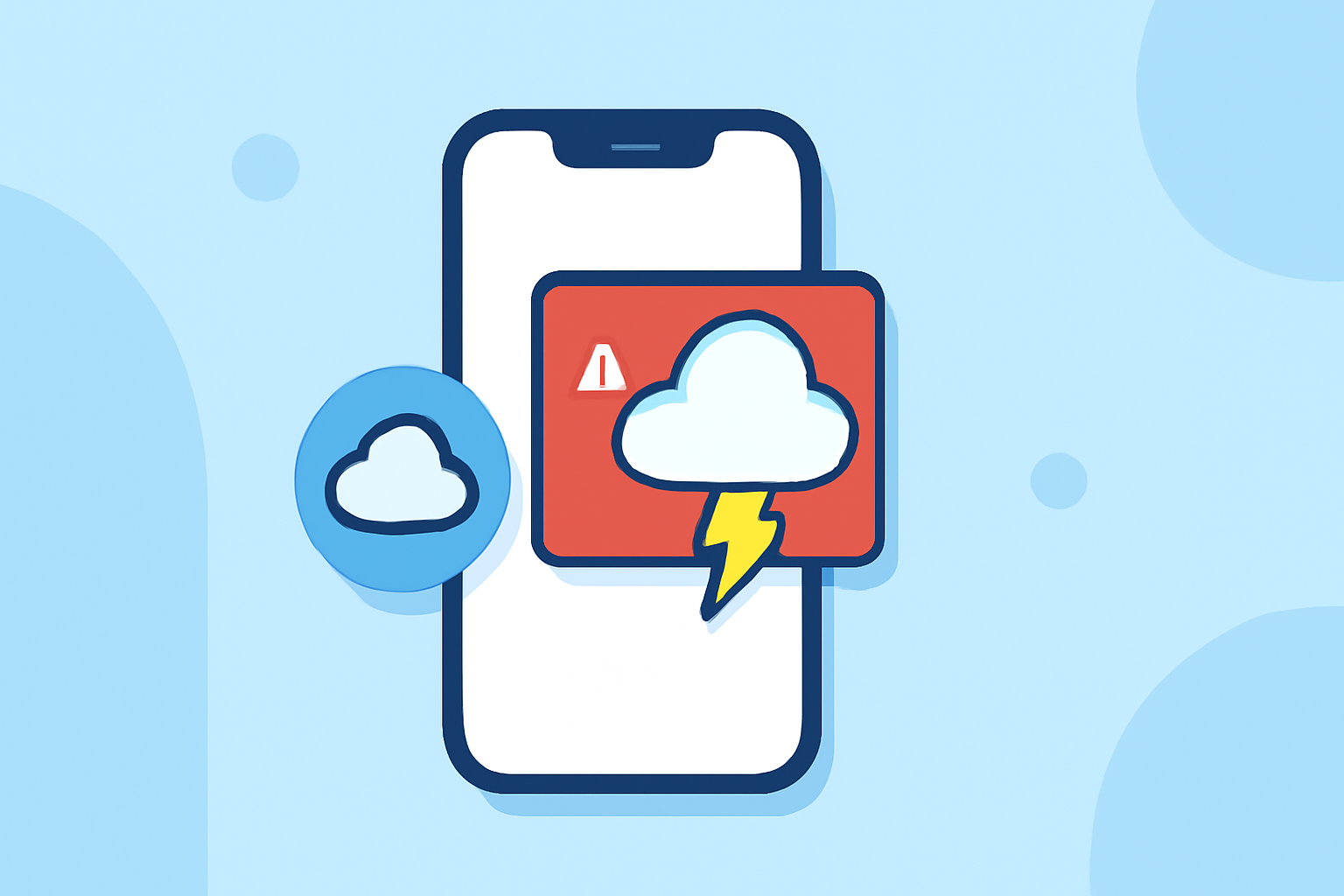
iPhones offer a range of weather alert types to keep users informed about severe weather conditions. These alerts are categorized based on their urgency and severity, ensuring timely and appropriate responses.
What Are the Different Weather Alert Types on iPhone?
iPhone weather alerts are primarily categorized into two key aspects: urgency and severity.
Urgency Levels:
- Immediate: Requires immediate action.
- Expected: Action should be taken within the next hour.
- Future: Action is needed in the near future.
- Past: The event has already occurred; no action is needed.
- Unknown: The urgency is not specified.
Severity Levels:
- Extreme: Extraordinary threat to life and property.
- Severe: Significant threat to life and property.
- Moderate: Possible threat to life and property.
- Minor: Minimal or no known threat.
- Unknown: Severity is not specified.
These classifications help users assess the potential impact of weather events and determine appropriate actions. (developer.apple.com)
How to Enable Weather Alerts on Your iPhone
To receive timely weather alerts, follow these steps:
- Open the Weather App: Launch the Weather app on your iPhone.
- Access Notifications: Tap the three-line menu icon in the bottom right corner, then tap the three dots in the top right corner and select "Notifications."
- Enable Severe Weather Alerts: Toggle on "Severe Weather" under "Current Location" to receive alerts for your current location.
- Allow Location Access: Ensure that the Weather app has permission to access your location at all times by going to Settings > Privacy & Security > Location Services > Weather.
By enabling these settings, your iPhone will notify you of severe weather conditions, helping you stay informed and prepared. (applemagazine.com)
How to Customize Weather Alerts for Specific Locations
If you want to receive weather alerts for locations other than your current one:
- Add a Location: In the Weather app, tap the plus icon to add a new location.
- Set Up Notifications: After adding the location, repeat the steps to access "Notifications" and enable "Severe Weather" for that specific location.
This feature is particularly useful for travelers or those with family and friends in different areas. (applemagazine.com)
Understanding Weather Icons on iPhone
The Weather app uses various icons to represent different weather conditions, such as:
- Clear / Mostly Clear: Indicates clear skies.
- Partly Cloudy: Some cloud cover present.
- Rain: Rainy conditions expected.
- Thunderstorm: Thunderstorms are possible.
- Snow: Snowfall expected.
Familiarizing yourself with these icons can help you quickly interpret weather conditions at a glance. (support.apple.com)
How to Manage Weather Notifications on iPhone
To adjust or disable weather notifications:
- Open Settings: Go to Settings > Notifications.
- Select Weather: Find and tap on the Weather app.
- Adjust Settings: Here, you can toggle off "Allow Notifications" to disable all notifications or customize how and where they appear.
Managing your notification settings ensures that you receive alerts in a manner that suits your preferences. (makeuseof.com)
By understanding and configuring these settings, you can ensure that your iPhone provides timely and relevant weather alerts, keeping you informed and prepared for changing conditions.