
Understanding Precipitation Intensity on Your Apple Watch
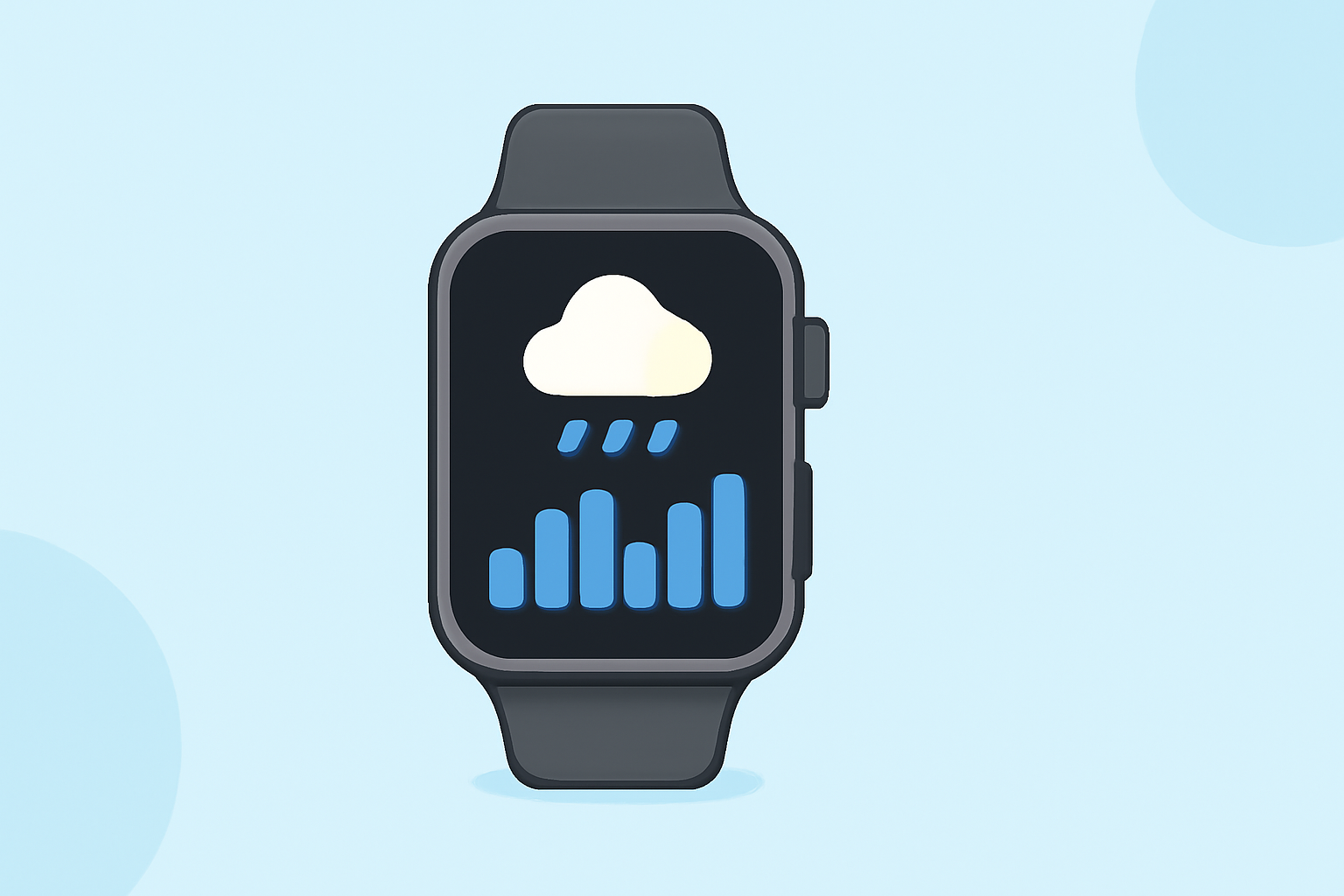
The Apple Watch offers a comprehensive suite of weather features, including detailed precipitation information, to help you stay informed about current and upcoming weather conditions.
How Can I Check Precipitation Intensity on My Apple Watch?
To view precipitation intensity on your Apple Watch:
-
Open the Weather App: Press the Digital Crown to access the app list, then tap the Weather app icon.
-
View Current Conditions: The main screen displays the current weather conditions for your location, including temperature, sky conditions, and precipitation.
-
Access Precipitation Details: Tap the display to cycle through various weather metrics. Select the 'Precipitation' view to see details about current and upcoming precipitation. This view provides information on the type of precipitation (e.g., rain, snow) and its intensity. (support.apple.com)
What Is Precipitation Intensity?
Precipitation intensity refers to the rate at which precipitation is falling, typically measured in millimeters per hour (mm/h) or inches per hour (in/h). On the Apple Watch, this information is presented in the 'Precipitation' view within the Weather app. The intensity is often represented by a graph or color-coded scale, indicating light, moderate, or heavy precipitation.
How Accurate Is the Precipitation Information on Apple Watch?
The accuracy of precipitation data on the Apple Watch depends on the quality of the data provided by the weather service integrated into the device. Apple sources weather information from reputable providers, ensuring a high level of accuracy. However, weather conditions can change rapidly, so it's advisable to check for updates regularly, especially when planning outdoor activities.
Can I Receive Precipitation Alerts on My Apple Watch?
Yes, you can set up precipitation alerts on your Apple Watch to stay informed about changing weather conditions. To enable these alerts:
-
Open the Weather App on Your iPhone: Ensure your iPhone is paired with your Apple Watch.
-
Access Notifications: Tap the 'Notifications' tab within the Weather app.
-
Enable Precipitation Alerts: Toggle on the option for precipitation alerts to receive notifications about upcoming rain or snow.
These alerts will notify you when precipitation is expected in your area, helping you plan your day accordingly.
Are There Third-Party Apps for Monitoring Precipitation on Apple Watch?
Yes, there are third-party apps available that offer enhanced precipitation tracking features on the Apple Watch. These apps provide real-time radar images, detailed precipitation forecasts, and customizable alerts. When choosing a third-party app, consider factors such as data accuracy, user interface design, and compatibility with your Apple Watch model.
By utilizing the precipitation features on your Apple Watch, you can stay informed about weather conditions and make better decisions for your daily activities.