
Understanding Precipitation Tracking on Apple Watch
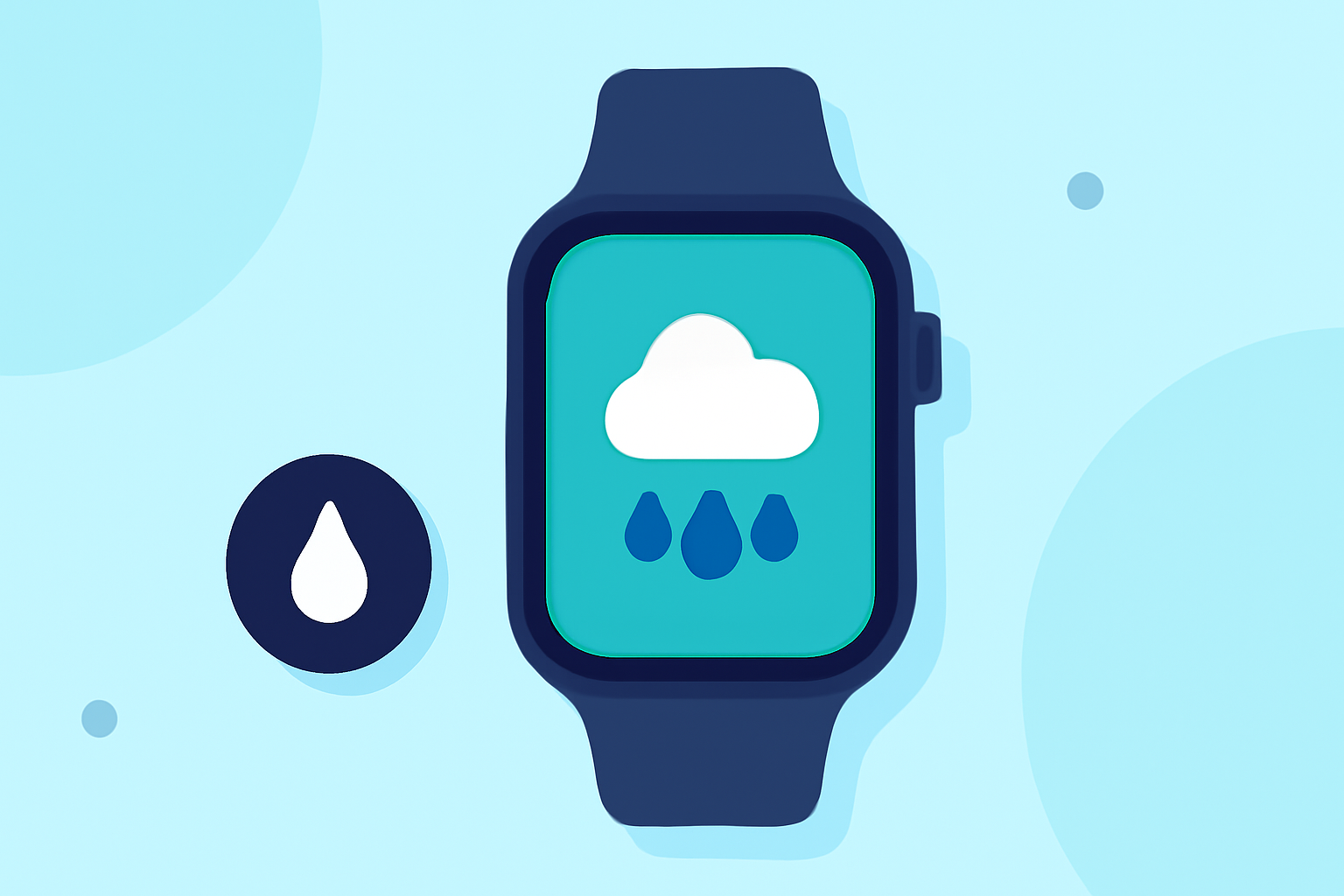
The Apple Watch offers a range of features to help you monitor and record precipitation, ensuring you're always prepared for changing weather conditions.
How Can I Monitor Precipitation on My Apple Watch?
The built-in Weather app on your Apple Watch provides real-time updates on precipitation, including rain and snow forecasts. To access this information:
- Open the Weather app on your Apple Watch.
- View the current conditions, which display details such as temperature, precipitation, wind speed, UV index, visibility, humidity, and air quality.
- Tap the display to cycle through different views, including precipitation.
For more detailed forecasts, scroll down to see hourly and 10-day projections. (support.apple.com)
Can I Record Precipitation Data on My Apple Watch?
While the Apple Watch's native Weather app offers current and forecasted precipitation information, it does not provide a built-in feature to record personal precipitation data. To log and track your own precipitation observations, you can use third-party applications designed for this purpose.
What Are Some Apps for Recording Precipitation on Apple Watch?
One such app is MyPrecip, which allows users to record daily precipitation amounts for rain, snow, ice, or mixed conditions in various units. Key features include:
- Recording daily precipitation totals.
- Viewing precipitation history and statistics broken down by days, weeks, months, and years.
- Attaching photos and sharing recorded precipitation data on social media platforms.
- Entering your own recorded precipitation totals or allowing the app to auto-fill using data from Forecast.io.
- Viewing a map or list of record precipitation totals from users worldwide, with filtering options based on precipitation type and time period.
Please note that MyPrecip is designed for iPhone and may not be optimized for Apple Watch. Users have reported that the app is not verified for macOS, indicating potential compatibility issues with Apple Watch. (apps.apple.com)
How Do I Set Up and Use MyPrecip on My iPhone?
To set up and use MyPrecip on your iPhone:
- Download and install the MyPrecip app from the App Store.
- Open the app and follow the on-screen instructions to set up your account.
- Start recording your precipitation data by entering daily totals and any additional information as prompted.
- Use the app's features to view your precipitation history, statistics, and share your data as desired.
Are There Any Limitations to Recording Precipitation on Apple Watch?
Yes, there are some limitations to consider:
- Compatibility: Not all third-party apps are optimized for Apple Watch, which may affect functionality.
- Accuracy: Auto-filled precipitation data from external sources may not always be 100% accurate.
- Data Sharing: Sharing recorded precipitation data on social media platforms may expose personal information.
Conclusion
While the Apple Watch's native Weather app provides current and forecasted precipitation information, it does not offer a built-in feature to record personal precipitation data. Third-party applications like MyPrecip can fill this gap, allowing you to log and track your own precipitation observations. However, it's important to be aware of potential compatibility issues and data accuracy when using these apps.
By leveraging both the built-in features of your Apple Watch and compatible third-party applications, you can effectively monitor and record precipitation, keeping you informed and prepared for changing weather conditions.