
Understanding Weather Alerts on Apple Watch: A Comprehensive Guide
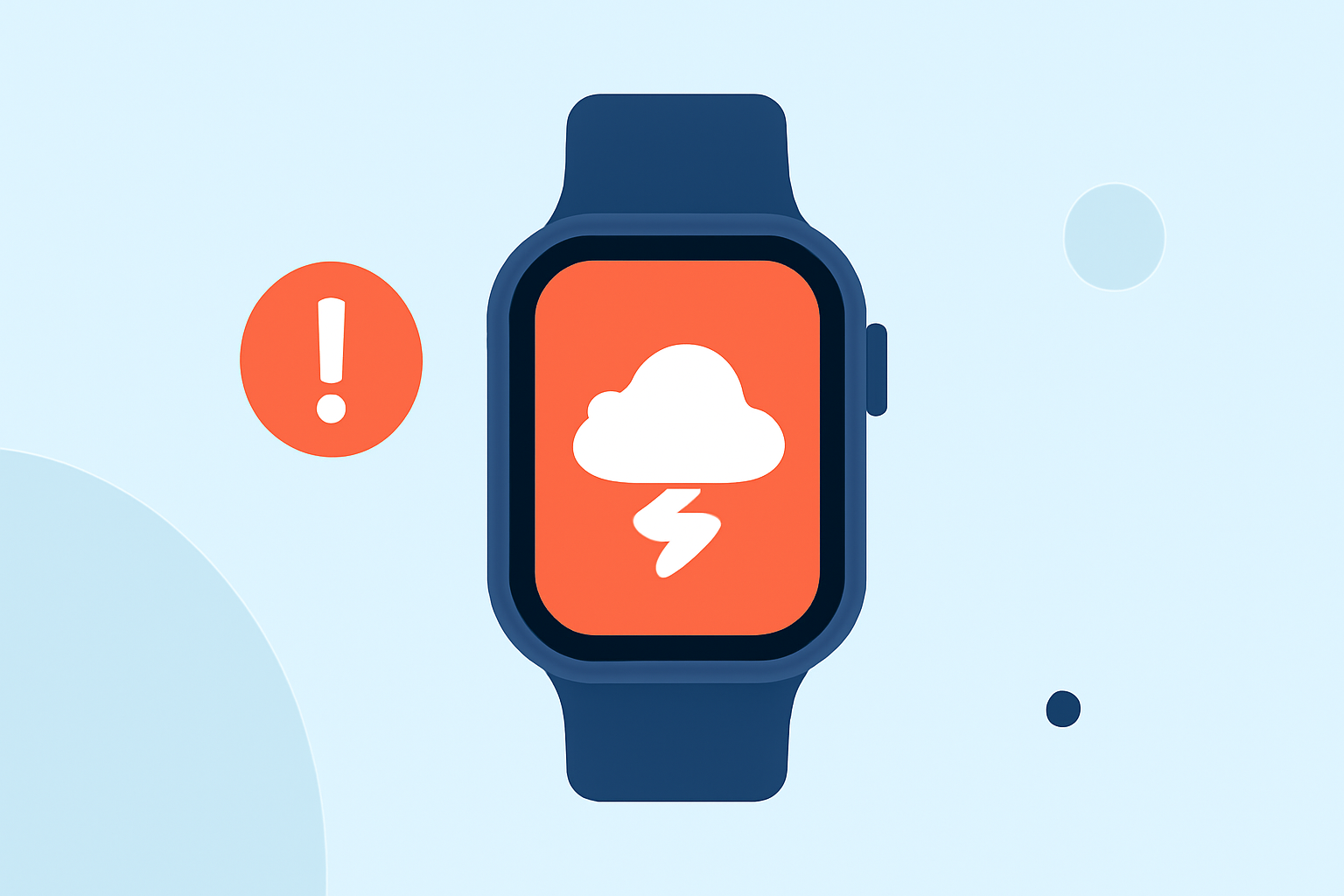
Apple Watch offers a convenient way to stay informed about weather conditions, including severe weather alerts, directly from your wrist. By configuring your device appropriately, you can receive timely notifications about weather events that may impact your safety and daily activities.
Setting Up Weather Alerts on Apple Watch
To receive weather alerts on your Apple Watch, follow these steps:
- Enable Notifications on iPhone:
- Open the Weather app on your iPhone.
- Tap the list icon in the bottom-right corner.
- If prompted, tap Turn On Notifications. If not, tap the more icon (three dots) in the upper right, then select Notifications.
- Ensure Apple Watch Mirrors iPhone Notifications:
- Open the Apple Watch app on your iPhone.
- Tap the My Watch tab, then go to Notifications.
- Scroll down to Weather and ensure Mirror My iPhone is selected.
By completing these steps, your Apple Watch will receive weather alerts configured on your iPhone. (myhealthyapple.com)
Understanding Weather Alert Types
Apple Weather utilizes various alert banners and icons to convey the severity of weather conditions:
- Watch: Conditions are favorable for hazardous weather, but it may not be happening yet.
- Warning: Dangerous weather is occurring, imminent, or highly likely in the warned area.
- Advisory: Weather may cause inconvenience, travel disruption, or localized hazards.
- Statement: Additional information about an event, often used for updates or less urgent hazards.
- Emergency: A rare, high-impact alert indicating an immediate threat to life or property.
These alerts can appear as colored banners with titles such as Winter Storm Warning, Flood Watch, Heat Advisory, High Wind Warning, or Severe Thunderstorm Warning. Tapping the alert provides more details, including the affected area, start and end times, expected hazards, and safety guidance when available. (positioniseverything.net)
Interpreting Weather Alerts on Apple Watch
On your Apple Watch, weather alerts may appear as colored warning badges or icons. The exact wording and availability depend on your country or region, as Apple pulls many warnings from official meteorological agencies such as the National Weather Service. Tapping the alert on your watch will provide more information about the specific weather event. (positioniseverything.net)
Additional Features for Severe Weather Notifications
With the release of iOS 26 and watchOS 26, Apple introduced enhanced severe weather alerts and widgets for locations you may visit. This feature uses on-device processing to determine if you may be traveling soon, provided you have "Significant Locations & Routes" permissions enabled. This ensures that travelers are informed about potential weather events at their destination before arrival. (mactrast.com)
Conclusion
By configuring your Apple Watch to receive weather alerts, you can stay informed about severe weather conditions that may affect your safety and daily activities. Understanding the different types of alerts and how to interpret them will help you respond appropriately to changing weather conditions.
Highlights:
- iOS 26 & watchOS 26 Brings Severe Weather Alerts and Widgets for Locations You May Visit, Published on Tuesday, June 10