
Understanding Your Weather App's Home Screen: Key Features and Benefits
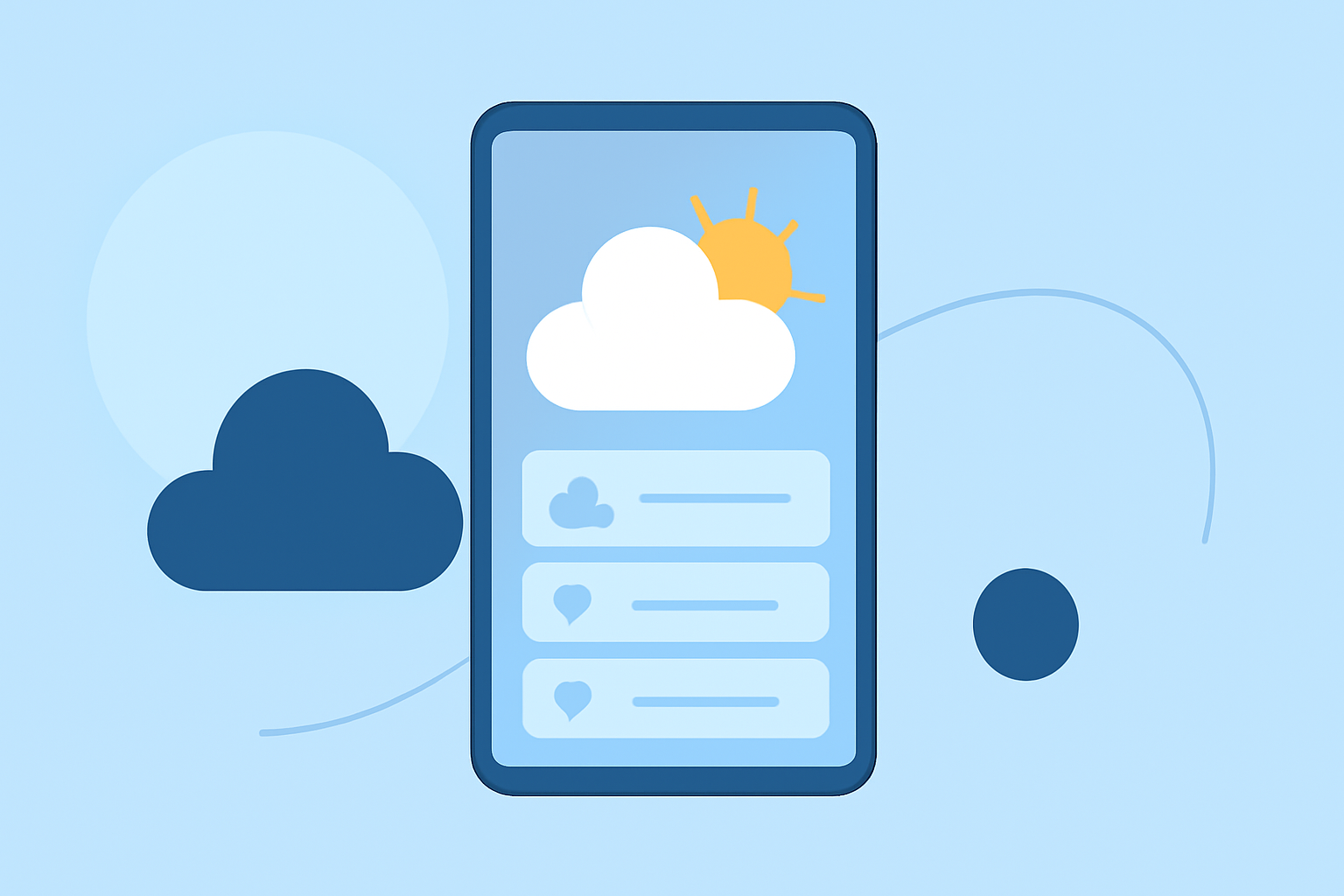
Weather apps have become indispensable tools for daily planning, offering real-time updates and personalized features directly on your home screen. Understanding these features can help you make the most of your app's capabilities.
What Are the Key Features of a Weather App's Home Screen?
A typical weather app home screen includes:
-
Current Conditions: Displays real-time weather information such as temperature, humidity, and wind speed.
-
Hourly and Daily Forecasts: Provides short-term and long-term weather predictions to help plan your day and week.
-
Interactive Maps: Offers visual representations of weather patterns, including radar and satellite imagery.
-
Customizable Widgets: Allows users to personalize their home screen with widgets that display weather information at a glance.
How Do Customizable Widgets Enhance User Experience?
Customizable widgets enable users to tailor their home screen to display specific weather information, such as current temperature, hourly forecasts, or severe weather alerts. This personalization ensures that the most relevant data is readily accessible without opening the app.
What Are Interactive Maps and How Do They Work?
Interactive maps provide dynamic visualizations of weather data, including precipitation, cloud cover, and wind patterns. Users can zoom in on specific areas to view localized conditions, aiding in more precise planning.
How Do Real-Time Updates Benefit Users?
Real-time updates ensure that users receive the latest weather information, which is crucial for making informed decisions about daily activities, travel plans, and safety precautions.
How Does Clime's Home Screen Feature Stand Out?
Clime's home screen offers a seamless integration of real-time weather data, customizable widgets, and interactive maps, providing users with an intuitive and personalized weather experience. This comprehensive approach ensures that users have all the necessary information at their fingertips, enhancing daily planning and preparedness.
FAQs
- How can I add a weather widget to my iPhone's home screen?
To add a weather widget on iOS 14 or later, press and hold an empty area on your home screen, tap the '+' icon, search for the weather widget, select the desired size, and tap 'Add Widget'.
- Can I customize the information displayed on the weather widget?
Yes, many weather apps allow customization of widgets to display specific information such as current temperature, hourly forecasts, or severe weather alerts.
- Are interactive maps available on all weather apps?
While many weather apps offer interactive maps, the availability and features can vary. It's advisable to check the app's description or settings to see if this feature is included.
- How do real-time updates affect weather app accuracy?
Real-time updates ensure that the weather information is current, which is essential for accurate forecasting and timely alerts, enhancing the app's reliability.
- What makes Clime's home screen feature unique?
Clime's home screen integrates real-time weather data, customizable widgets, and interactive maps into a cohesive and user-friendly interface, offering a personalized and efficient weather experience.
By understanding these features, you can fully leverage your weather app to stay informed and prepared for any weather conditions.