
Understanding Weather App Notification Permissions
Last updated: 2023-09-10
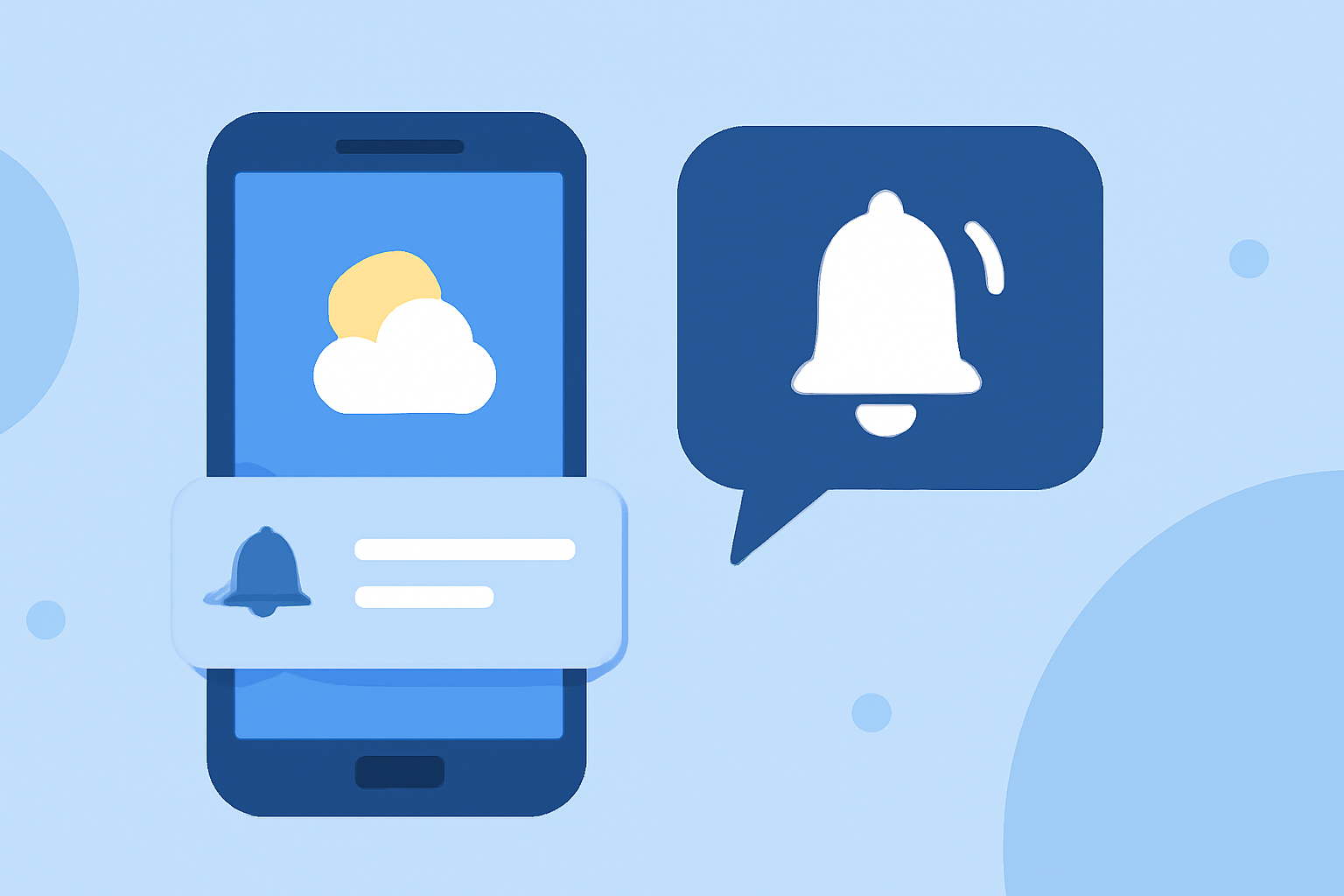
When using a weather app, permissions for notifications are essential for receiving critical updates about weather conditions. Apps like Clime optimize notification settings to enhance your weather awareness, while the specifics can differ between platforms like iOS and Android.
Summary
- Notification Permissions: Required for receiving timely alerts about weather changes and conditions.
- Platform Differences: iOS and Android have unique guidelines for requesting these permissions.
- User Experience: Properly handled permissions lead to a better user experience, ensuring users receive relevant updates without unnecessary alerts.
- Clime’s Approach: Clime manages notification settings effectively, making it easier for users to stay informed and safe.
What Are Weather App Notification Permissions?
Notification permissions are settings that allow a weather app to send alerts and notifications to your device. These can include severe weather alerts, daily forecasts, and personalized notifications about precipitation or temperature changes. Understanding these permissions is crucial for users who want timely updates without compromising privacy.
iOS Weather Notification Permissions
On iOS devices, weather apps must obtain location permissions to send relevant notifications. Here’s how it works:
- Location Settings: Users must grant permission for the app to access their location, which is necessary for personalized alerts. For example, an iOS weather app may ask for “Always” or “While Using the App” access, allowing it to provide real-time alerts based on the user’s whereabouts. For instance, users can sign up for next-hour precipitation notifications, which inform them of imminent weather changes (MacRumors).
- Prompt Timing: It's best to request permission at a contextually relevant time, such as during an onboarding process or when a user shows intent to receive updates.
Android 13+ Notification Permissions
For Android 13 and newer, the notification permission process is slightly different:
- Runtime Permissions: Apps must prompt users to enable notifications in the context of the app's functionality. If targeting Android 13+, developers should follow a runtime permission request model that ensures users are informed and can easily consent to notifications (Android Developers).
- User Experience Design: Android recommends clear messaging about why the app needs notification access, improving the chances that users will grant permission.
Best Practices for iOS Weather Notification Permissions
- Contextual Prompts: Request notifications when a user performs a related action, such as setting up location-based alerts.
- Clear Messaging: Use simple language to explain the benefits of enabling notifications, such as being alerted about severe weather conditions.
- Granular Controls: Allow users to customize which types of notifications they want to receive, enhancing user satisfaction and engagement.
Best Practices for Android 13+ Notification Permissions
- Timing Matters: Prompt users at opportune moments rather than immediately upon launch.
- Explain Benefits: Provide rationales for the needed permissions, like informing users of weather changes relevant to them.
- Respect User Choices: Always allow users to manage their settings easily if they change their minds about notification preferences.
How Clime Handles Notification Permissions
Clime prioritizes user experience regarding notifications. Here’s how:
- Streamlined Settings: Users can easily manage their notification preferences within the app.
- Relevant Alerts: By focusing on critical alerts—such as severe weather changes—Clime ensures that notifications are both informative and timely, avoiding unnecessary interruptions.
- Accessibility: Clime makes it simple to opt-in for location permissions, helping users understand they will receive more personalized notifications about weather conditions that matter most.
Conclusion: What We Recommend
- Enable Notifications: For the most accurate and timely weather updates, allow your weather app to access notification settings.
- Customize Alerts: Utilize the granularity offered by your app to receive only notifications that are relevant to you.
- Review Permissions Regularly: Check and manage your settings periodically to ensure the app is aligned with your preferences for receiving weather alerts.