
Mastering Extended Weather Forecasts on Wear OS
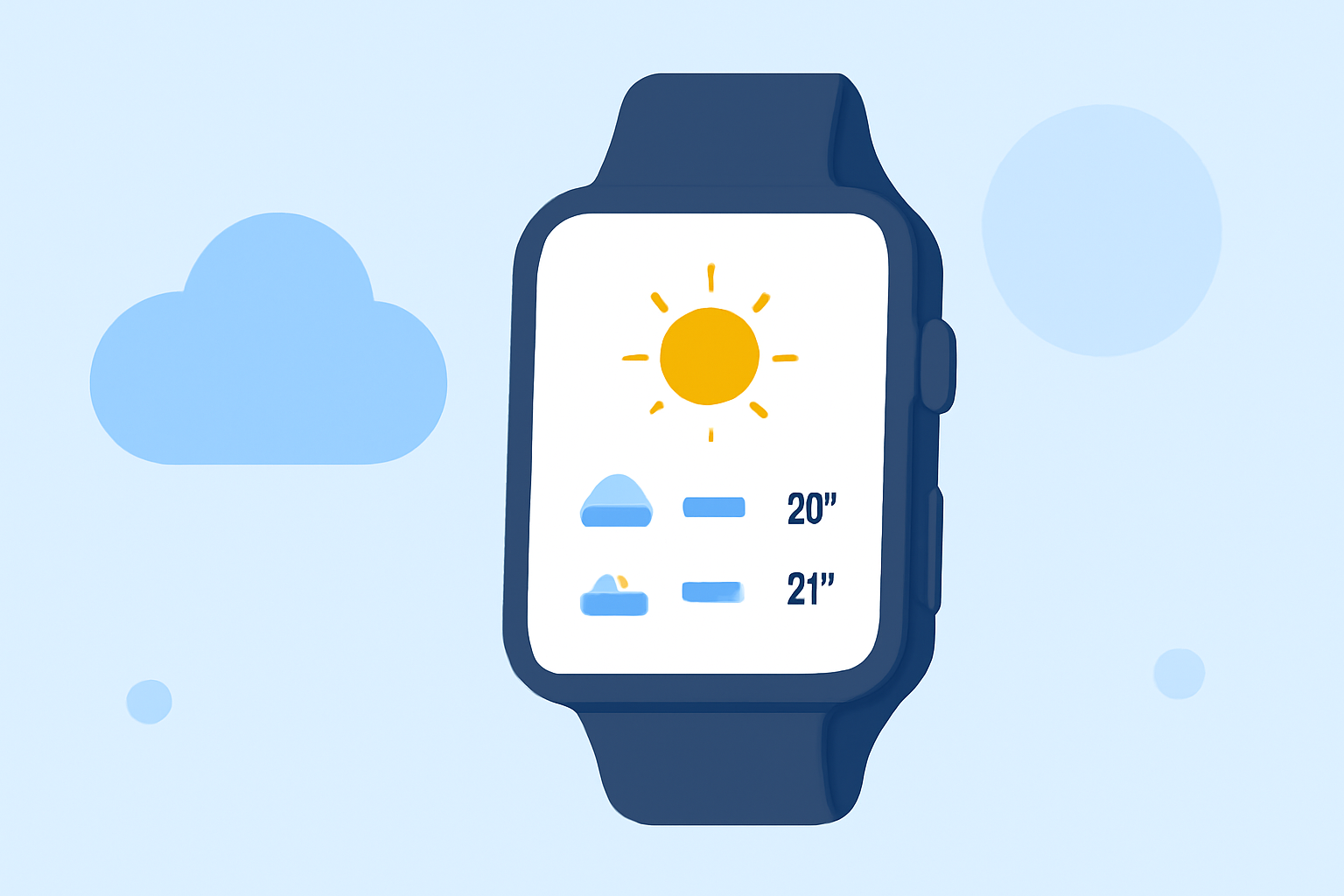
Staying informed about the weather is essential, and with your Wear OS smartwatch, accessing detailed forecasts has never been easier. This guide will walk you through the steps to view extended weather forecasts on your device.
1. How Do I Access Extended Weather Forecasts on My Wear OS Smartwatch?
To view detailed weather forecasts on your Wear OS smartwatch, follow these steps:
-
Open the Weather App: Locate and tap the Weather app icon on your smartwatch.
-
View Forecast Details: Within the app, you'll find current conditions, hourly forecasts, and extended daily forecasts.
-
Navigate Through Forecasts: Swipe or scroll to access forecasts for the upcoming days, typically up to seven days, depending on the app's capabilities.
2. How Can I Add a Weather Tile for Quick Access?
For immediate access to weather information, you can add a weather tile to your smartwatch:
-
Access Tiles: Swipe left or right on your watch face to view your current tiles.
-
Add Weather Tile: Press and hold a tile, then select "Add Image" to choose the Weather or UV Index tile.
-
Customize Tile Position: Drag the tile to your preferred position for easy access.
3. What Are Watch Face Complications, and How Do I Use Them?
Watch face complications are small widgets that display information directly on your watch face, such as weather updates:
-
Customize Watch Face: Touch and hold your current watch face to enter customization mode.
-
Select Complications: Choose the area on the watch face where you want to add the complication.
-
Add Weather Complication: From the list of available complications, select the weather-related option to display current conditions or forecasts.
4. How Do I Refresh Weather Data on My Wear OS Smartwatch?
To ensure you're viewing the most up-to-date weather information:
-
Manual Refresh: Open the Weather app, scroll to the bottom, and tap the refresh button to fetch the latest data.
-
Automatic Updates: Most weather apps refresh data periodically, but manual refresh ensures immediate updates.
5. What Should I Do If My Wear OS Smartwatch Doesn't Display Weather Information?
If you're experiencing issues with weather data on your smartwatch:
-
Check Connectivity: Ensure your smartwatch is connected to the internet via Wi-Fi or paired with your smartphone.
-
Verify App Permissions: Confirm that the Weather app has the necessary permissions to access location and network services.
-
Update the App: Ensure the Weather app is updated to the latest version for optimal performance.
6. How Do I Interpret Extended Weather Forecasts on My Wear OS Smartwatch?
Understanding extended weather forecasts involves:
-
Daily Forecasts: View high and low temperatures, precipitation chances, and weather conditions for each day.
-
Hourly Forecasts: Access detailed hourly predictions, including temperature, precipitation, and wind speed.
-
Additional Information: Some apps provide insights like UV index, air quality, and sunrise/sunset times.
7. How Do I Set Up Weather Alerts on My Wear OS Smartwatch?
To receive timely weather notifications:
-
Enable Notifications: In the Weather app settings, turn on notifications for severe weather alerts.
-
Customize Alerts: Choose the types of alerts you wish to receive, such as thunderstorms or high winds.
-
Adjust Settings: Set the preferred time for receiving alerts and ensure your smartwatch's notification settings allow these alerts.
By following these steps, you can effectively access and interpret extended weather forecasts on your Wear OS smartwatch, keeping you prepared for any conditions.