
How to Receive Severe Weather Alerts on Your Wear OS Smartwatch
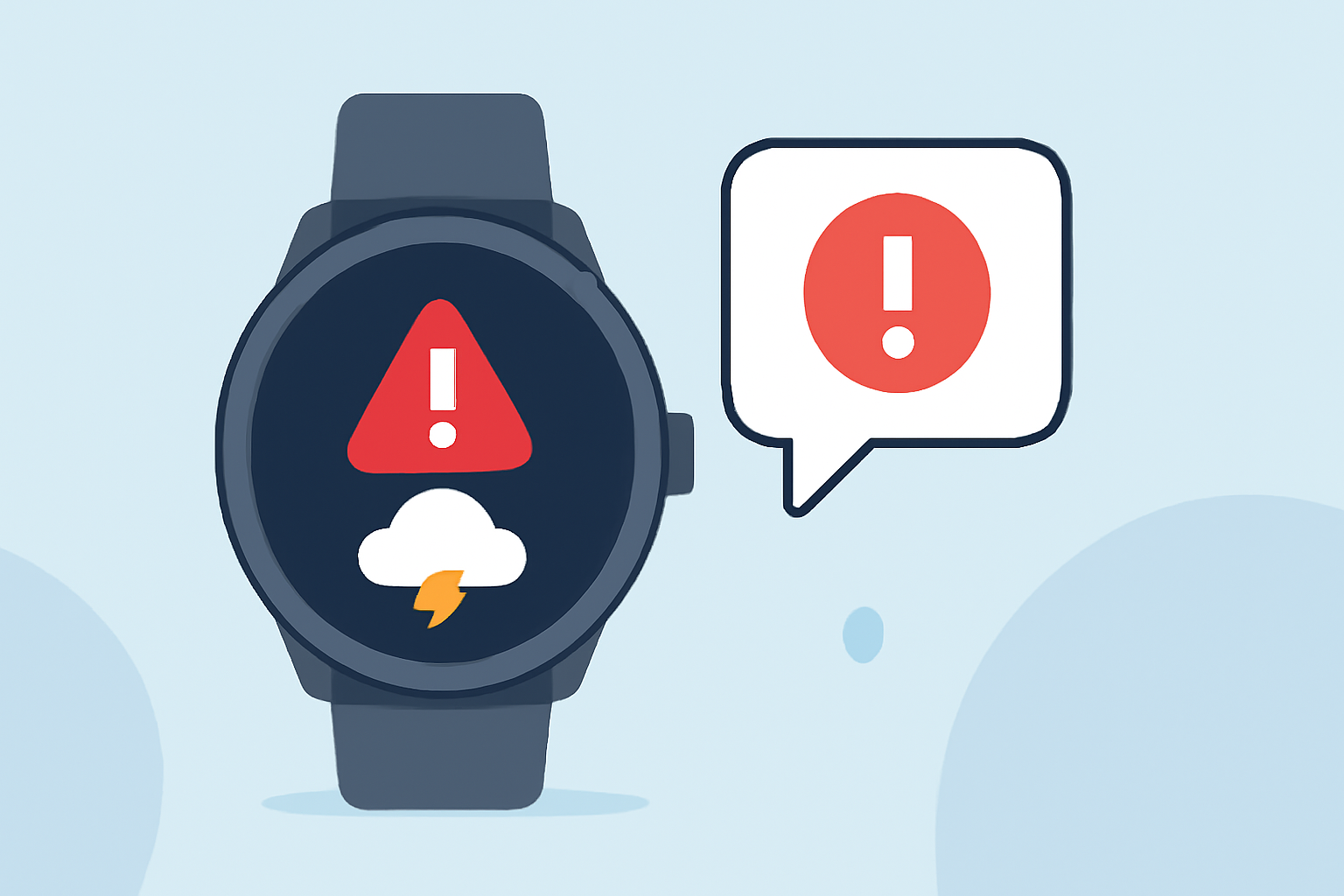
Staying informed about severe weather is crucial, and your Wear OS smartwatch can be a valuable tool in receiving timely alerts. Here's how to set up and manage these notifications:
1. Enable Wireless Emergency Alerts (WEAs)
WEAs are public safety messages sent by authorized authorities to alert you about emergencies in your area. To activate them:
- Access Settings: Open the Settings app on your smartwatch.
- Navigate to Alerts: Go to Sound > Wireless emergency alerts.
- Activate Alerts: Toggle the Allow alerts switch to the On position.
- Customize Alert Types: Choose the types of alerts you wish to receive, such as Extreme threats, Severe threats, AMBER alerts, and Public safety messages.
Please note that National alerts cannot be turned off. (verizon.com)
2. Configure Alert Preferences
Tailor how alerts are delivered to suit your preferences:
- Vibration: Decide if you want your watch to vibrate when an alert is received.
- Alert Reminder: Set up repeated notifications for missed alerts.
- Language Options: Enable Spanish language support if needed.
- Spoken Alerts: Activate the Speak alert message feature for audible notifications.
3. Utilize the Weather App for Localized Alerts
Many Wear OS smartwatches come with a built-in Weather app that provides current conditions, forecasts, and weather alerts:
- Open the Weather App: Access it directly from your watch's app list.
- View Alerts: The app will display any active weather warnings or advisories for your area.
- Add Weather Tile: For quick access, add the Weather tile to your watch face:
- Swipe left or right to access your tiles.
- Press and hold the tile area.
- Tap Add Image and select the Weather tile.
4. Manage App-Specific Notifications
Some weather apps allow for customized alert settings:
- Customize Alerts: Open the app and navigate to the Customize Alerts section.
- Select Alert Categories: Choose the types of severe weather alerts you wish to receive, such as tornadoes, severe thunderstorms, floods, or winter storms.
- Set Alert Preferences: Decide how you want to be notified (e.g., sound, vibration, or both).
For instance, the KOCO 5 app allows users to personalize severe weather alerts based on location and specific weather events. (koco.com)
5. Regularly Update Your Watch and Apps
Ensure your smartwatch and any weather-related apps are up to date to receive the latest features and improvements.
By configuring these settings, your Wear OS smartwatch will keep you informed about severe weather conditions, helping you stay safe and prepared.