
How to Receive Step-by-Step Weather Forecast Updates on Your Wear OS Watch
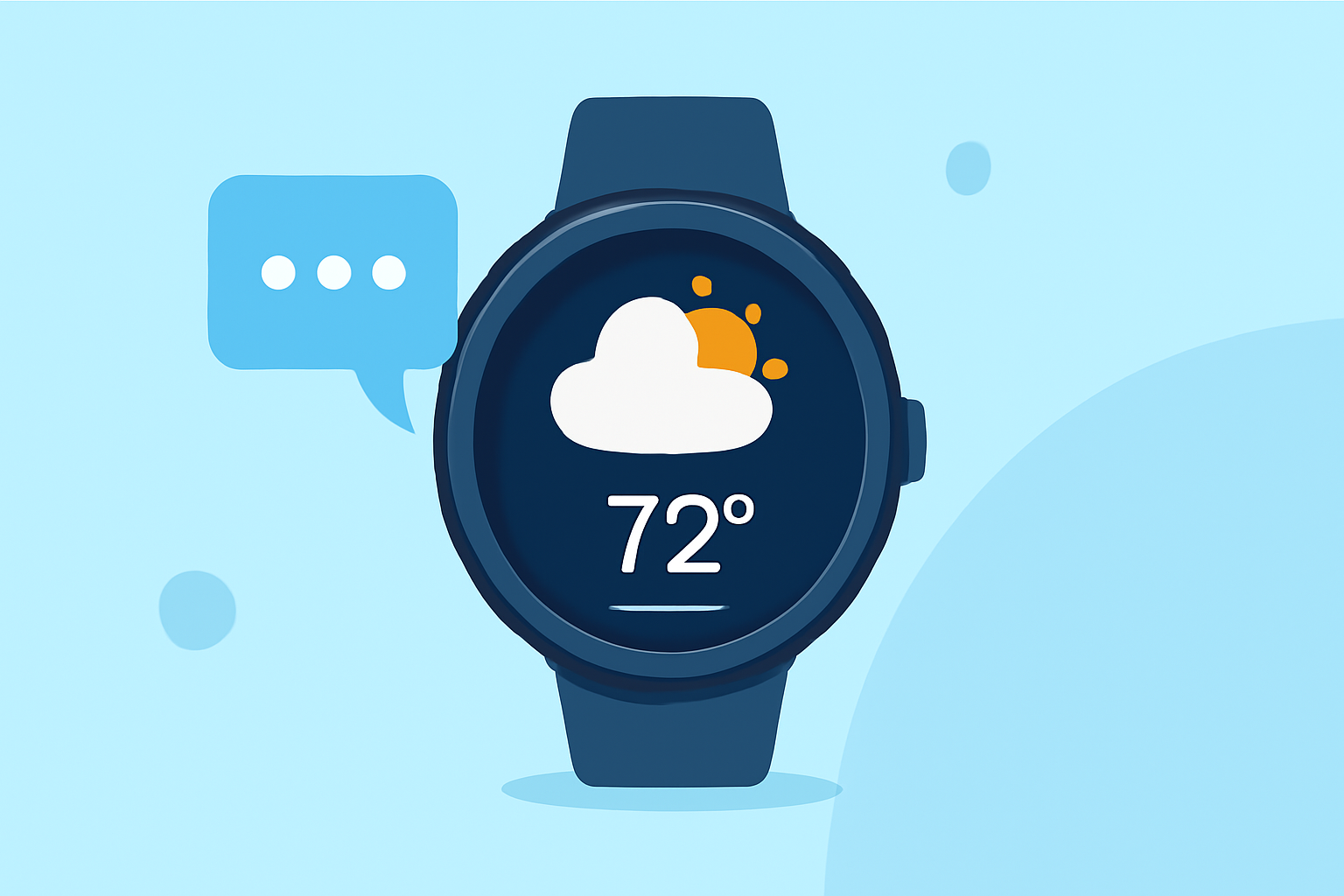
Staying informed about the weather is essential, and with your Wear OS smartwatch, you can receive detailed, step-by-step weather forecasts directly on your wrist. Here's how to set it up:
1. Install a Reliable Weather App
While Google's default Weather app has been phased out on Wear OS 6 and newer devices, you can still access weather information through other means. For instance, Pixel Watch users can utilize the Pixel Weather app, which offers a refreshed design and enhanced features. (support.google.com)
2. Add the Weather Tile for Quick Access
To view weather updates at a glance:
-
Swipe left or right to access your Tiles.
-
Press and hold the desired tile.
-
Tap "Add Image" to add the Weather or UV Index tile.
This allows you to see current conditions and forecasts without opening an app. (support.google.com)
3. Utilize the "At a Glance" Feature
The "At a Glance" feature provides timely information directly on your watch face:
-
Touch and hold the watch face.
-
Swipe right three times.
-
Select the "At a Glance" complication to add it.
This feature displays upcoming events, tasks, and weather updates, keeping you informed throughout the day. (support.google.com)
4. Refresh Weather Data Manually
To ensure you have the latest weather information:
-
Open the Weather app.
-
Scroll to the bottom and tap the refresh button to fetch the latest data.
This ensures you're always prepared for changing conditions. (support.google.com)
5. Enable Auto-Update for Weather Apps
To keep your weather apps up to date automatically:
-
Open Settings on your watch.
-
Toggle on "Auto-update apps."
This ensures your apps receive the latest features and security patches without manual intervention. (androidcentral.com)
By following these steps, you can receive detailed, step-by-step weather forecasts on your Wear OS smartwatch, keeping you informed and prepared for any weather conditions.