
Enhancing Your Wear OS Experience with Customizable Weather Widgets
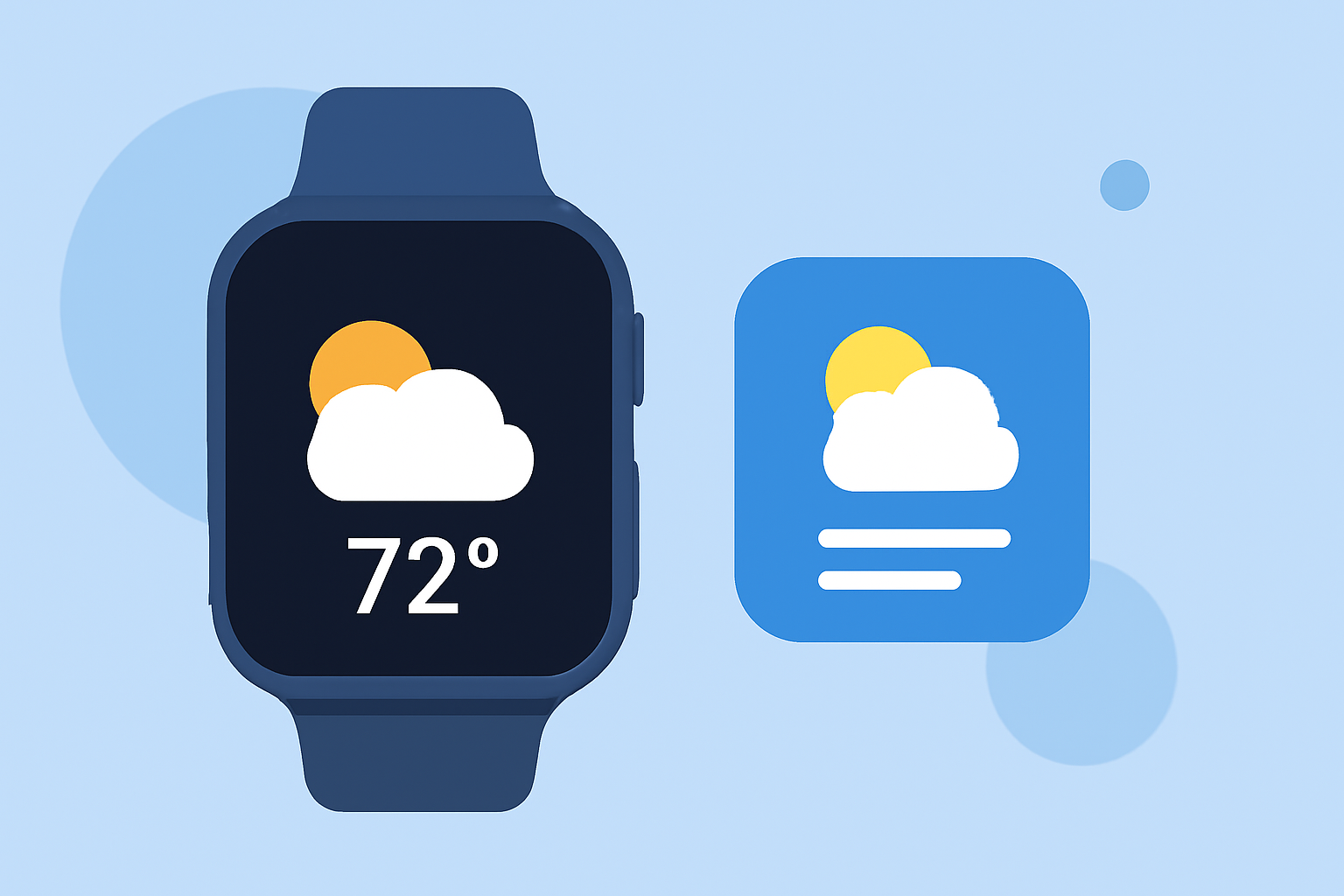
Personalizing your Wear OS smartwatch with weather widgets allows you to access real-time forecasts and conditions directly from your wrist. Here's how you can set up and customize weather information on your device:
Adding the Weather Tile
The Weather Tile provides at-a-glance weather updates on your smartwatch. To add it:
- Swipe left or right to access your Tiles.
- Press and hold the desired Tile slot.
- Tap "Add Image" to include the Weather Tile.
This setup allows you to view current conditions, hourly forecasts, and more with a simple swipe. (support.google.com)
Using Watch Face Complications
Complications are small widgets embedded within your watch face, offering quick access to information like weather updates. To add a weather complication:
- Press and hold your current watch face.
- Select "Customize" or "Edit."
- Navigate to the complications section.
- Choose a slot and assign the weather complication.
This feature enables you to monitor weather conditions without navigating through menus. (support.google.com)
Setting Up Multiple Locations
To receive weather updates for different locations:
- Open the Weather app on your smartwatch.
- Tap the location icon or settings.
- Add the desired locations.
This allows you to stay informed about weather conditions in various areas. (support.google.com)
Customizing Weather Information
Depending on your smartwatch model and software version, you can customize the weather information displayed:
- Hourly Forecasts: View upcoming weather conditions for the next few hours.
- Daily Forecasts: Access the weather outlook for the upcoming days.
- Additional Details: Monitor air quality index (AQI), precipitation, pollen levels, sunrise and sunset times, and UV index.
These features provide comprehensive weather insights directly on your smartwatch. (support.google.com)
Troubleshooting
If you encounter issues with weather updates:
- Check for Updates: Ensure your smartwatch and the Weather app are updated to the latest versions.
- Verify Location Settings: Confirm that location services are enabled and permissions are granted.
- Restart Your Device: A simple restart can resolve many issues.
By customizing your Wear OS smartwatch with weather widgets, you can stay informed about current conditions and forecasts, enhancing your daily planning and activities.