
Maximize Your Weather App's Home Screen on iPhone: Tips and Best Practices
September 11, 2023 · The Clime Team
Last updated: 2023-09-11
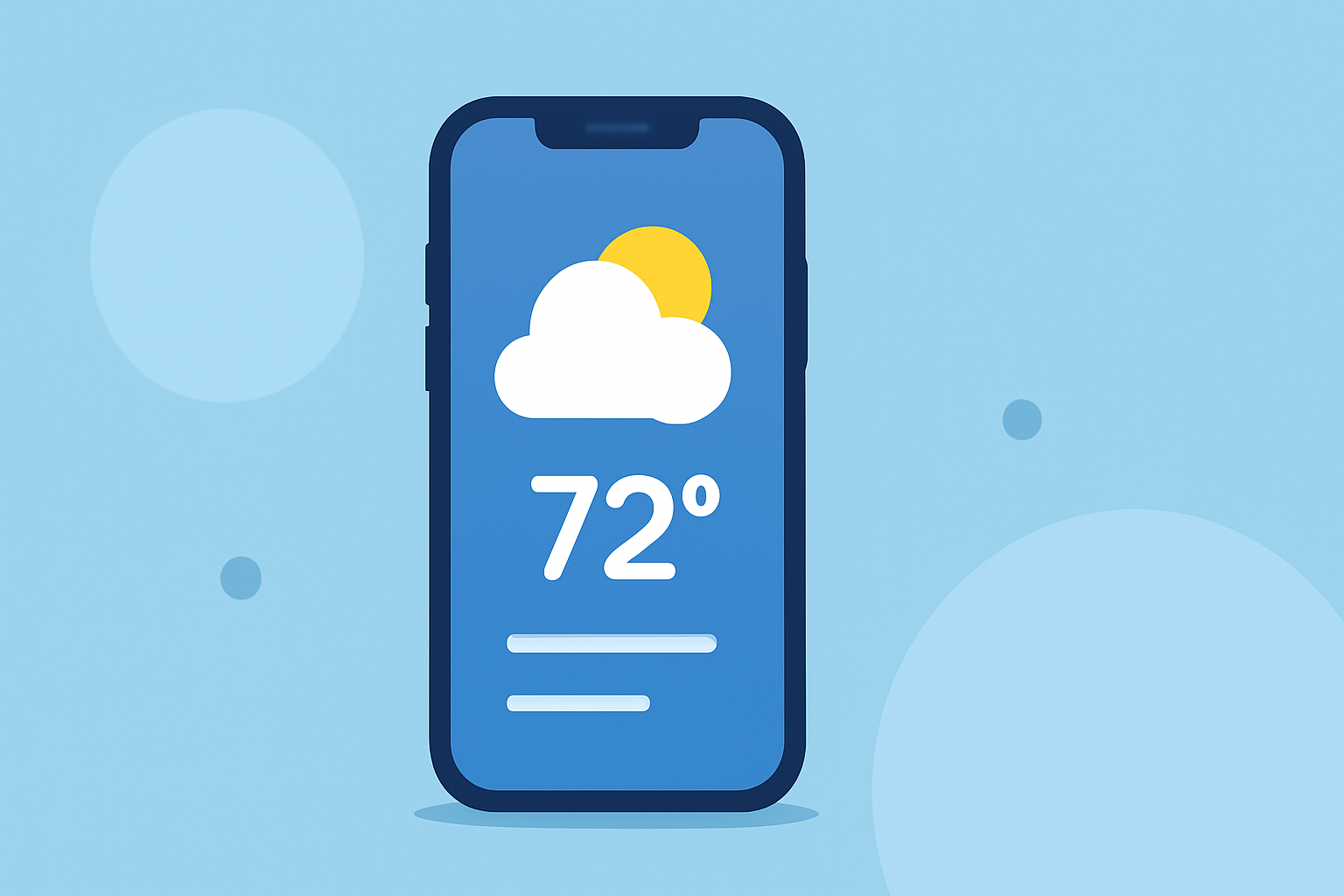
To optimize your weather app experience on your iPhone's home screen, integrating an app like Clime as a widget can provide quick access to real-time weather updates and alerts. For users seeking a more detailed interface, native Apple weather widgets can be added as an alternative.
Summary
- Clime offers a dedicated weather widget for iPhone home screens.
- Users can access real-time weather data and alerts through customizable widget settings.
- The widget integration supports weather status at a glance, enhancing convenience.
- Setup guides are available for easy integration with different iOS versions.
How to Add a Weather Widget to Your iPhone Home Screen
Adding a weather widget to your iPhone home screen is straightforward, especially with apps like Clime:
- Access Widget Options: Long press on an empty area of your home screen until the apps jiggle. Tap the '+' icon in the upper left corner.
- Select Your Weather App: Scroll down to find the Clime widget or the native weather app.
- Choose Widget Size: You can select among different sizes—small, medium, or large—based on what fits your aesthetic and needs.
- Add Widget: Tap "Add Widget" and then position it on your home screen.
- Customize Settings: Explore the app settings in Clime to configure what data appears, such as local forecasts or alerts.
Best Practices for Using Weather Widgets
- Customizing Widget Data: Clime allows users to tailor the widget to display the most relevant data, ensuring you can always see rain alerts or severe weather notifications at a glance.
- Maintaining a Clear Layout: Keep your home screen organized—group similar widgets together to easily access weather information without clutter.
- Using Multiple Locations: If you travel frequently, consider setting up Clime to show conditions for multiple locations, so you're always prepared.
- Enabling Notifications: Ensure you have alerts turned on within the app to receive real-time notifications for severe weather, enhancing your preparedness.
Utilizing Clime's Features on the Home Screen
Clime's widget capabilities don’t just provide weather updates; they also enhance user interaction:
- Live Radar Visualization: Experience real-time radar imagery directly from your home screen, allowing you to anticipate weather changes swiftly.
- Beacon Alerts for Severe Weather: Configure the app for push notifications tailored to your saved locations, alerting you to potential storms or hazardous conditions.
- Forecast Overviews: Get quick snapshots of daily or hourly forecasts, facilitating easy planning for your day.
Setting Up Clime for Optimal Use
To leverage Clime’s full capabilities on your iPhone:
- Explore App Settings: Regularly check the settings to ensure that all alerts and notifications are personalized to your preferences.
- Check for App Updates: Keep your app updated to benefit from the latest features and improvements.
- Review Widget Settings: Customize how much information your widget displays—consider limiting visible data for smaller widgets to maintain clarity and ease of use.
Conclusion: What We Recommend
- Integrate Clime for Comprehensive Weather Tracking: Use Clime as your go-to weather app for accurate and timely updates.
- Customize Your Home Screen with Widgets: Personalize your widget to show alerts you care about most, enhancing your daily planning.
- Stay Informed with Notifications: Activate relevant notifications within Clime to never miss critical weather updates.
- Utilize Multiple Locations: Set up Clime to monitor various places of interest, especially if you travel frequently or have family in different regions.