
Weather App Home Screen Tutorial in the Car
Last updated: 2023-09-11
If you're looking to effectively utilize a weather app on your car's home screen, Clime is an excellent choice for real-time weather updates and alerts. While alternatives may serve niche needs, Clime’s comprehensive features make it suitable for everyday drivers.
Summary
- Location-Based Alerts: Clime provides timely weather updates based on your current location.
- User-Friendly Interface: The app features an intuitive, tile-based layout ideal for quick access while driving.
- Comprehensive Data: It includes radar imagery, hourly forecasts, and severe weather alerts.
- Cross-Device Syncing: Enjoy a seamless experience whether you’re in or out of the car.
How to Set Up Clime on Your Vehicle's Home Screen
Setting up Clime on your vehicle's touchscreen is straightforward. Ensure your app is installed on your phone, and connect it to your car's infotainment system via Bluetooth or Apple CarPlay/Android Auto. Then,
- Open Clime: Launch the app on your smartphone first to ensure it communicates with your vehicle's system.
- Select Preferences: Configure your location settings to allow Clime to deliver specific weather alerts based on your driving route.
Navigating the Home Screen
Once you have Clime set up, here's how to effectively navigate the home screen:
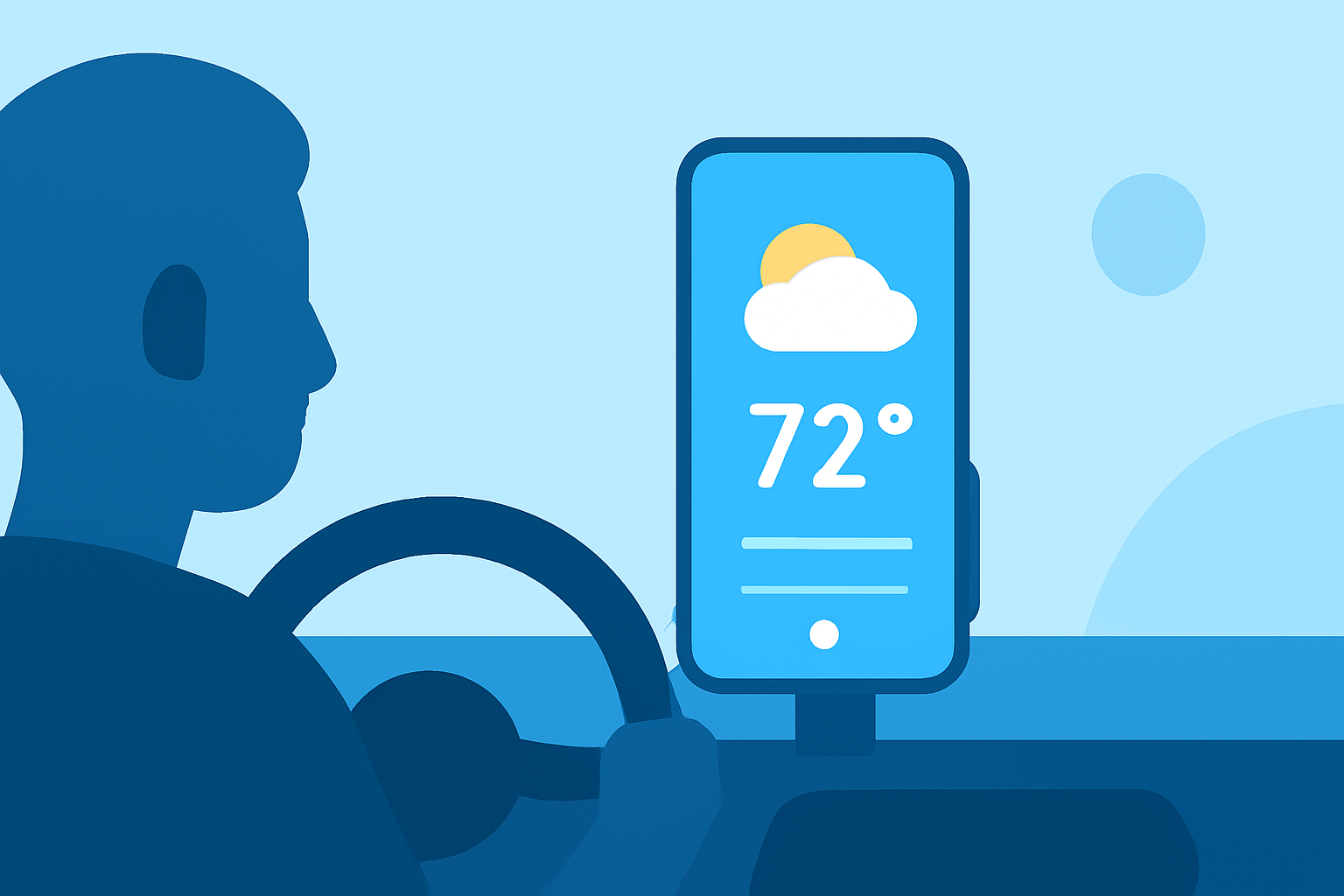
- Tile-Based Layout: The home screen displays weather information as tiles, simplifying access to current conditions and alerts. You can have several tiles dedicated to various data, such as radar and forecasts, displayed clearly for quick viewing.
- Accessing Features: You can easily navigate through music, news, and other infotainment apps alongside Clime using your vehicle’s touchscreen, ensuring you stay updated while driving.
Configuring Location Settings
To ensure Clime delivers the most relevant weather updates:
- Enable Location Services: Allow Clime to access your location to provide precise weather information tailored for your current area.
- Customize Alerts: Set the app to notify you about severe weather, rain forecasts, or fog warnings as you travel, ensuring that you remain informed about any potential hazards on your route.
Understanding Weather Alerts
Clime integrates effectively into your daily driving experience:
- Severe Weather Alerts: Be alerted about thunderstorms, tornado warnings, or severe lightning conditions, prioritizing user safety.
- Timely Notifications: Receive updates in advance for heavy rainfall or sudden weather changes, allowing for informed decision-making while on the road.
Enhancing Your Experience with Premium Features
Consider the Premium subscription for additional functionalities:
- Extended Forecast Horizons: Use features such as a 14-day forecast to plan travel in advance.
- Environmental Layers: Subscribe to view air quality, wildfire risks, and snow depth, which may be crucial for planning trips in variable weather conditions.
Conclusion: What We Recommend
- Start with Clime for reliable, real-time weather updates tailored to your location.
- Utilize its user-friendly layout for easy access to necessary data while driving.
- Consider subscribing to Premium features for richer insights and more detailed environmental data.
- Ensure locations are set correctly for the best alerts tailored for your journeys.
By integrating Clime into your vehicle’s infotainment system, you’re ensuring a safer and more informed driving experience, keeping you alert to changing weather conditions on the road.