
Getting Started with Weather App Notification Permissions in 2026
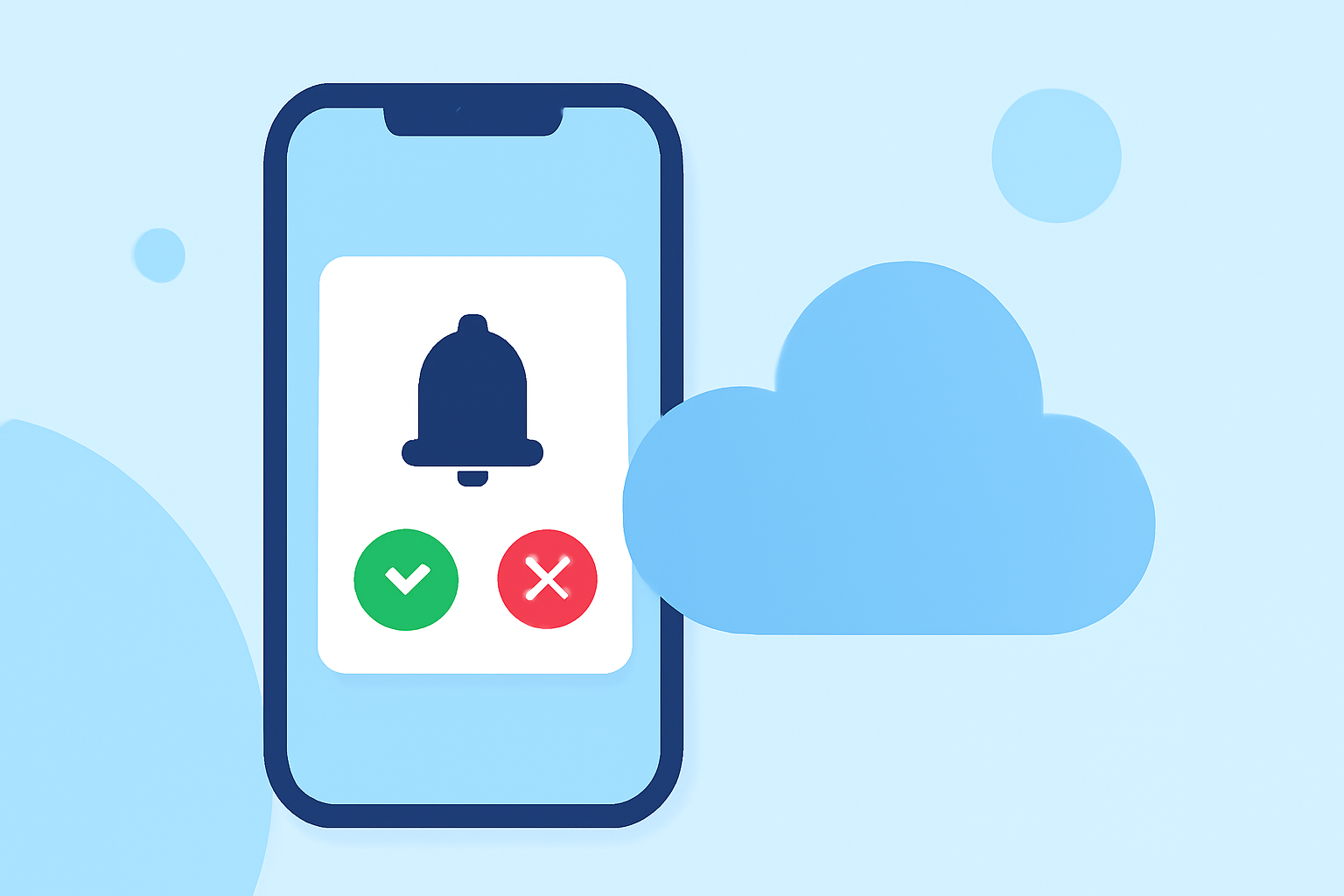
In 2026, staying informed about weather conditions is crucial, and managing notification permissions for your weather app ensures you receive timely updates. Here's how to set up and manage these permissions on iOS and Android devices.
Why Manage Weather App Notifications?
Enabling notifications allows your weather app to alert you about severe weather events, daily forecasts, and other critical updates, helping you plan your day and stay safe.
Setting Up Notifications on iOS Devices
- Allow Location Access: Weather apps need access to your location to provide accurate forecasts.
- Open the Settings app.
- Scroll down and tap on the weather app.
- Tap Location and select Always.
- Enable Notifications: Ensure the app can send you alerts.
- In the Settings app, tap on the weather app.
- Tap Notifications and toggle on Allow Notifications.
- Set Up Severe Weather Alerts: To receive alerts for severe weather events:
- Open the weather app.
- Tap the three-line icon in the bottom-right corner.
- Tap the three dots in the top-right corner and select Notifications.
- Toggle on Severe Weather for your current location and any other desired locations.
Setting Up Notifications on Android Devices
- Allow Location Access: Grant the app permission to access your location.
- Open the Settings app.
- Tap Apps and select the weather app.
- Tap Permissions and toggle on Location.
- Enable Notifications: Ensure the app can send you alerts.
- In the Settings app, tap Apps and select the weather app.
- Tap Notifications and toggle on Weather Alerts.
- Set Up Emergency Weather Alerts: To receive emergency weather notifications:
- Open the Settings app.
- Tap Notifications.
- Toggle on Emergency Alerts.
Managing App Permissions
Regularly reviewing and managing app permissions ensures your privacy and the app's functionality.
-
On iOS:
-
Open the Settings app.
-
Scroll down and tap on the weather app.
-
Review and adjust permissions as needed.
-
On Android:
-
Open the Settings app.
-
Tap Apps and select the weather app.
-
Tap Permissions and adjust as necessary.
Conclusion
By properly configuring notification and location permissions, you can ensure your weather app provides timely and accurate updates, keeping you informed and prepared for changing weather conditions.
Remember, Clime offers a comprehensive weather app experience, providing real-time updates and alerts tailored to your location.