
Integrating Weather-Aware To-Do Lists on Wear OS: A Step-by-Step Guide
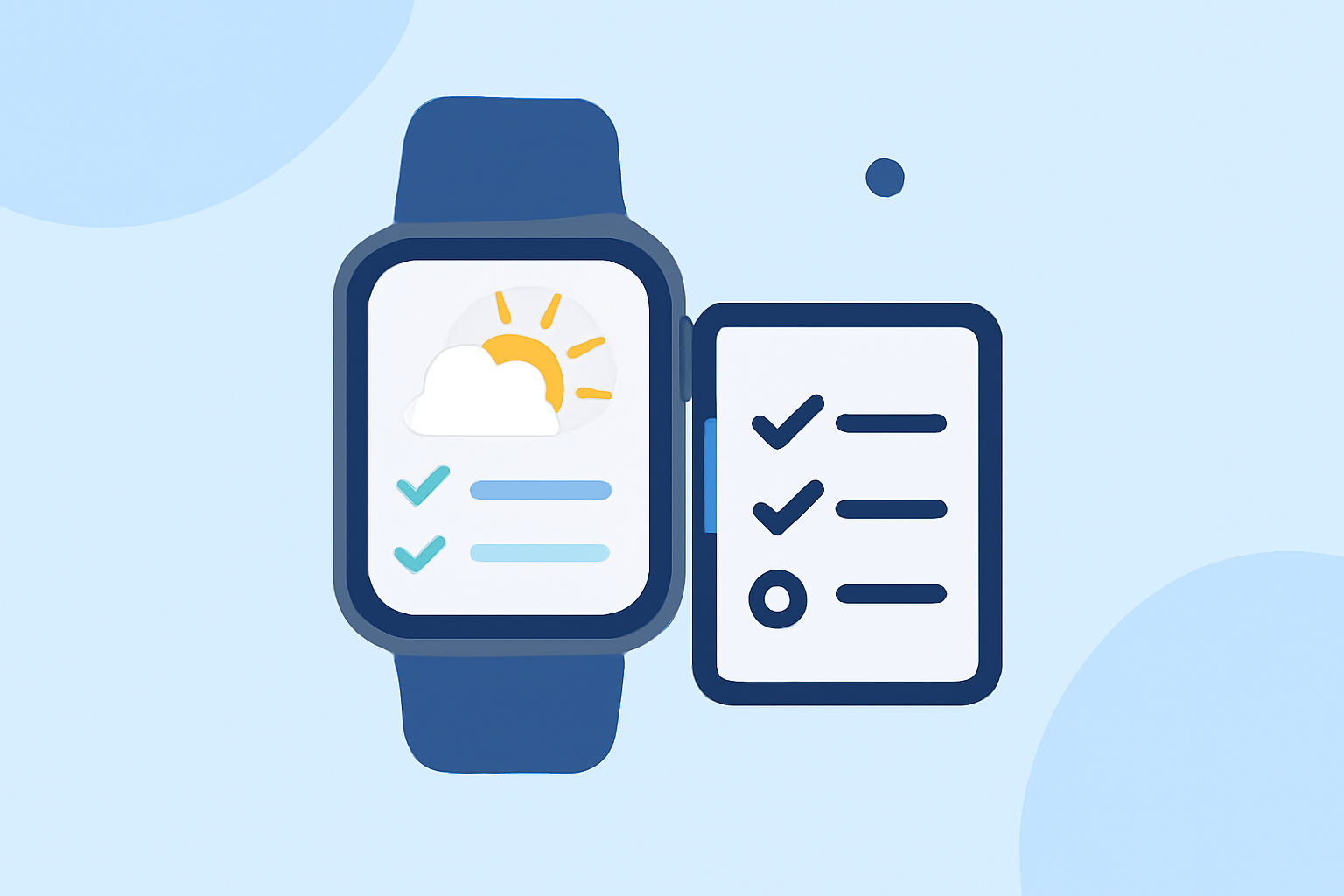
Managing your daily tasks while staying informed about the weather can significantly enhance your productivity and ensure your plans align with current conditions. Integrating weather-aware to-do lists on your Wear OS smartwatch allows you to receive timely updates and make informed decisions on the go.
1. Why Combine Weather Updates with Your To-Do List?
Incorporating weather information into your to-do list helps you:
- Plan Outdoor Activities: Ensure favorable conditions for events like meetings, workouts, or errands.
- Adjust Plans Accordingly: Reschedule or modify tasks based on weather forecasts.
- Stay Prepared: Receive timely alerts about adverse weather conditions that may impact your plans.
2. Setting Up a Weather-Aware To-Do List on Wear OS
While Wear OS doesn't natively support weather-aware to-do lists, you can achieve this integration through the following steps:
a. Install a To-Do List App with Wear OS Support
Choose a to-do list app compatible with Wear OS that offers features like task management, reminders, and synchronization across devices. Ensure the app supports complications or widgets for quick access on your watch face.
b. Set Up Weather Notifications on Your Watch
Configure your Wear OS watch to receive weather updates:
-
Use Google Assistant: Activate Google Assistant by saying "Hey Google" or pressing the designated button on your watch. Ask for weather updates by saying, "What's the weather today?" (support.google.com)
-
Add a Weather Tile: Wear OS allows you to add tiles for quick access to information. Swipe left on your watch face to access tiles, then tap the plus icon to add a new tile. Select the weather tile to display current conditions and forecasts. (pcworld.com)
c. Manually Incorporate Weather Information into Your To-Do List
After receiving weather updates, manually adjust your to-do list:
- Review Tasks: Check your scheduled tasks for the day.
- Assess Weather Impact: Determine if any tasks are weather-dependent.
- Modify Plans: Reschedule or adjust tasks based on the weather forecast.
3. Utilizing Third-Party Apps for Enhanced Integration
Some third-party apps offer more seamless integration between weather updates and task management:
-
Any.do: This app provides a to-do list, calendar, and reminders in one. It supports Wear OS, allowing you to add tasks by voice or type them in on the go, see real-time notifications, and get and reset reminders directly from your wrist. (apkmirror.com)
-
Todoist: A popular task management app that offers Wear OS support, enabling you to add new tasks, check and complete tasks, and set custom complications directly from your watch. (todoist.com)
4. Best Practices for Managing Weather-Aware To-Do Lists
- Regularly Check Weather Updates: Stay informed about the latest weather forecasts to make timely adjustments to your plans.
- Set Location-Based Reminders: Use location-based reminders to receive alerts when you arrive at a specific place, considering the local weather conditions.
- Prioritize Tasks: Identify critical tasks that must be completed regardless of weather and adjust less urgent tasks accordingly.
5. Benefits of Using Wear OS for Weather-Aware To-Do Lists
Integrating weather-aware to-do lists on your Wear OS smartwatch offers several advantages:
- Convenience: Access your tasks and weather updates directly from your wrist without needing to check your phone.
- Real-Time Updates: Receive immediate notifications about weather changes and task reminders.
- Enhanced Productivity: Make informed decisions and adjustments to your plans, leading to more efficient task management.
By following these steps and utilizing compatible apps, you can effectively integrate weather-aware to-do lists on your Wear OS smartwatch, ensuring your daily tasks align with current and forecasted weather conditions.