
Weather Considerations for Outdoor Cleaning: A Guide for Apple Watch Users
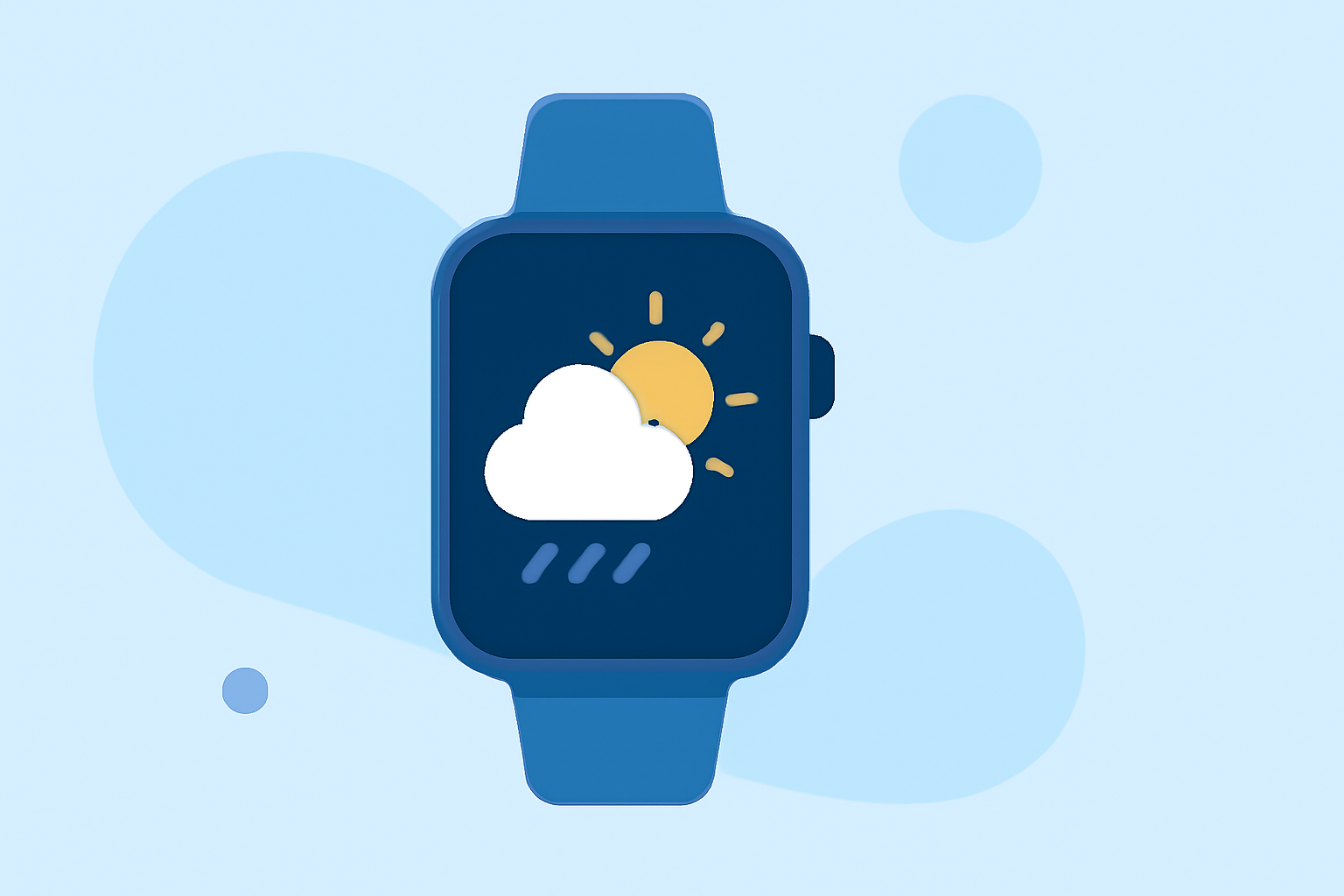
When planning outdoor cleaning tasks, it's essential to monitor weather conditions to ensure safety and effectiveness. Your Apple Watch, equipped with the Weather app, can be a valuable tool in this process.
How Can I Use My Apple Watch to Monitor Weather for Outdoor Cleaning?
The Weather app on your Apple Watch provides real-time updates on various weather metrics, including temperature, precipitation, wind speed, humidity, and air quality. To access this information:
-
Open the Weather App: Press the Digital Crown on your Apple Watch to access the app list, then tap the Weather app icon.
-
View Current Conditions: The main screen displays the current weather conditions for your location, including temperature, sky conditions, and other relevant metrics.
-
Access Detailed Forecasts: Scroll down to view hourly and 10-day forecasts, providing insights into upcoming weather patterns.
For a comprehensive guide on using the Weather app, refer to Apple's official support page. (support.apple.com)
What Are the Key Weather Factors to Consider for Outdoor Cleaning?
When planning outdoor cleaning, consider the following weather factors:
-
Precipitation: Rain can hinder cleaning efforts and may cause slippery surfaces.
-
Temperature: Extremely hot or cold temperatures can affect cleaning solutions and materials.
-
Wind: Strong winds can spread debris and may pose safety risks.
-
Humidity: High humidity can slow drying times and affect the effectiveness of cleaning agents.
How Can I Ensure My Apple Watch Provides Accurate Weather Information?
To ensure your Apple Watch delivers accurate weather updates:
-
Enable Location Services: Go to Settings > Privacy & Security > Location Services on your Apple Watch and ensure it's turned on.
-
Set the Default City: Open the Apple Watch app on your iPhone, tap My Watch, then go to Weather > Default City, and select your current location or a preferred city.
-
Check Internet Connectivity: Ensure your Apple Watch is connected to your iPhone via Bluetooth and that your iPhone has a working internet connection.
For more details, refer to Apple's support page on checking the weather on Apple Watch. (support.apple.com)
What Are Some Tips for Using My Apple Watch to Plan Outdoor Cleaning?
-
Set Up Weather Complications: Customize your watch face to display weather information, allowing quick access to current conditions and forecasts.
-
Use Siri for Quick Updates: Activate Siri and ask, "What's the weather like?" to receive immediate weather updates without navigating through apps.
-
Monitor Severe Weather Alerts: Stay informed about severe weather conditions that may impact your cleaning plans by checking for alerts in the Weather app.
How Can I Maintain My Apple Watch for Optimal Performance?
Regular maintenance ensures your Apple Watch functions correctly:
-
Keep the Watch Clean: Use a soft, lint-free cloth to clean the watch face and band. Avoid using soap, detergents, or abrasive materials. (applemagazine.com)
-
Update Software Regularly: Ensure your Apple Watch and paired iPhone are running the latest software versions to benefit from the latest features and fixes.
-
Check for Connectivity Issues: If the Weather app isn't updating, ensure your watch has a stable connection to your iPhone and that both devices have internet access.
By effectively utilizing your Apple Watch's Weather app and considering key weather factors, you can plan and execute outdoor cleaning tasks more efficiently and safely.