
Weather for Business Trips: A Comprehensive Guide for Apple Watch Users
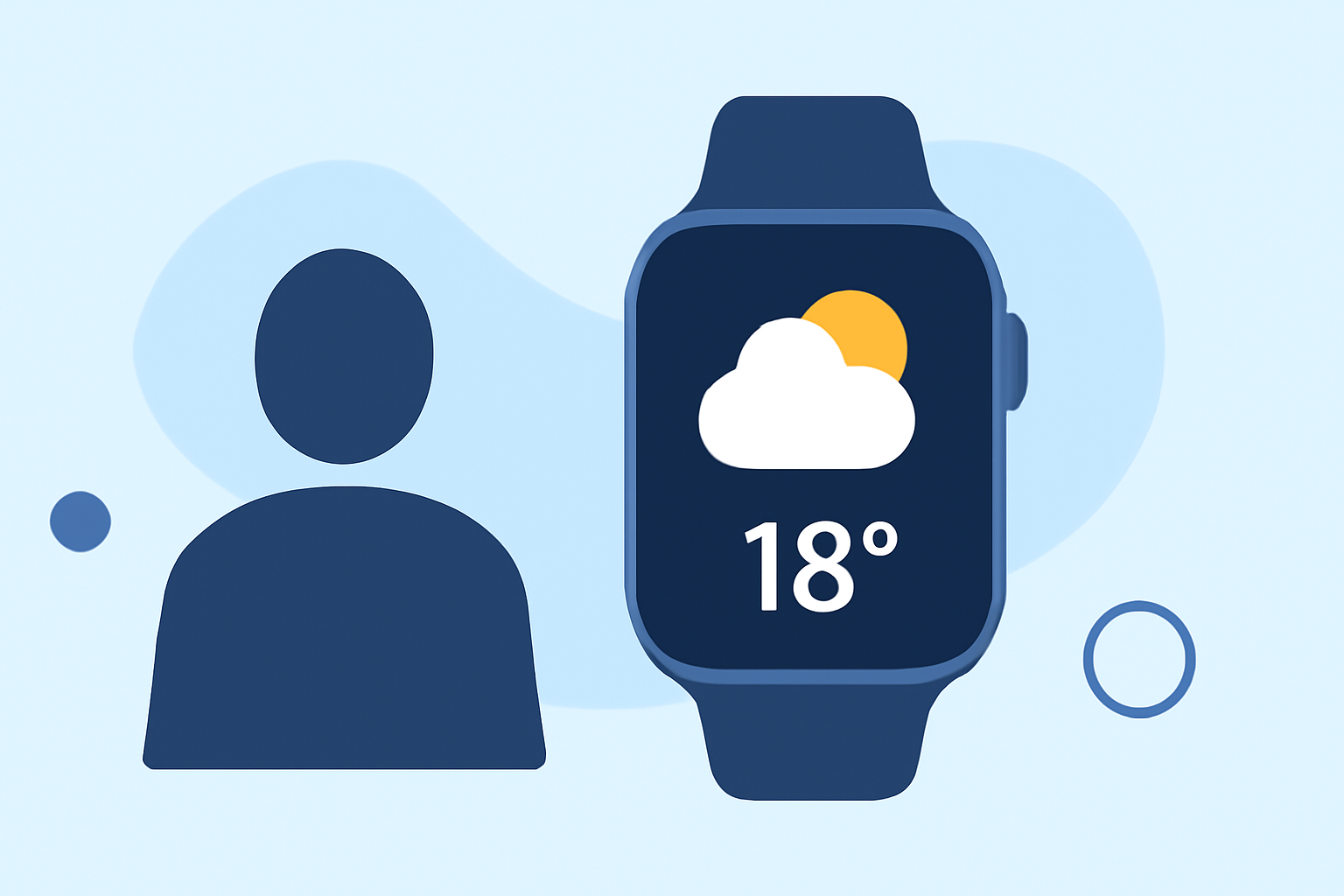
When embarking on a business trip, staying informed about the weather is crucial for planning and comfort. Your Apple Watch offers a convenient way to access real-time weather updates, forecasts, and alerts, all at your fingertips.
How Can I Check the Weather on My Apple Watch?
The built-in Weather app on your Apple Watch provides comprehensive weather information. To access it:
- Press the Digital Crown to view your apps.
- Tap the Weather app icon.
Here, you can view current conditions, hourly forecasts, and a 10-day outlook. The app displays details such as temperature, precipitation, wind speed, UV index, visibility, humidity, and air quality. Simply tap the display to cycle through these metrics. (support.apple.com)
Can I Receive Weather Alerts on My Apple Watch?
Yes, your Apple Watch can notify you of significant weather events. When a severe weather alert is issued, an alert appears at the top of the Weather app. Tapping the alert provides more information. Note that severe weather alerts may not be available in all locations. (support.apple.com)
How Do I Add Multiple Locations for Weather Updates?
To monitor weather conditions in multiple locations:
- Open the Weather app on your Apple Watch.
- Force touch (press firmly) on the screen to access the location list.
- Tap the plus icon (+) to add a new location.
- Use the Digital Crown to scroll through the list of cities and select the one you want to add.
This feature is particularly useful for business travelers who need to stay updated on weather conditions in various destinations.
Are There Third-Party Weather Apps Compatible with Apple Watch?
Yes, several third-party weather apps offer additional features and functionalities. For instance, WeatherBug provides real-time forecasts, interactive maps, and weather alerts. Weathergraph offers hour-by-hour forecast graphs, and Weathercaster presents forecast data as interactive line charts. These apps can be downloaded from the App Store and are compatible with Apple Watch. (apps.apple.com)
How Can I Customize Weather Notifications on My Apple Watch?
To customize weather notifications:
- Open the Watch app on your iPhone.
- Tap "My Watch," then tap "Weather."
- Here, you can adjust settings for notifications, including severe weather alerts and temperature changes.
This customization ensures you receive timely updates relevant to your preferences.
Can I View Weather Information on My Apple Watch Face?
Yes, you can add weather complications to your watch face for quick access to weather information. To do this:
- Press and hold the watch face to enter customization mode.
- Tap "Customize."
- Swipe to the complication area and tap it.
- Select the Weather app from the list of available complications.
This setup allows you to view current conditions, forecasts, and alerts directly from your watch face.
How Accurate Is the Weather Information on Apple Watch?
The accuracy of weather information on your Apple Watch depends on the data sources used by the Weather app or any third-party apps you have installed. Apple sources its weather data from reputable providers, ensuring reliable information. However, for the most precise and localized forecasts, especially during business trips, consider using apps that offer hyper-local data and real-time updates.
By leveraging the weather capabilities of your Apple Watch, you can stay informed and prepared during your business travels, ensuring a smooth and productive trip.