
Weather for Commuting: A Comprehensive Guide for Apple Watch Users
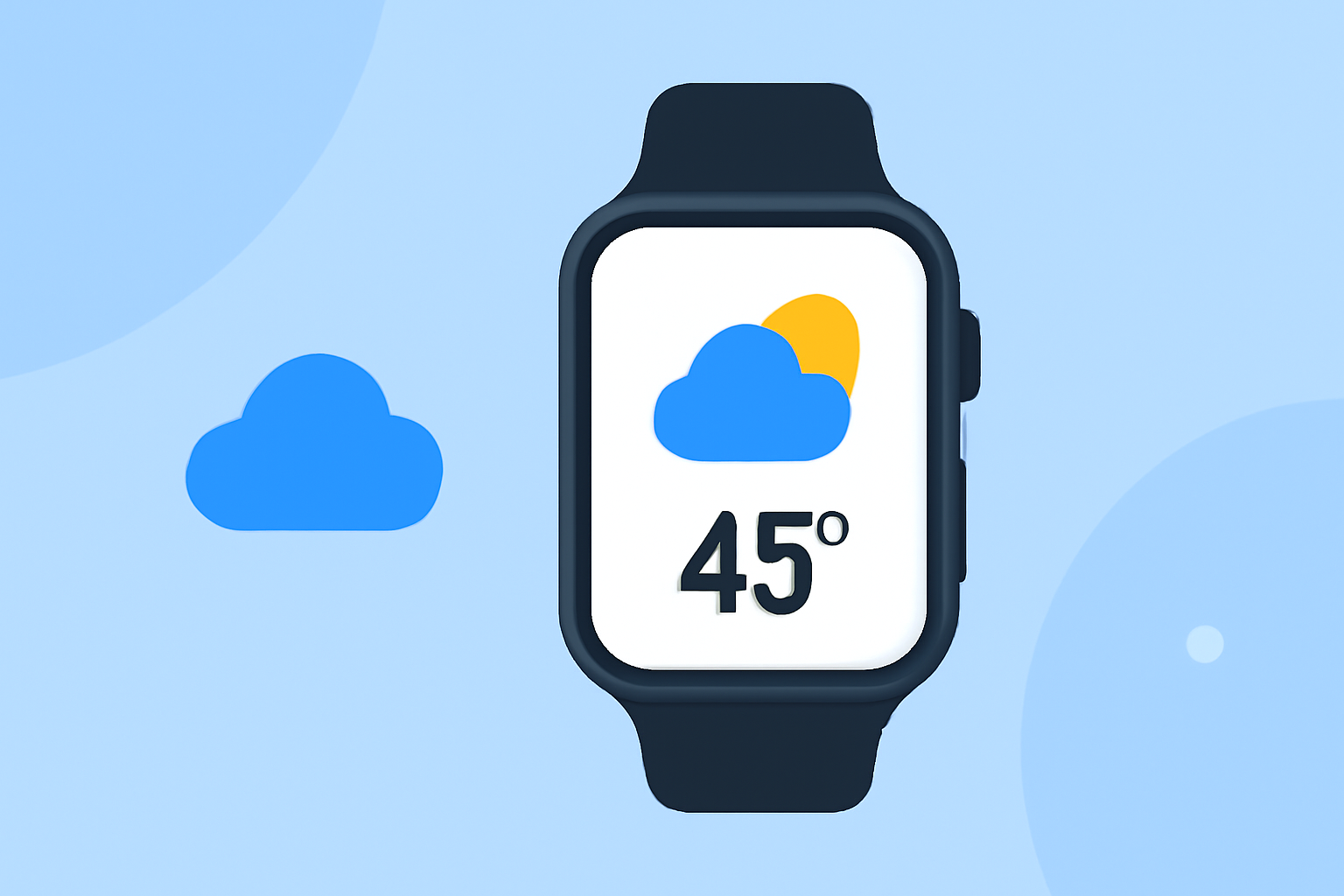
Commuting daily requires awareness of weather conditions to ensure a safe and comfortable journey. Your Apple Watch, equipped with the Weather app, offers a convenient way to stay informed about current and upcoming weather conditions.
How Can I Check the Weather on My Apple Watch?
To access weather information on your Apple Watch:
-
Open the Weather App: Press the Digital Crown to access the app list, then tap the Weather app icon.
-
View Current Conditions: The main screen displays the current temperature, conditions (e.g., sunny, cloudy), and other relevant details.
-
Access Detailed Forecasts: Scroll down to view hourly and 10-day forecasts, providing insights into temperature trends, precipitation chances, and more.
How Can I Add Multiple Locations for My Commute?
Monitoring weather conditions along your commute is essential. To add multiple locations:
-
Add Locations on iPhone: Open the Weather app on your iPhone, tap the '+' icon, and enter the desired city or location.
-
Sync with Apple Watch: The added locations will automatically sync with your Apple Watch, allowing you to view weather conditions for each during your commute.
How Can I Receive Weather Alerts for My Commute?
Staying informed about severe weather conditions is crucial for safety. To set up alerts:
-
Enable Location Services: On your iPhone, go to Settings > Privacy & Security > Location Services, and ensure it's turned on.
-
Set Up Weather Notifications: In the Weather app on your iPhone, tap the list icon, then the '...' button, and select Notifications. Enable 'Severe Weather' under Suggested Locations.
-
Customize Alert Settings: Adjust the alert settings to receive notifications for severe weather events along your commute route.
How Can I View Weather Information on My Apple Watch Face?
Having weather details readily available on your watch face enhances convenience:
-
Customize Watch Face: Press firmly on your current watch face, tap 'Customize,' and navigate to the complication section.
-
Add Weather Complication: Select a slot and choose the Weather complication to display current conditions or forecasts.
-
Set Default Location: On your iPhone, open the Apple Watch app, tap 'My Watch,' go to Weather > Default City, and select your preferred location.
How Can I Use Siri to Check the Weather?
Siri offers a hands-free way to access weather information:
-
Activate Siri: Raise your wrist and say "Hey Siri," or press and hold the Digital Crown.
-
Ask About the Weather: Inquire about current conditions, forecasts, or specific weather details for your commute.
How Can I Plan My Commute Using Weather Information?
Planning your commute with weather insights ensures preparedness:
-
Check Hourly Forecasts: Use the hourly forecast to determine the best time to leave, considering factors like temperature and precipitation.
-
Monitor Severe Weather Alerts: Stay updated on any severe weather warnings that might affect your route.
-
Adjust Departure Times: Based on weather predictions, plan your departure to avoid adverse conditions.
By effectively utilizing your Apple Watch's weather features, you can enhance your commuting experience, ensuring safety and comfort throughout your journey.