
Weather for Outdoor Movies Tutorial on Wear OS
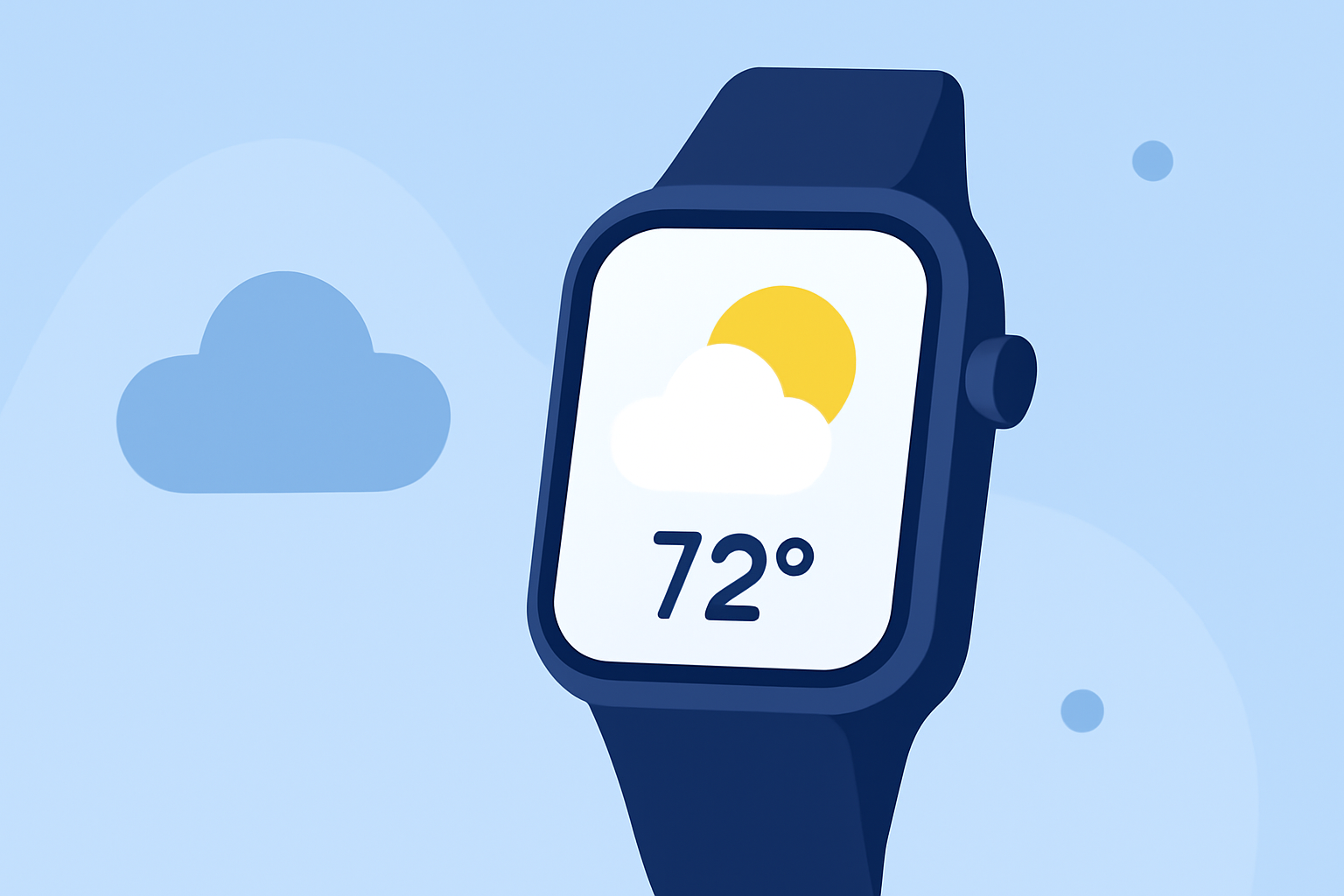
Planning an outdoor movie event requires careful consideration of weather conditions to ensure a comfortable and enjoyable experience. With Wear OS smartwatches, you can conveniently access real-time weather updates, forecasts, and alerts directly from your wrist. This guide will walk you through the steps to set up and utilize weather features on your Wear OS device.
1. How Can I Access Weather Information on My Wear OS Smartwatch?
Wear OS devices offer built-in weather applications that provide current conditions, forecasts, and alerts. To access weather information:
-
Open the Weather App: Navigate to the weather app on your smartwatch to view current conditions, hourly forecasts, and more.
-
Add Weather Complications: Enhance your watch face by adding weather complications for quick access to weather updates. To do this, touch and hold your watch face, select "Add complication," and choose the weather complication.
2. How Do I Set Up Weather Alerts for Outdoor Events?
Setting up weather alerts ensures you're notified of any significant weather changes that could impact your outdoor movie plans. To configure alerts:
-
Enable Notifications: Ensure that your smartwatch is connected to your smartphone and that notifications are enabled for the weather app.
-
Customize Alert Settings: Within the weather app, adjust alert settings to receive notifications for conditions like rain, thunderstorms, or extreme temperatures.
3. How Can I Integrate Weather Data into Custom Watch Faces?
For a personalized experience, you can integrate weather data into custom watch faces using the Watch Face Format (WFF) provided by Wear OS. Here's how:
-
Access Weather Data: Use expressions like
[WEATHER.CONDITION_NAME]to display current weather conditions on your watch face. -
Handle Data Availability: Ensure your watch face checks for the availability of weather data using
[WEATHER.IS_AVAILABLE]to prevent errors when data is unavailable. -
Update Data Periodically: Implement functionality to refresh weather data at regular intervals to keep the information current.
For detailed guidance on integrating weather data into custom watch faces, refer to the Android Developers documentation on Watch Face Format.
4. How Do I Add a Weather Tile for Quick Access?
Adding a weather tile to your smartwatch allows for swift access to weather information:
-
Access Tiles: Swipe left or right on your watch to view available tiles.
-
Add Weather Tile: Press and hold the tile area, select "Add Image," and choose the weather tile to add it to your collection.
5. How Can I Ensure Accurate Location for Weather Updates?
Accurate location data is crucial for precise weather updates:
-
Enable Location Services: Ensure that location services are activated on both your smartwatch and connected smartphone.
-
Check Location Settings: Verify that your smartwatch is set to use your current location for weather updates.
By following these steps, you can effectively monitor weather conditions and plan your outdoor movie events with confidence.
For more information on using weather features on Wear OS, visit the Google Pixel Watch Help page.