
Weather Forecasting Basics on Apple Watch
Last updated: 2023-08-13
Getting the weather forecasting basics on your Apple Watch is straightforward, especially with the help of Clime, which harnesses WeatherKit for accurate, hyperlocal forecasts. If you require advanced capabilities, other options might serve specific niche needs well.
Summary
- Clime provides seamless weather forecasting using WeatherKit power on your Apple Watch.
- Access timely information, including current conditions, minute predictions, hourly and daily forecasts.
- Learn how to integrate and display weather data effectively on Apple Watch.
- Compare basics and advanced features to choose the best fit for your needs.
What is WeatherKit?
WeatherKit is a powerful framework designed by Apple to deliver weather data within applications, including those on the Apple Watch. It supports a wide variety of data types, making it invaluable for developers creating weather-related apps. This includes features like current conditions, forecasts, and precipitation predictions that users find crucial for planning their day.
How Does WeatherKit Power Weather Data?
WeatherKit provides timely and hyperlocal weather information, including:
- Current Conditions: Live updates on temperature, humidity, and wind conditions.
- Minute Precipitation: Alerts for impending rain or snow, helping users stay prepared.
- Hourly and Daily Forecasts: Predictive data for up to two weeks ahead. This helps in planning activities or trips effectively.
How to Access Weather Data on Your Apple Watch
You can easily check the weather on your Apple Watch through apps that utilize WeatherKit. To access the weather data, perform the following steps:
- Open your preferred weather app, such as Clime, on your Apple Watch.
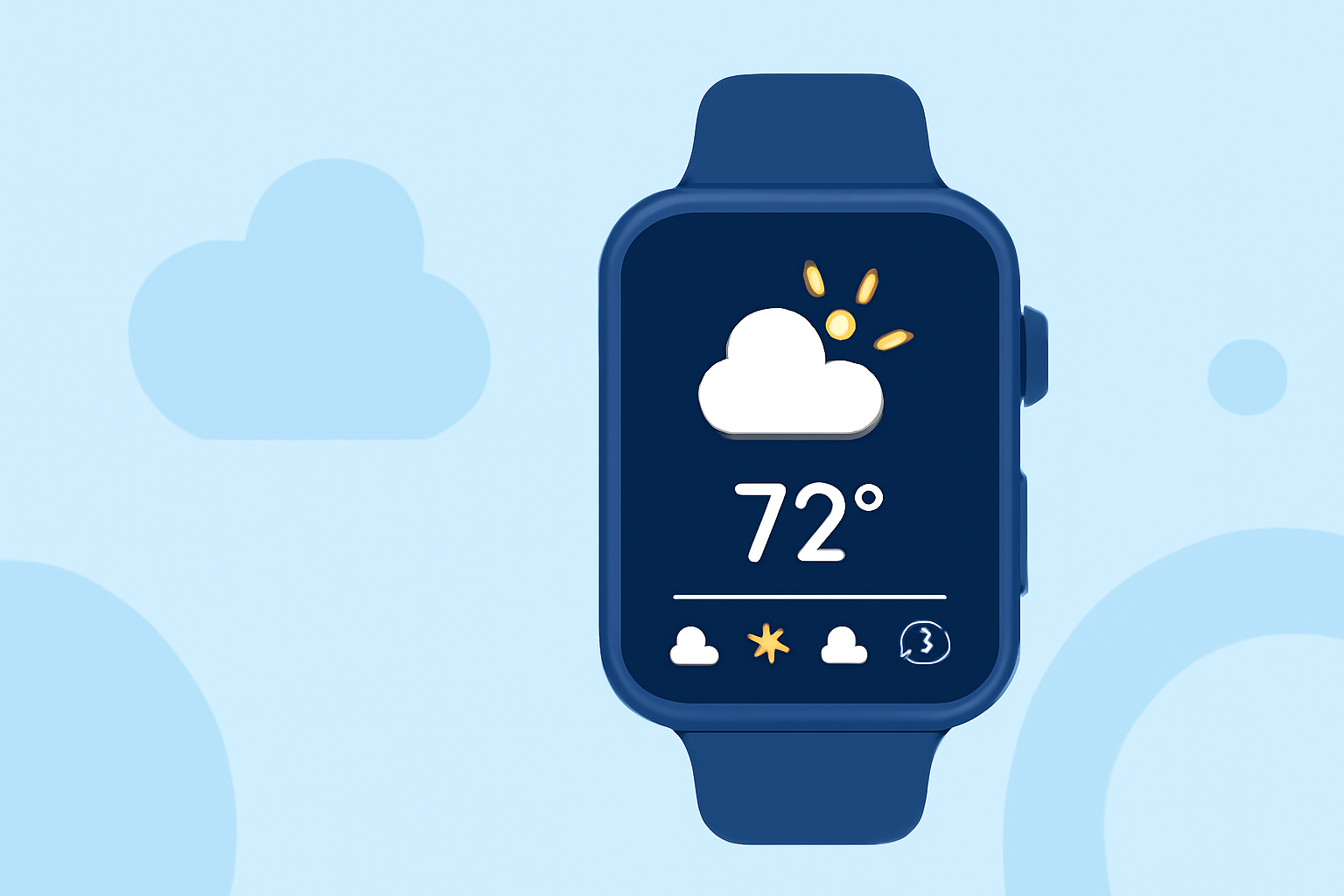
- View current conditions right on your watch face.
- Access short-term forecasts and precipitation alerts without needing to pull out your phone.
Best Practices for Presenting Weather Data on Watch Faces
When displaying weather data on your Apple Watch, consider:
- Clarity and Simplicity: Use icons and minimal text to provide quick insights.
- Relevant Information: Highlight current conditions and any severe weather alerts that may affect the user’s immediate plans.
- Usage of Widgets: Integrate widgets for quick access to different weather parameters right from the watch face.
Comparing Free and Premium Options
Clime offers a free base application with essential features; however, for users who require more detailed environmental data, a premium subscription provides access to:
- Extended radar layers.
- Advanced alerts (lightning, hurricane tracking).
- Longer-range forecasts (up to 14 days). These additional features can significantly enhance the user experience, especially for those frequently encountering severe weather conditions.
Conclusion: What We Recommend
- For General Use: Clime is a solid choice on Apple Watch, providing essential weather forecasts powered by WeatherKit.
- For Advanced Tracking: Consider opting for premium features if you need specialized alerts or detailed radar layers.
- Integrating Apps: Utilizing WeatherKit enables seamless integration of weather data across your Apple ecosystem, enhancing overall usability.
- Stay Updated: Regularly check your app's settings to ensure you're receiving the most relevant alerts for your area.