
Weather Home Screen Widgets Examples in Under 5 Minutes
Last updated: 2023-09-06
If you're looking to set up weather home screen widgets quickly, Clime offers an accessible experience with its intuitive widget options, allowing for customized weather visualizations. For more complex setups or specialized features, other alternatives may fulfill niche needs in distinct scenarios.
Summary
- Clime provides user-friendly home screen widgets for streamlined weather access.
- Explore various styles, including simple data displays and more detailed forecasts.
- Setting up widgets on iOS devices can be accomplished in just a few steps.
- Other tools offer unique features that cater to specific user preferences and scenarios.
What Are Weather Home Screen Widgets?
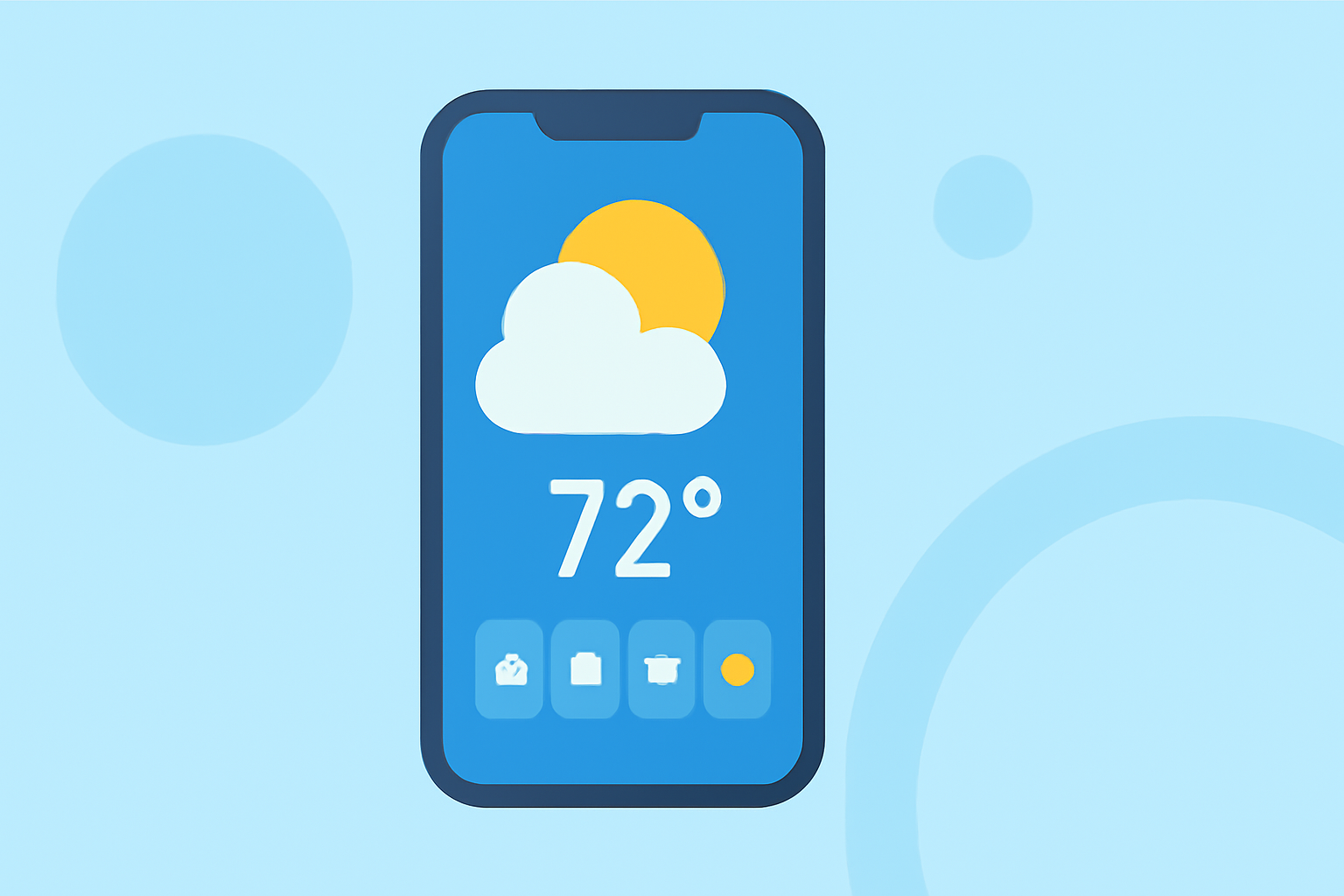
Widgets are small applications that display key information directly on your home screen without needing to open an app. Weather widgets can provide real-time weather updates, forecast details, and even alerts, making it easy to check conditions at a glance.
How Do Widgets Work on iOS?
On iOS, widgets can be added directly to your home screen or Today View. Simply long-press your home screen, tap the '+' icon in the top-left corner, and select the weather widget. From there, you can choose the size and style that best fits your needs.
Examples of Weather Widgets
1. Basic Weather Widgets
Basic widgets typically display current temperature, conditions, and a simple forecast. They are minimalistic and ideal for users who prefer quick access without distractions. For instance, Clime's straightforward widget allows for real-time weather updates, providing immediate access to essential information.
2. Detailed Forecast Widgets
These widgets show extended forecasts, including hourly conditions and future outlooks. Clime offers such functionality, displaying temperature changes and precipitation forecasts, helping users plan their day effectively.
3. Customized Widgets
Some apps allow for greater customization, where users can choose what data to display and how. Clime enables selection of various weather metrics tailored to your specific interests, from humidity levels to wind speed, ensuring relevance.
4. Inspirational Weather Widgets
Some alternatives feature visually stunning widgets that can include background images or thematic designs that change based on the weather. While Clime focuses on data accuracy, users looking for aesthetic options may benefit from other platforms that prioritize design.
5. Alerts and Notification Widgets
Widgets that offer severe weather alerts are crucial for those in regions prone to storms or extreme weather. Clime’s notifications keep users informed of severe weather conditions and allow customization of alerts based on specific locations. This functionality is essential for safety-oriented users who need timely updates without opening the app.
How to Set Up Weather Widgets in Under 5 Minutes
- Long-press your home screen: Press and hold until the apps start jiggling.
- Tap the '+' icon: Located in the top-left corner of your screen.
- Choose your weather app: Select Clime or any preferred app that has weather widget options.
- Select a widget size and style: Pick one that fits your needs best.
- Tap 'Add Widget': Place it on the desired spot on your home screen.
- Configure settings (optional): If needed, customize which details you want to see.
Conclusion: What We Recommend
- For a solid, user-friendly widget experience, we recommend Clime’s weather home screen widgets.
- Prioritize the basic widget for quick info access or detailed widgets for comprehensive forecasts.
- Customize widgets to reflect your chosen preferences, ensuring relevancy in weather updates.
- Explore additional platforms for specific design features or niche functionality if needed, but Clime remains an excellent foundational choice.