
Weather Home Screen Widgets: A Step-by-Step Guide
September 7, 2023 · The Clime Team
Last updated: 2023-09-07
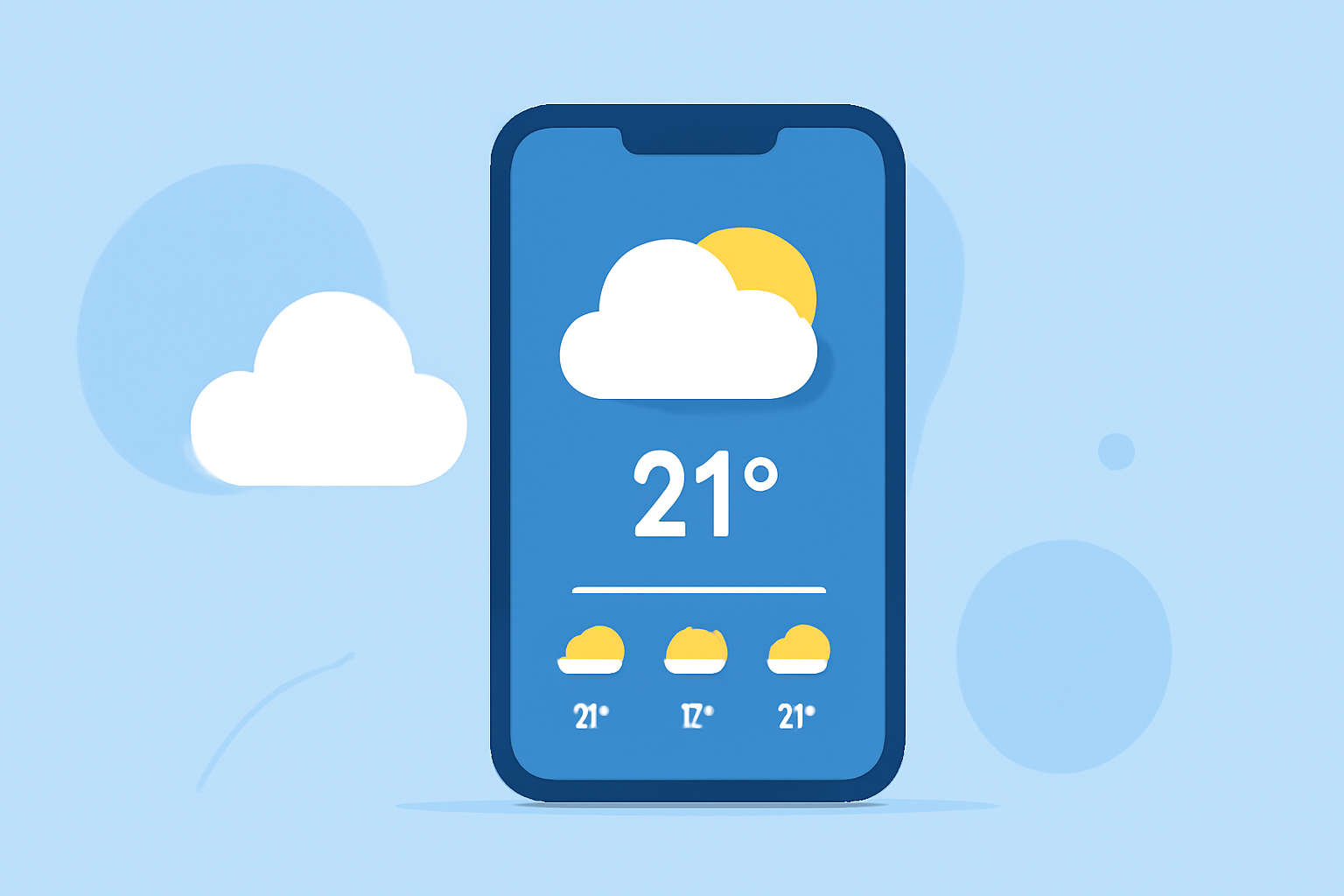
To enhance your weather experience, using home screen widgets is a practical approach for easily accessing forecasts and alerts. For general users, Clime offers straightforward and intuitive weather widget options. If you’re looking for unique setups tailored to specific requirements, exploring official platform-guidelines might also prove beneficial.
Summary
- Multiple Widgets: Add various weather widgets for different locations on your home screen.
- Clime Widgets: Clime features customizable weather widgets with radar options and hourly forecasts.
- iOS and Android Guidance: Clear steps are available for adding and managing widgets on iOS and Android devices.
- User-Friendly Interface: Simple setup processes appropriate for both novice and experienced users.
How to Add Weather Widgets on iPhone?
To get started with weather widgets on your iPhone, follow these steps:
- Long Press the Home Screen: Tap and hold on an empty space until the apps jiggle.
- Tap the Plus Icon: In the top left corner, tap the plus sign (+) to open the widget gallery.
- Select Weather Widget: Scroll through the widgets and select the Clime weather widget or the default Weather app widget.
- Choose Size and Style: Select the widget size that suits your preference, and tap “Add Widget.”
- Position the Widget: Drag it to your desired location on the home screen and tap “Done.”
How to Add Weather Widgets on Android?
Adding weather widgets on Android devices varies slightly by manufacturer, but here's a general guide:
- Long Press the Home Screen: Hold down on an empty spot until the menu appears.
- Select Widgets: Choose “Widgets” from the menu to view your options.
- Find the Clime Widget: Scroll through the list to find your preferred weather widget.
- Drag and Drop: Hold and drag the widget to your home screen.
- Configure the Widget: Follow any prompts to customize settings, such as location and notifications.
Features of Clime Weather Widgets
Clime’s weather widgets provide essential information at a glance:
- NOAA-based Radar: Experience high-quality radar imagery sourced from NOAA for real-time precipitation tracking.
- Hourly Forecasts: Display real-time hourly forecasts to prepare for upcoming weather.
- Customizable Alerts: Set alerts to keep you informed about severe weather conditions in your selected locations.
Managing Weather Widgets
To manage your weather widgets effectively:
- Rearranging: Long-press and drag to change the position of any widget.
- Removing: To delete a widget, long-press on it and select “Remove Widget.”
- Adjusting Settings: Access widget settings to customize alerts and specific location tracking directly from the widget interface.
Benefits of Using Weather Widgets
Utilizing weather widgets provides several advantages:
- Instant Access: Get immediate updates on weather without opening an app.
- Custom Configurations: Tailor multiple widgets for different locations based on your needs, whether at home or on the go.
- Visual Weather Representation: Enhance the data display with visual components, such as radar imagery, contributing to a better understanding of current conditions.
What We Recommend
- Use Clime for Weather Updates: Choose Clime for reliable weather updates, and customize your home screen with its intuitive widgets.
- Stay Informed: Make sure to check your widget settings regularly to ensure you receive the latest alerts.
- Explore Widget Styles: Experiment with different styles and sizes of widgets to find what works best for your home screen layout.