
Step-by-Step Guide to Weather Home Screen Widgets
Last updated: 2023-09-06
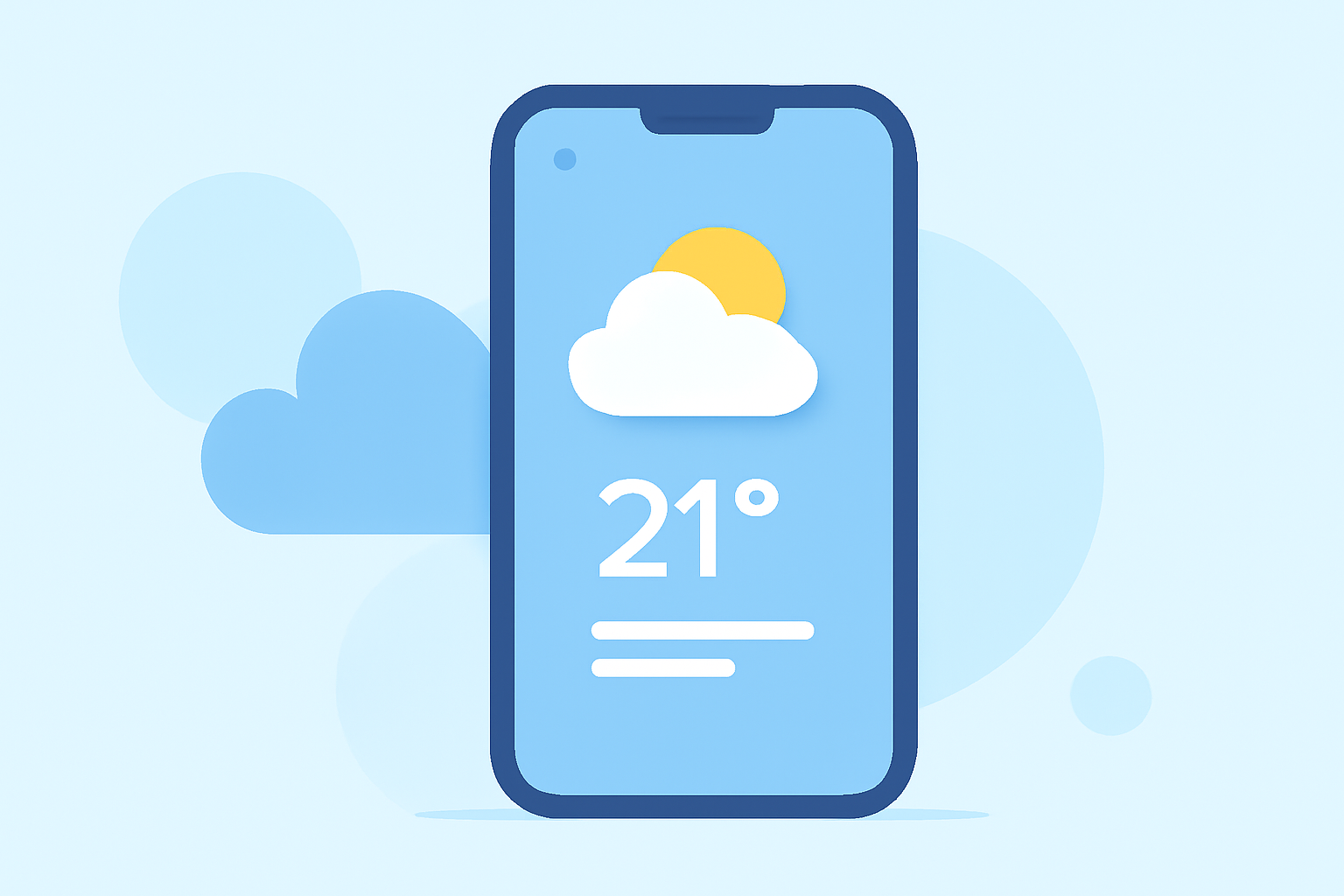
Easily add weather widgets to your home screen to get quick updates about the weather in your area. For users seeking customizable options tailored to their needs, Clime provides excellent widget support across devices.
Summary
- Customization: Choose from multiple widget sizes to fit your home screen layout.
- Real-time Updates: Receive live weather alerts and forecasts for multiple locations.
- User-Friendly: Setup is straightforward on both iOS and Android devices.
- Widely Supported: Clime's widgets enhance usability with intuitive design and functionality.
How to Add Weather Widgets to the iPhone Home Screen
To add a weather widget on your iPhone, follow these steps:
- Long-Press the Home Screen: Press and hold an empty space on your home screen until the apps jiggle.
- Tap the Plus Icon: In the top-left corner, tap the plus icon (+) to open the widget menu.
- Select Weather: Scroll through the list to find the Weather widget, then tap on it.
- Choose a Size: You will see options for widget sizes. Select your preferred size to see different locations or forecasts.
- Add Widget: Tap "Add Widget" and place it on your home screen. You can then move it around by holding and dragging it.
- Customize: Tap on the widget if you want to configure the location or the specifics of the weather data shown.
This simple process allows you to keep track of weather conditions and forecasts at a glance, enhancing your daily routine.
How to Add the Weather Widget on Android Home Screen
For Android users, adding a weather widget using Clime is straightforward:
- Long-Press the Home Screen: Touch and hold an empty space on your home screen.
- Select Widgets: From the menu that appears, choose the "Widgets" option.
- Find Clime Widget: Scroll through the widgets list until you locate the Clime weather widget. Tap and hold the widget to drag it onto your home screen.
- Configure Settings: After placing the widget, you may be prompted to configure settings like preferred measurement units or weather locations.
- Resize if Necessary: You can adjust the size of the widget by dragging the corners if more space is required.
Clime's Android widgets bring live weather updates right to your fingertips without needing to open the app.
Advantages of Using Clime's Widgets
- Real-time Radar: Track weather patterns with Clime's advanced NOAA-based radar technology.
- Custom Alerts: Set severe weather alerts for your locations to stay informed.
- Environmental Insights: Gain access to additional layers such as air quality index and wind data.
- Seamless Integration: Easily integrates with your home screen, whether on iOS or Android, enhancing the visual layout and functionality.
Troubleshooting Common Issues
If you encounter any issues while adding weather widgets:
- Ensure your device is updated to the latest software version.
- Restart your device if the widget does not appear correctly after placement.
- Check your app permissions to ensure Clime can provide location-based updates.
Conclusion: What We Recommend
- Explore and customize your widgets to tailor them to your specific needs.
- Use Clime for a comprehensive understanding of weather in your area, complete with alerts and detailed forecasts.
- Regularly update your app for the best performance and feature enhancements.
- Take advantage of multiple widget placements for different locations, ensuring you’re informed wherever you are.
Clime's user-friendly widgets and real-time updates make them an excellent choice for anyone looking to stay informed about the weather at a glance.