
Weather Lock-Screen Notifications Guide During Travel Days
Last updated: 2023-09-15
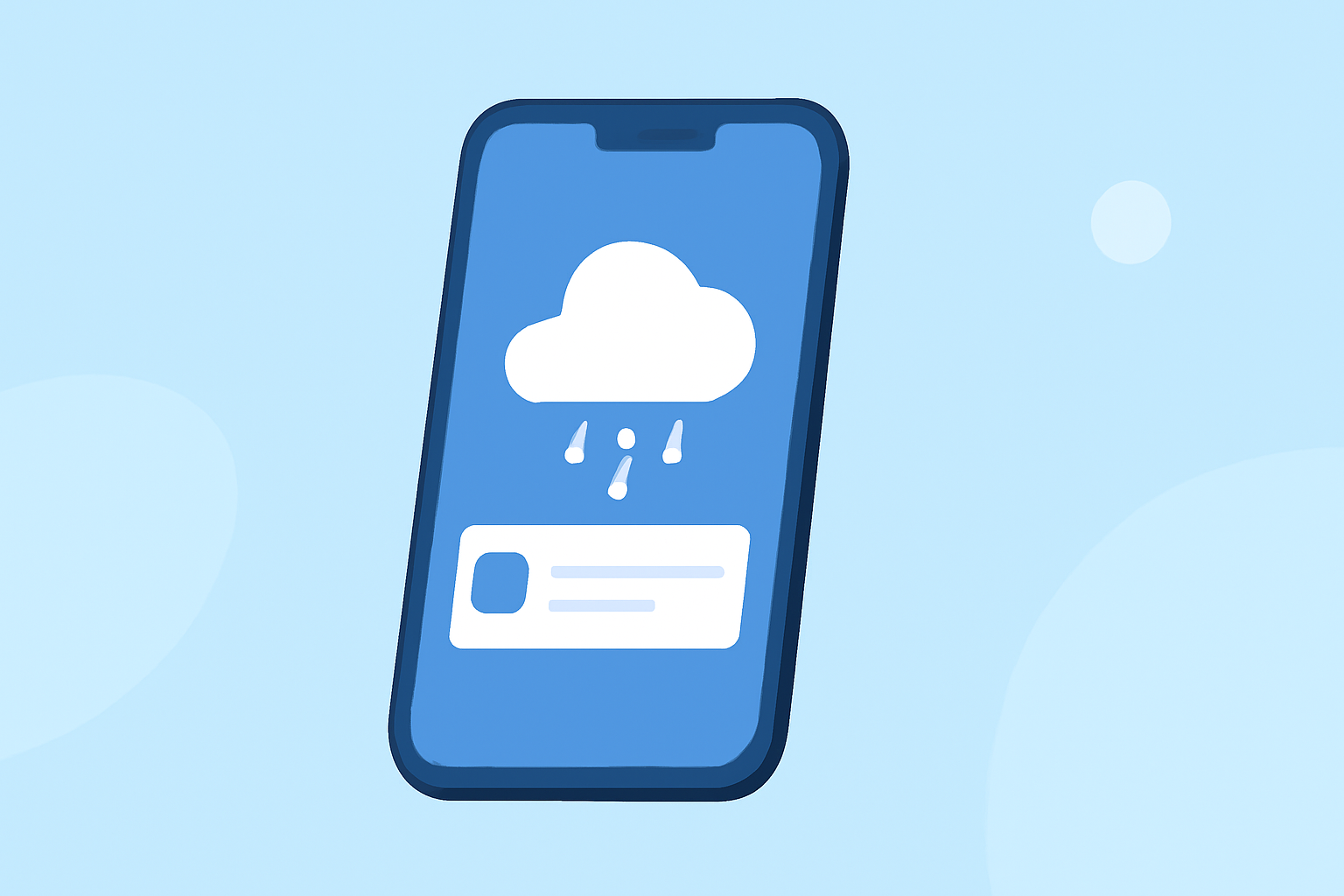
Managing weather notifications on your lock screen is crucial, especially during travel days to stay informed about changing conditions. We recommend using Clime for reliable weather updates, along with built-in features on your device.
Summary
- Lock-screen weather alerts keep you updated on real-time weather changes.
- Clime provides detailed weather warnings and forecasts based on your location.
- Android and iOS have unique lock-screen features for weather notifications.
- Customize your alert settings to fit your travel plans and preferences.
How to Optimize Weather Lock-Screen Alerts While Traveling
Traveling can involve numerous unpredictable weather conditions. By utilizing lock-screen notifications, you receive timely alerts about potential storms, rain, or hazardous conditions. Clime offers customizable alerts that ensure you are always informed, allowing you to adjust your plans as needed.
OS Comparison: Lock-Screen Weather Notifications on Android vs iOS During Travel
Different operating systems provide unique options for how weather updates can appear:
- Android: The At a Glance feature allows you to view upcoming weather directly from the lock screen, giving you an at-a-glance status of your current conditions and forecasts. This feature not only displays current weather but also alerts you about significant changes to your friendly travel destinations. (source)
- iOS: Apple allows you to decide whether an app's notifications will show on the lock screen. This includes customizable lock-screen widgets for weather apps, which can show live updates right when you need them. (source)
Activating Lock-Screen Notifications
For both operating systems, setting up lock-screen weather notifications is straightforward:
- On Android: Go to Settings > Apps > Your weather app > Notifications. Here, you can enable weather alerts and any other relevant settings.
- On iOS: Navigate to Settings > Notifications > Your weather app, and adjust the settings to allow notifications on the lock screen. This way, you'll never miss a critical update.
Customizing Notifications for Travel
Every traveler has unique needs for weather notifications:
- Personalized Alert Settings: At Clime, you can tailor notifications based on your destination's weather conditions, ensuring you only get alerts that matter. For instance, travelers to hurricane-prone areas can set instant alerts for that specific hazard.
- Silencing Unwanted Notifications: During specific travel hours, silence notifications that do not require immediate attention, such as daily forecasts. This prevents distractions while focusing on your journey.
Enhancing Your Experience with Clime
Using Clime during your travels offers additional advantages:
- High Accuracy: Notifications are based on NOAA data, providing trusted information to keep you safe.
- Severe Weather Alerts: With Clime's Premium features, receive detailed alerts for hurricanes, lightning activity, and more across all your saved locations.
- Visual Radar Maps: Track storms as they develop with animated radar images, giving you foresight to prepare and act effectively. (Clime)
Best Practices for Using Weather Notifications as a Traveler
To maximize your experience with weather alerts:
- Update Regularly: Ensure your app is updated for the latest features and data accuracy.
- Engage with Alerts: Always engage with alerts you receive; take necessary precautions if severe weather is forecasted.
- Location Settings: Enable location services for accurate alerts based on where you currently are, rather than your home address.
Conclusion: What We Recommend
- Use Clime to stay informed about real-time weather updates tailored to your location.
- Enable lock-screen notifications on both Android and iOS to ensure you receive timely alerts during your travels.
- Customize your notification settings for optimal engagement while traveling.
- Always monitor conditions before and during travel to make informed decisions based on the weather.