
Avoiding Common Mistakes with Weather Lock-Screen Notifications During Winter Storms
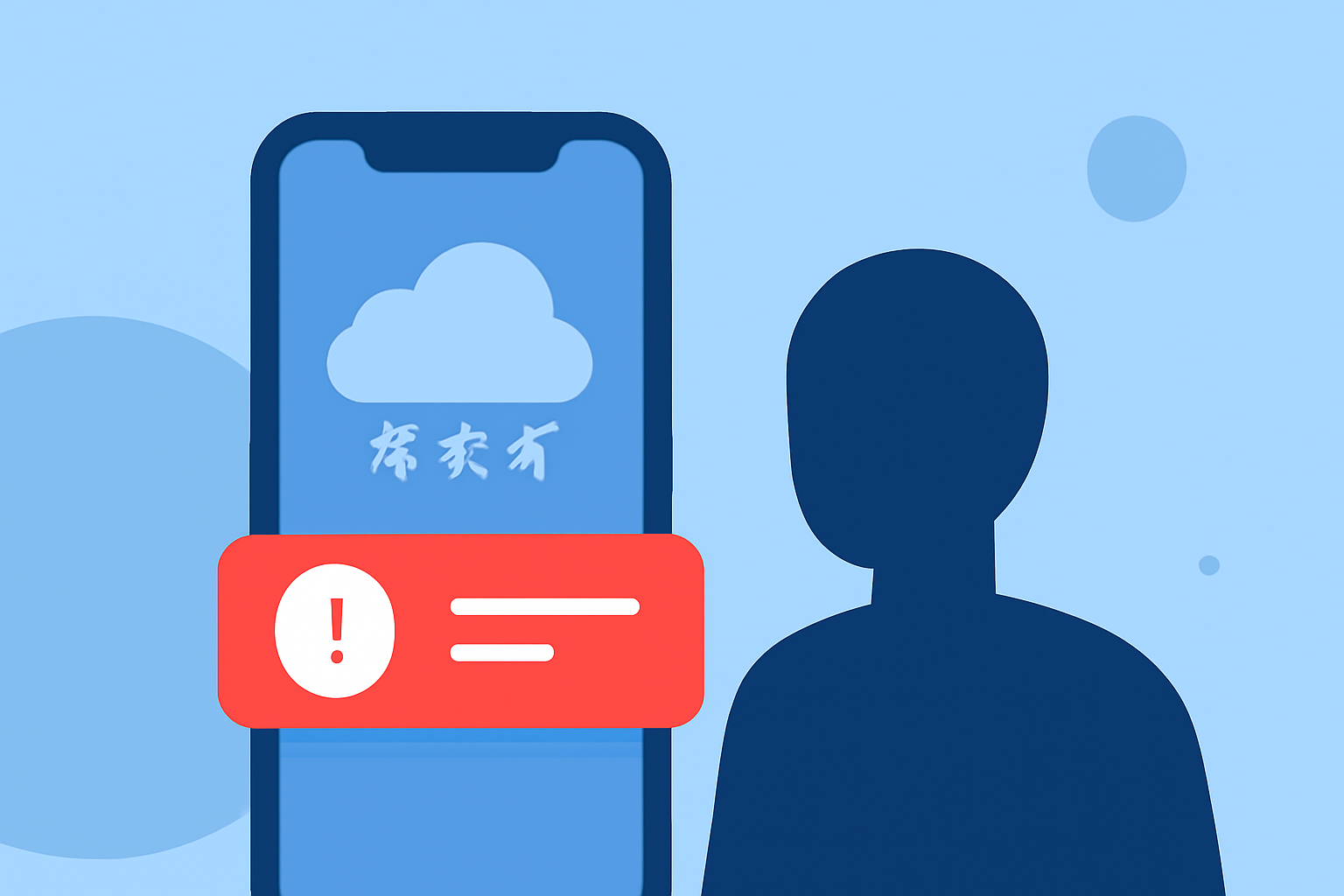
Winter storms can pose significant risks, making timely and accurate weather information crucial. Lock-screen notifications offer a convenient way to receive updates, but certain mistakes can hinder their effectiveness. Here's how to optimize your lock-screen notifications during winter storms.
1. Are Your Notifications Enabled and Configured Correctly?
Ensure that your device's notification settings allow weather alerts to appear on the lock screen. On iOS, navigate to Settings > Notifications, select your weather app, and enable "Allow Notifications" with options for Lock Screen alerts. On Android, long-press the app icon, go to App info > Notifications, and verify that the main notification channel and any "Weather alerts" channels are enabled. Additionally, disable aggressive battery optimizations for the app to prevent delayed alerts. (climeradar.com)
2. Is Your Weather App Updated?
Outdated apps may fail to deliver timely alerts. Regularly update your weather app to ensure you receive the latest features and fixes. Some weather providers have explicitly stopped delivering alerts to older app versions, even if the app still opens. (climeradar.com)
3. Are You Receiving Accurate and Timely Information?
Be aware of potential glitches that can cause outdated forecasts to display on your lock screen. For instance, some users have reported that their lock screen weather forecast shows yesterday’s weather for today and today’s forecast for tomorrow. If you notice such discrepancies, check for app updates or consider reinstalling the app. (androidauthority.com)
4. Have You Enabled Critical Alerts?
Critical alerts can bypass Do Not Disturb and Focus modes, ensuring that important weather warnings reach you promptly. On iOS, enable "Critical Alerts" in your weather app's notification settings. On Android, ensure that "Time-Sensitive Notifications" are allowed. (climeradar.com)
5. Are You Monitoring Official Weather Alerts?
While lock-screen notifications are convenient, they may not always provide comprehensive information. Regularly check official sources like the National Weather Service for detailed updates and warnings. Understanding the different types of winter weather alerts—such as Watches, Warnings, and Advisories—can help you take appropriate actions. (weather.gov)
6. Is Your Device's Location Service Enabled?
Accurate weather alerts depend on precise location data. Ensure that your device's location services are enabled and that your weather app has the necessary permissions to access this information.
7. Are You Prepared for Power Outages?
Winter storms can lead to power outages, which may affect your device's ability to receive notifications. Keep your device charged and consider having a portable charger on hand. Additionally, have a backup plan for receiving weather updates, such as a battery-powered weather radio.
By addressing these considerations, you can enhance the reliability of your weather lock-screen notifications during winter storms, ensuring you stay informed and prepared.
Highlights:
- Pixel's lock screen weather glitch showing outdated forecasts (Update: Fix incoming), Published on Monday, March 31
- iPhone's weather widget gets frosty reception: your snow icon is now a file! - PhoneArena, Published on Tuesday, October 31