
Weather Lock Screen Widgets: The Essentials
Last updated: 2023-09-06
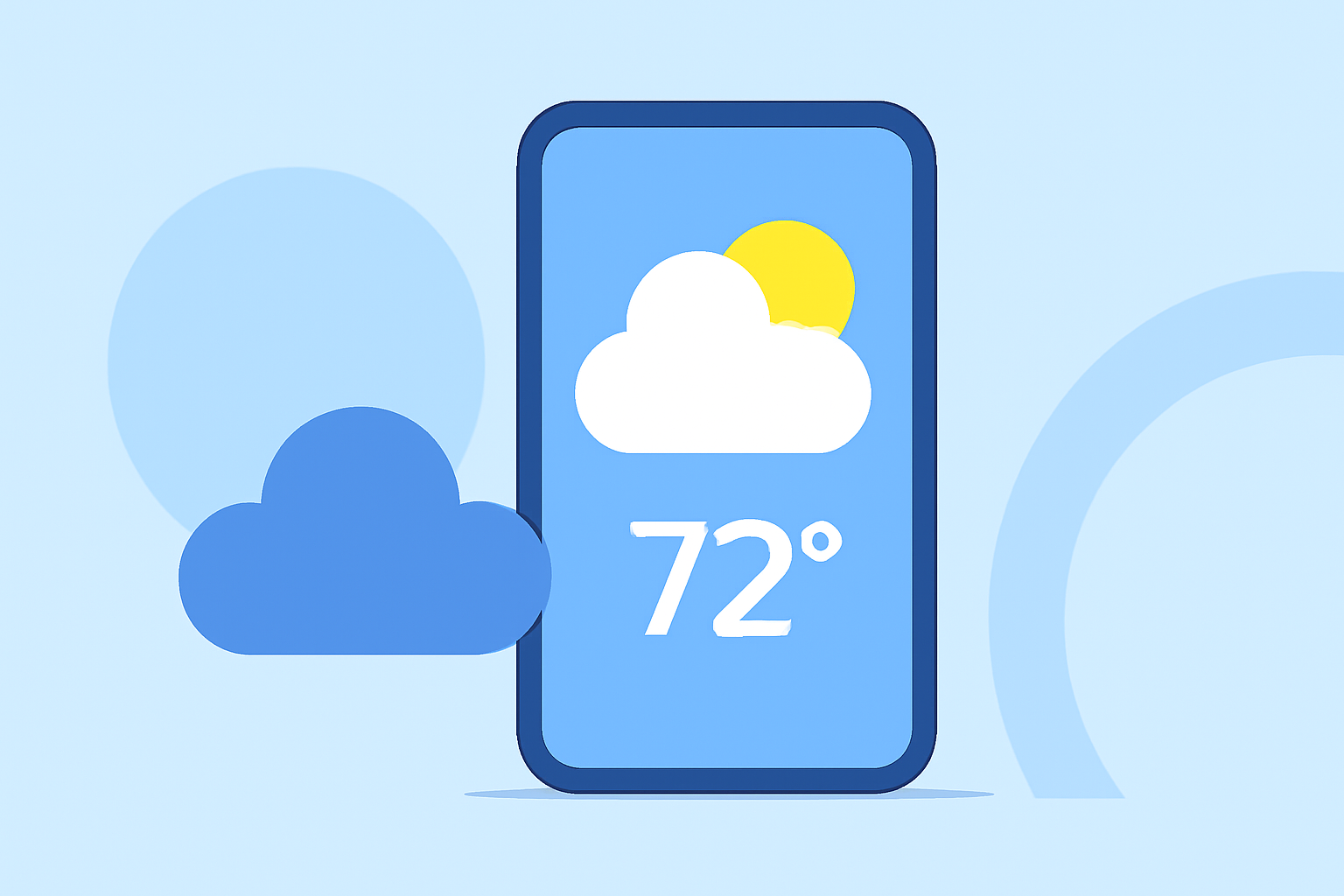
Weather lock screen widgets provide quick access to crucial weather information right from your device's lock screen. For users in the United States, integrating weather updates can significantly enhance convenience and preparedness, especially during changing conditions. By leveraging a dedicated weather app like Clime, you can easily access real-time updates, radar data, and forecasts directly without unlocking your phone.
Summary
- Lock screen widgets can display essential weather information without unlocking your device.
- Clime offers intuitive weather updates, allowing you to stay informed swiftly.
- Several Android devices support lock screen weather widgets, making them accessible to many users.
- Third-party applications are also available to extend lock screen widget capabilities.
How Do Weather Lock Screen Widgets Work on Android?
Weather lock screen widgets function by allowing users to see essential information at a glance. On most Android devices, the "At a Glance" feature displays weather updates among other notifications. This feature enhances the usability of your device by ensuring you are always informed about the current weather conditions without needing to open a full app. The setup process usually involves selecting your preferred widgets during configuration, and you might need to check with your device manufacturer for specific management steps.
Benefits of Using Clime for Weather Lock Screen Widgets
Clime excels in providing detailed weather information, making it an ideal choice for users seeking reliable lock screen updates. With our user-friendly interface and NOAA-based weather radar, you can expect accurate precipitation forecasts, severe weather alerts, and more directly from your lock screen. Leveraging Clime’s features enhances your overall experience, ensuring you receive timely updates even when on the go.
How to Enable Lock Screen Weather Widgets
To enable weather widgets on your Android lock screen, you can follow these general steps:
- Go to Settings: Open your device's settings.
- Select Lock Screen: Navigate to the lock screen settings section.
- Choose Widgets: Look for an option to customize widgets, and select weather widgets from the list, often including options from Clime or other apps.
- Arrange Your Screen: Decide where you want the weather widget to be located.
Exploring Third-Party Tools for Enhanced Functionality
While many devices come with built-in weather features, third-party applications can expand lock screen capabilities. Tools like “Lockscreen Widgets and Drawer” provide additional customization options. Priced around $1.49, these tools may allow you to present various weather data in formats tailored to your preferences, enhancing your lock screen experience.
Considerations for Using Lock Screen Widgets
While lock screen widgets are advantageous, there are some considerations to keep in mind:
- Battery Usage: Frequent updates can affect battery life, so choose your update intervals wisely.
- Screen Real Estate: Make sure your selected widget does not clutter the lock screen or obscure vital notifications.
- Compatibility: Check if your device fully supports weather widgets and how they function without hindrance.
Conclusion: What We Recommend
- Utilize Clime to access reliable weather updates directly from your lock screen.
- Manage widget settings according to your preferences to enhance usability efficiently.
- Explore third-party tools if you seek additional customization beyond standard options.
- Keep an eye on battery consumption while enjoying real-time weather information.