
How to Set Up Weather Notification Badges on Wear OS
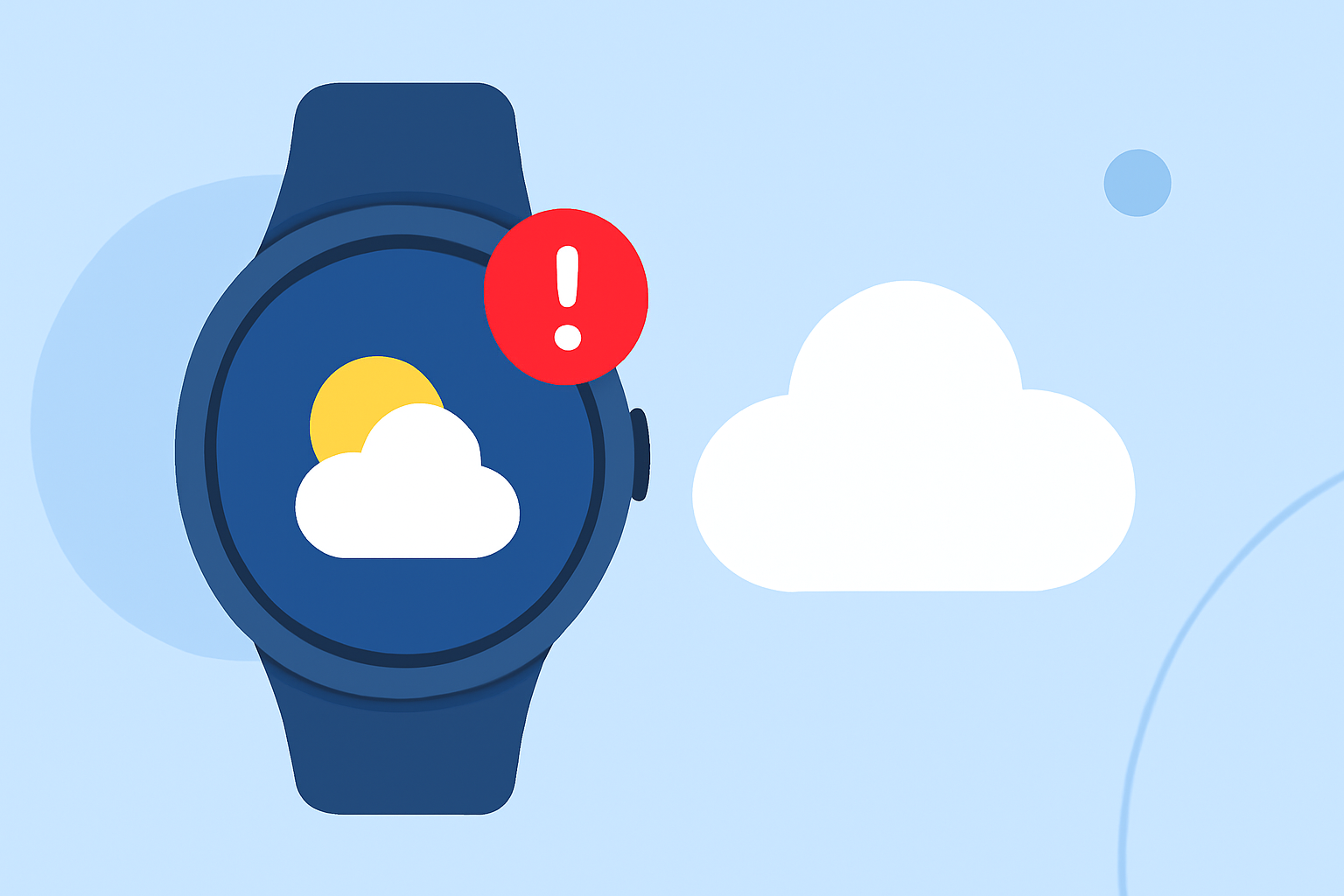
Staying updated on weather conditions is essential, and your Wear OS smartwatch can help you do just that. By setting up weather notification badges, you can receive timely updates directly on your wrist. Here's how to configure this feature:
1. Install a Compatible Weather App
To receive weather notifications, you'll need a compatible weather app installed on your smartwatch. Many Wear OS devices come with a pre-installed weather app, but if yours doesn't, you can download one from the Google Play Store. Ensure the app supports notification badges for weather updates.
2. Enable Notifications for the Weather App
After installing the app, make sure notifications are enabled:
-
On Your Smartphone:
-
Open the Wear OS app on your phone.
-
Navigate to the "Notifications" section.
-
Ensure that notifications for your weather app are turned on.
-
On Your Smartwatch:
-
Swipe down from the top of the screen to access quick settings.
-
Tap the gear icon to open settings.
-
Go to "Apps & notifications" and select "Notifications."
-
Find your weather app in the list and ensure notifications are enabled.
3. Configure Notification Preferences
Customize how you receive weather notifications:
-
On Your Smartphone:
-
Within the weather app, access the settings menu.
-
Set your preferred notification frequency (e.g., hourly, daily).
-
Choose the types of notifications you want to receive, such as severe weather alerts or daily forecasts.
-
On Your Smartwatch:
-
Open the weather app on your watch.
-
Navigate to the app's settings to adjust notification preferences.
4. Add a Weather Tile or Watch Face Complication
For quick access to weather information and to receive updates directly on your watch face:
-
Add a Weather Tile:
-
Swipe left or right to access your tiles.
-
Press and hold a tile to edit.
-
Tap "Add Image" and select the Weather tile.
-
Add a Watch Face Complication:
-
Touch and hold your current watch face.
-
Swipe right to the complications section.
-
Choose a complication slot and select the Weather app.
5. Verify Notification Badges
Once set up, your smartwatch should display notification badges for weather updates:
-
On the Watch Face:
-
A small badge or icon will appear on your watch face when a new weather notification is received.
-
In the Notification Center:
-
Swipe down from the top of the screen to view recent notifications, including weather updates.
6. Troubleshooting
If you're not receiving weather notifications as expected:
-
Check Connectivity:
-
Ensure your smartwatch is connected to your smartphone via Bluetooth or Wi-Fi.
-
Update the App:
-
Verify that both your weather app and Wear OS are updated to the latest versions.
-
Restart Devices:
-
Restart both your smartphone and smartwatch to resolve any temporary glitches.
By following these steps, you can set up weather notification badges on your Wear OS smartwatch, ensuring you're always informed about the latest weather conditions.