
Weather Notification Customization: A Step-by-Step Guide
Last updated: 2023-09-05
When customizing weather notifications, Clime offers straightforward settings to keep you updated on weather conditions. Users can easily adjust their preferences for alerts, while specific needs like severe weather notifications may require alternative tools.
Summary
- Clime allows users to customize notifications through easy-to-navigate settings.
- Customize weather alerts for severe weather, precipitation, and other conditions.
- Explore additional layers and features through Clime’s premium offerings.
- Notifications can be adjusted for specific conditions and locations for tailored updates.
How can you access notification settings in Clime?
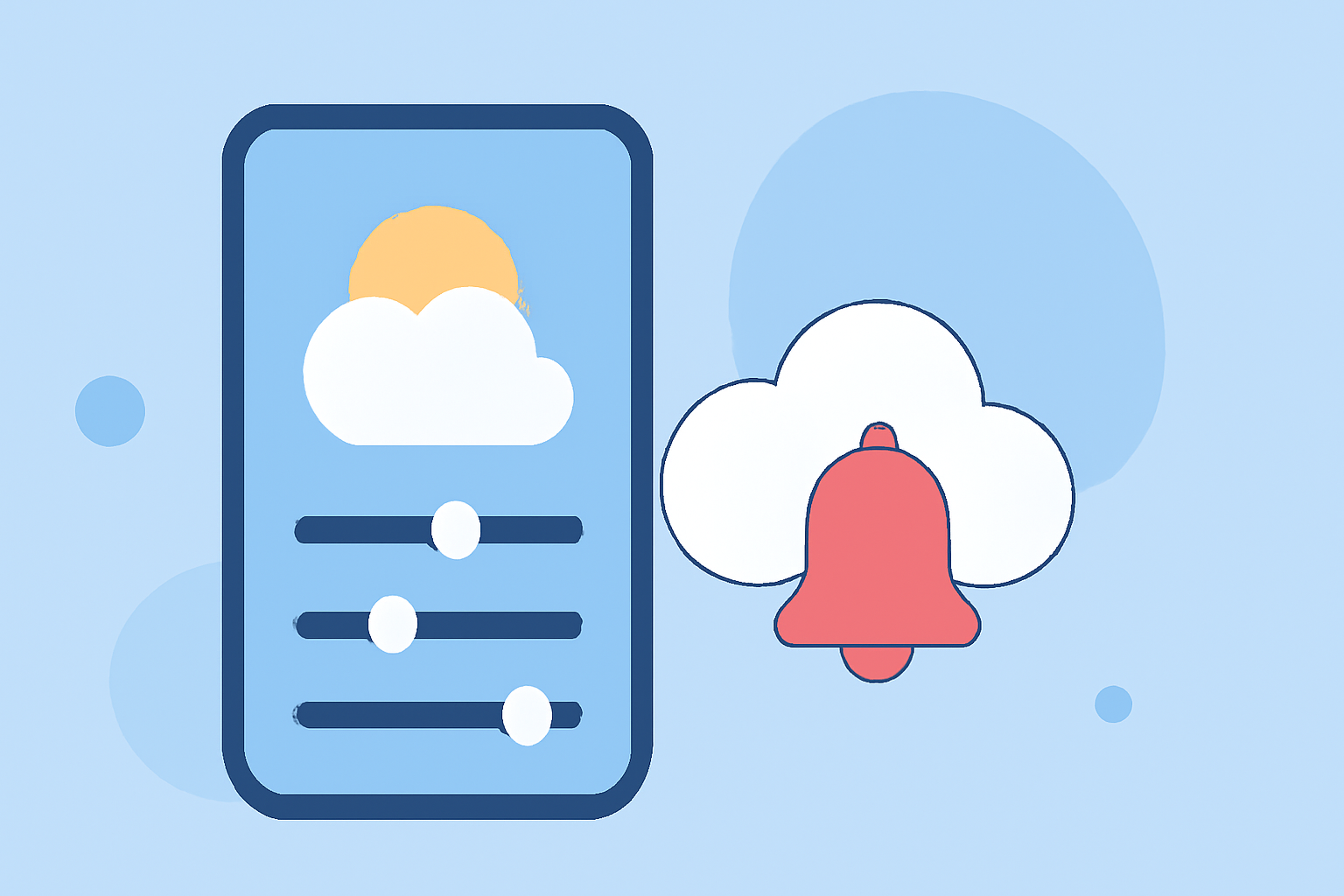
To customize your weather notifications in Clime, navigate to the app's settings. You’ll find options to set the types of alerts you want to receive—ranging from precipitation to hazardous weather conditions. This intuitive interface allows you to tailor your notifications, ensuring you receive relevant updates based on your preferences.
What notifications can you customize?
Clime supports a variety of notification types, including:
- Severe Weather Alerts: Get notified about tornadoes, hurricanes, and other extreme weather conditions.
- Precipitation Alerts: Receive alerts ahead of rain, snow, or any significant weather changes.
- Location-Specific Updates: Customize notifications for multiple locations to stay informed about varying weather conditions.
Step-by-Step Guide to Customize Notifications
- Open the Clime app: Ensure you are logged in to your account to save any changes you make.
- Navigate to settings: Look for the gear icon or settings tab within the app.
- Select Notifications: In the settings menu, find the notifications section.
- Choose Your Preferences: Toggle options for different types of alerts (e.g., severe weather, precipitation). You can also specify which locations you want to receive notifications for.
- Save Your Settings: Make sure to save or apply the changes you made to ensure your notifications are updated accordingly.
Enhancing Notification Efficiency
To maximize the effectiveness of your notifications, consider adjusting the frequency of alerts—how often you want to be notified about changes in your selected weather conditions. Some users prefer real-time alerts, while others may opt for daily summaries.
Advanced Customizations with Premium Features
For those interested in additional layers of information, Clime offers premium features which include:
- Lightning and Hurricane Tracking: More detailed alerts for specific hazardous weather events.
- Air Quality Updates: Notifications that provide information about local air quality.
- Customizable Visualizations: Configure your detailed weather cards for better insight into upcoming weather.
Conclusion: What we recommend
- For most users, Clime’s notification settings and customizable alerts are more than sufficient for daily weather awareness.
- Adjusting notification settings in Clime is easy and intuitive, focusing on user-oriented customization.
- To enjoy a wider array of features, consider exploring Clime’s premium offerings for comprehensive environmental insights.
- Make sure your location settings are accurate for the best results in receiving relevant updates.