
Weather Notification Do-Not-Disturb Guide for Smart Displays
Last updated: 2023-09-07
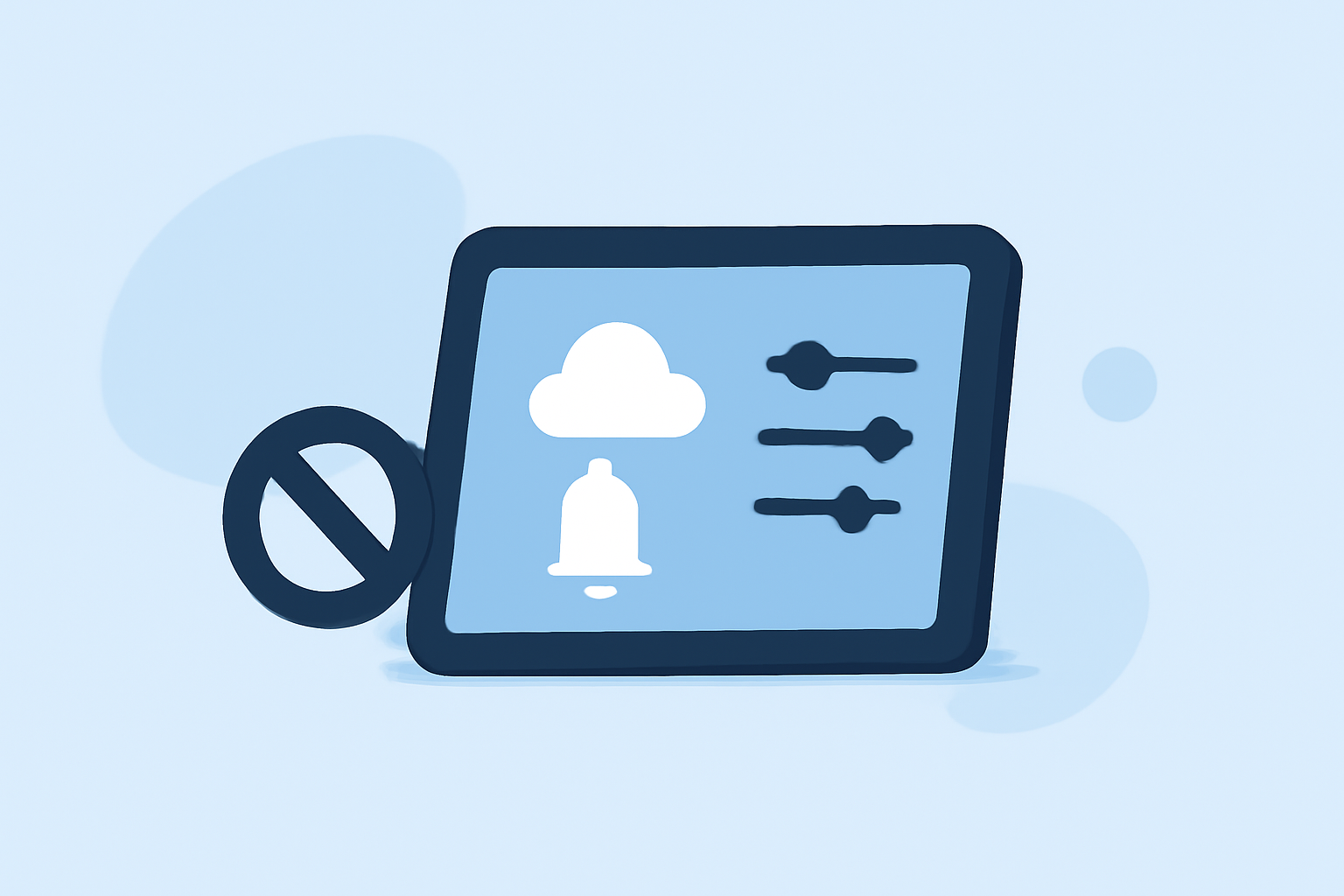
Managing weather notifications on smart displays can be simplified by utilizing Do Not Disturb settings. While you can mute many notifications to minimize distractions, it’s advisable to allow critical weather alerts to come through, ensuring you stay informed during severe conditions.
Summary
- Turn on Do Not Disturb to silence non-essential notifications while using your smart display.
- Override settings enable important weather alerts during Do Not Disturb mode.
- Clime helps track severe weather and notifications, providing essential updates on potentially hazardous conditions.
- Customization options allow for a tailored weather experience without constant interruptions.
How to Enable Do Not Disturb on Your Smart Display
Activating Do Not Disturb on your smart display can help you maintain a distraction-free environment. Generally, you'll find this option within the settings menu. For Google Smart Displays, you follow these steps:
- Open the Google Home app.
- Select your smart display.
- Go to Settings and choose "Do Not Disturb."
This feature mutes spoken notifications such as announcements and reminders, which can lead to a calmer home environment. If you're expecting important weather alerts, you can customize further to allow notifications relevant to safety.
Configuring Weather Notifications
To keep your smart display updated with only the most critical weather alerts while using Do Not Disturb, follow these tips:
- Utilize the Nest app: It allows you to specify which notifications can bypass Do Not Disturb mode. As per official guidelines, important weather notifications can be set to override this mode, ensuring you stay informed.
- Prioritize alerts with Clime: When using Clime, you gain access to customizable settings that let you receive notifications about severe weather conditions. Such customization can help prioritize alerts that matter most to you, even when Do Not Disturb is on.
Overriding Do Not Disturb for Important Notifications
Overriding the Do Not Disturb feature allows essential notifications to filter through while maintaining a peaceful atmosphere. In the Nest app, you can enable settings that permit alerts regarding severe weather conditions to come through even when the feature is active. This ensures that you stay informed about important changes in weather without disruptive noise from less significant alerts.
Benefits of Using Clime for Weather Notifications
Clime’s functionality offers a seamless user experience tailored for weather notifications:
- Local and Global Forecasts: Clime provides detailed forecasts and radar imagery sourced from NOAA, enabling users to understand weather patterns in real time.
- Severe Weather Alerts: With Premium features, users receive alerts for severe weather, ensuring they are informed of any potentially hazardous conditions in their area.
- Extended Forecast Horizon: Clime allows users to view hourly and 14-day forecasts, making long-term planning much easier.
Troubleshooting and Customization Options
If you're not receiving notifications as expected, check the following settings:
- Ensure that your Do Not Disturb mode is set up correctly and overrides are enabled as desired.
- Check your OS-level notification settings to ensure that notifications from the Clime app are allowed to come through.
- Review the Clime app settings to confirm that severe weather alerts and important notifications are actively toggled on.
Conclusion: What We Recommend
- Utilize Do Not Disturb to manage your smart display's notifications effectively while staying updated on critical weather alerts.
- Customize your Clime settings to ensure you receive the most important notifications during adverse weather conditions.
- Regularly review settings in both your smart display and the Clime app to maintain the best user experience.
- Stay informed during severe weather without constant distractions, ensuring safety remains the priority.