
Mastering Weather Notification Snoozing for Commuters
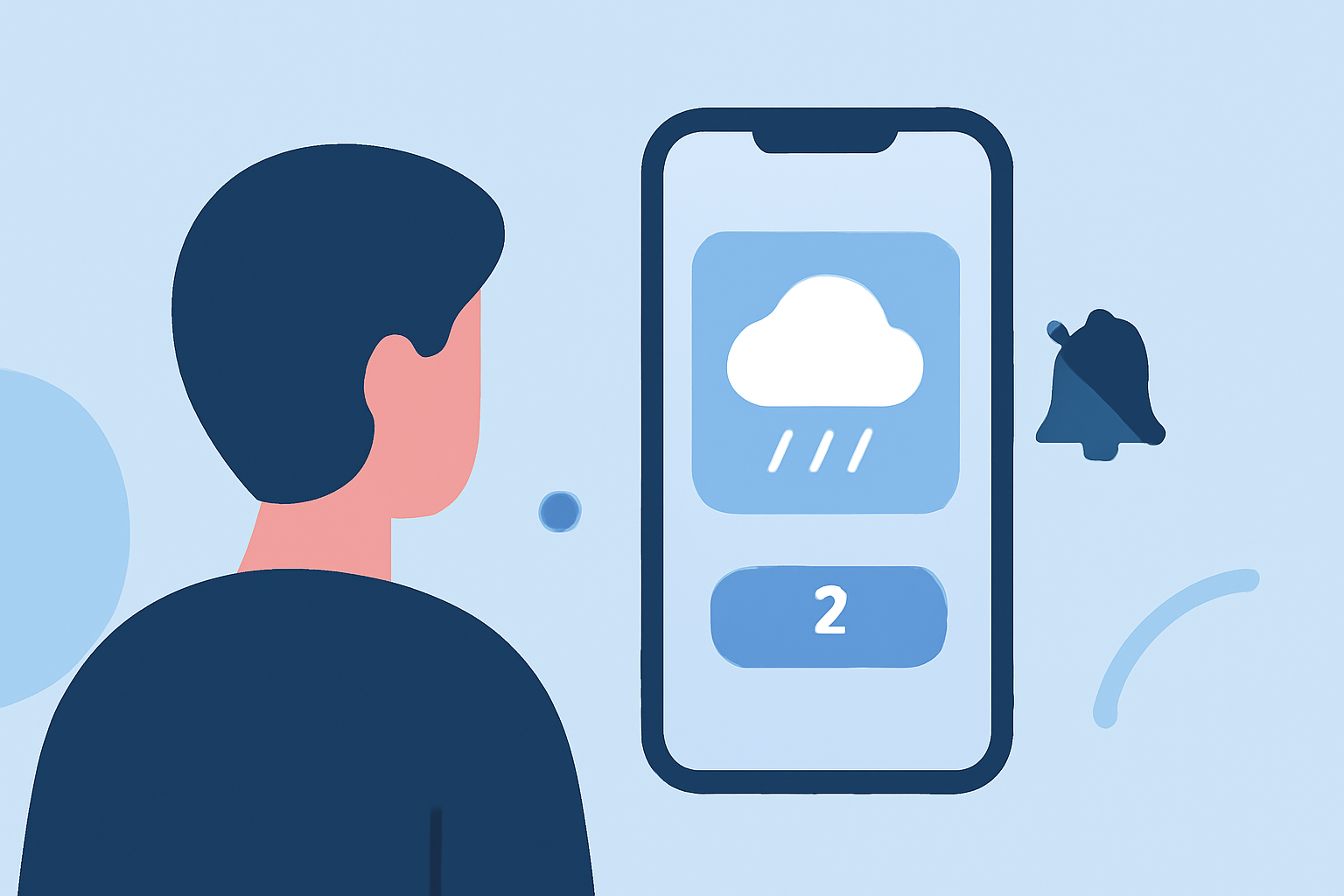
Managing weather notifications is essential for commuters who need timely updates without constant interruptions. Android devices offer built-in features to customize these alerts, ensuring you receive pertinent information when necessary.
What Are Weather Notifications?
Weather notifications provide real-time updates on conditions like rain, snow, or severe weather warnings. These alerts can be crucial for planning your commute and ensuring safety.
How to Enable Weather Alerts on Android
To receive weather notifications, ensure your device's weather app is set up correctly:
- Access App Settings: Open the weather app on your device.
- Navigate to Notifications: Go to the app's settings and select the 'Notifications' or 'Alerts' section.
- Enable Alerts: Toggle on the types of weather alerts you wish to receive, such as severe weather warnings or daily forecasts.
For devices running Android 12 or later, you can also enable weather alerts through the system settings:
- Open Settings: Swipe down from the top of the screen and tap the gear icon.
- Go to Notifications: Select 'Notifications' from the menu.
- Manage App Notifications: Choose the weather app from the list and ensure that 'Weather alerts' are enabled.
How to Snooze Weather Notifications
Snoozing allows you to temporarily mute notifications, resuming them after a set period. To snooze weather notifications:
- Access Notifications: Swipe down from the top of the screen to view your notifications.
- Expand the Notification: Tap the down arrow on the weather alert to see more options.
- Snooze the Notification: Tap the clock or bell icon to snooze the alert.
- Select Snooze Duration: Choose the desired snooze time, such as 15 minutes, 30 minutes, 1 hour, or 2 hours.
This feature is particularly useful when you need a brief respite from notifications without missing critical updates. (support.google.com)
Managing Notifications for Individual Apps
Android allows you to control notifications on an app-by-app basis:
- Open Settings: Go to your device's settings.
- Select Notifications: Tap on 'Notifications' or 'Apps & Notifications'.
- Choose the App: Select the weather app from the list.
- Customize Notifications: Adjust the notification settings, including enabling or disabling alerts, setting priorities, or customizing sounds.
This customization ensures you receive only the notifications that are most relevant to you. (support.google.com)
Additional Tips for Commuters
- Use Do Not Disturb Mode: Activate this mode during your commute to silence non-essential notifications while allowing critical alerts, such as weather warnings, to come through.
- Set Up Emergency Alerts: Ensure that emergency weather alerts are enabled to receive timely warnings about severe conditions.
- Regularly Review Notification Settings: Periodically check and adjust your notification preferences to align with your current needs and preferences.
By effectively managing and snoozing weather notifications, you can stay informed about essential weather updates without unnecessary distractions during your commute.