
Mastering Weather Notification Snoozing: A Comprehensive Guide
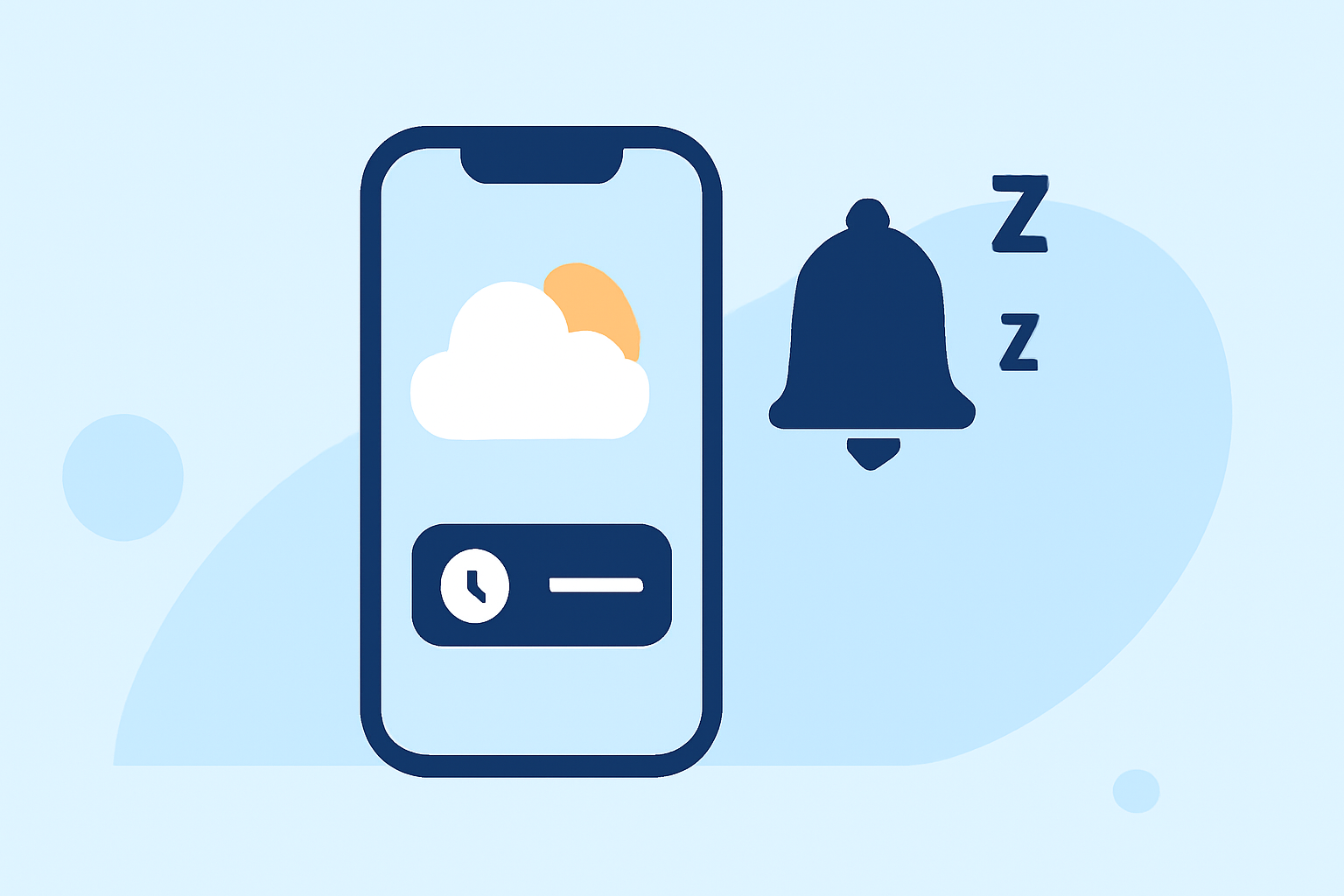
Staying informed about weather conditions is crucial, but constant alerts can become overwhelming. Effectively managing and snoozing weather notifications allows you to receive timely updates without unnecessary disturbances.
Understanding Weather Notifications
Weather notifications provide real-time updates on conditions like precipitation, severe weather events, and temperature changes. These alerts can be tailored to your current location or any specified area.
Enabling Weather Notifications on iPhone
To receive weather notifications on your iPhone:
-
Allow Location Access: Navigate to Settings > Privacy & Security > Location Services. Ensure Weather is set to Always and Precise Location is enabled.
-
Activate Notifications: Open the Weather app, tap the location list icon, then tap the more options button and select Notifications. Enable alerts for Severe Weather and Next-Hour Precipitation for your current location or any saved locations.
These steps ensure you receive timely updates about weather changes in your area. (support.apple.com)
Enabling Weather Notifications on Android
For Android devices:
-
Allow Location Access: Go to Settings > Location and ensure location services are enabled.
-
Activate Notifications: Open the Weather app, access settings, and enable notifications for severe weather events and precipitation.
These settings ensure you receive timely updates about weather changes in your area.
Snoozing Weather Notifications on iPhone
To temporarily pause weather notifications on your iPhone:
-
Access Notifications: Swipe down from the top of the screen to view your notifications.
-
Snooze Notification: Locate the weather notification you wish to snooze, swipe it slightly to the left, tap the clock icon, and select the desired snooze duration.
This feature allows you to delay notifications for a specified period, resuming them automatically afterward. (howtogeek.com)
Snoozing Weather Notifications on Android
To temporarily pause weather notifications on Android:
-
Access Notifications: Swipe down from the top of the screen to view your notifications.
-
Snooze Notification: Locate the weather notification you wish to snooze, swipe it slightly to the left or right, tap the clock icon, and select the desired snooze duration.
This feature allows you to delay notifications for a specified period, resuming them automatically afterward. (howtogeek.com)
Managing Notification Settings
To customize your notification preferences:
-
Prioritize Notifications: On Android, long-press a notification, tap Priority, and confirm to ensure critical alerts appear at the top. (howtogeek.com)
-
Adjust App Settings: Within the Weather app, access settings to enable or disable specific types of notifications, such as severe weather alerts or next-hour precipitation.
Best Practices for Weather Notifications
-
Stay Informed: Regularly check your device's weather app for updates, especially during severe weather seasons.
-
Customize Alerts: Tailor notifications to your needs, enabling only those that are relevant to your location and preferences.
-
Use Snooze Wisely: Snooze notifications during meetings or rest periods, but ensure you resume them promptly to stay informed.
By effectively managing and snoozing weather notifications, you can stay informed about critical weather changes without unnecessary disruptions.
Highlights:
- iOS 16: How to Get Severe Weather Notifications, Published on Thursday, September 08
- What to Do When Weather Alerts on iPhone Are Not Working, Published on Monday, September 08