
How to Access Weather Information on Your Wear OS Smartwatch
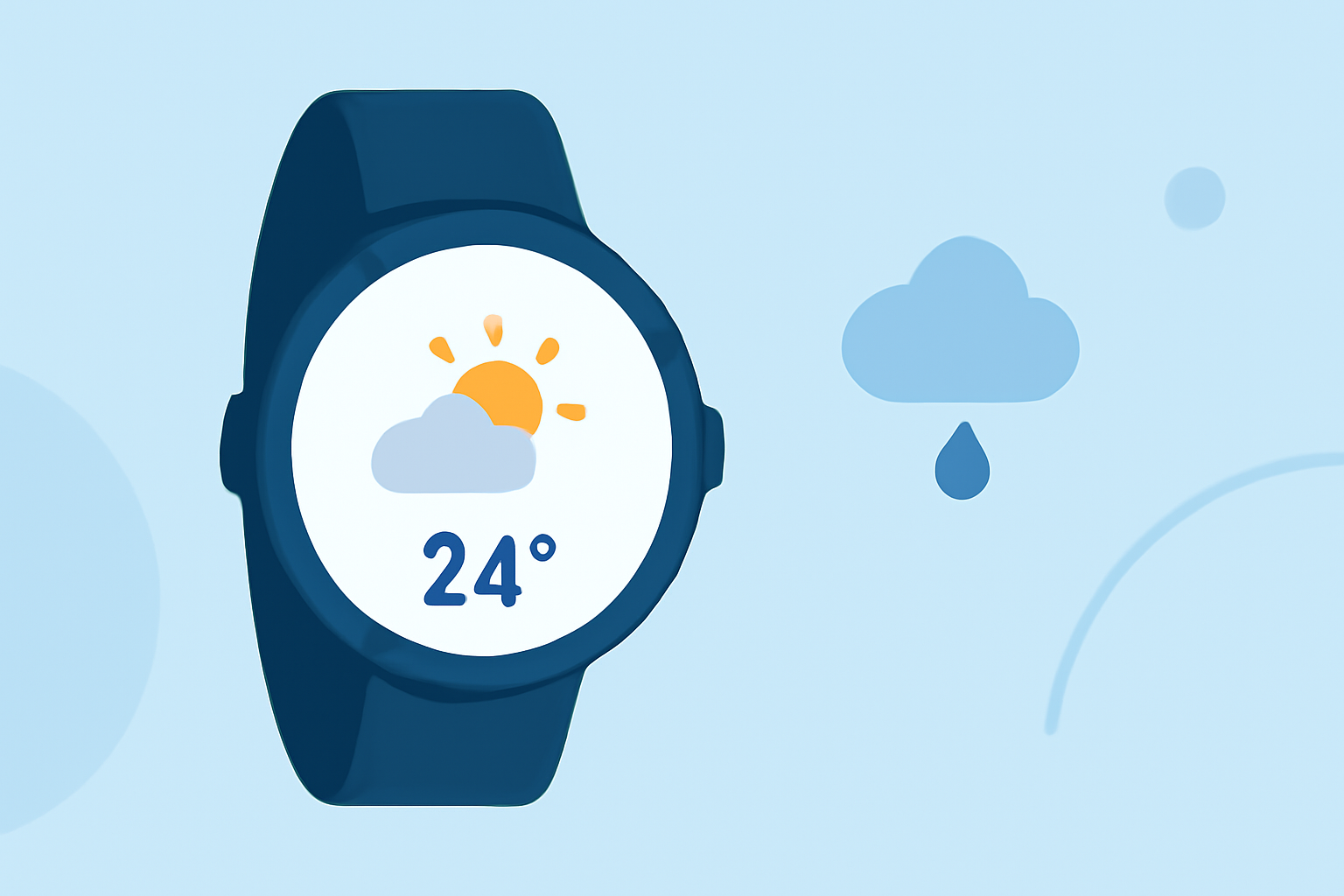
Accessing accurate and timely weather information on your Wear OS smartwatch can enhance your daily planning and activities. Here's a step-by-step guide to setting up and using weather features on your device.
1. Using the Built-in Weather App
Many Wear OS smartwatches come equipped with a native weather application that provides current conditions, forecasts, and alerts. To set it up:
-
Open the Weather App: Locate and tap the weather icon on your smartwatch to launch the app.
-
Set Your Location: If prompted, enter your city or allow the app to access your location to provide accurate weather data.
-
View Weather Information: The app will display current conditions, hourly forecasts, and daily predictions.
2. Adding a Weather Tile for Quick Access
To quickly check the weather without opening the app:
-
Access Tiles: Swipe left or right on your smartwatch to view available tiles.
-
Add Weather Tile: Press and hold an empty tile space, then select the weather tile to add it to your list.
-
Customize Tile Settings: Some devices allow you to customize the tile's appearance or information displayed.
3. Utilizing Watch Face Complications
Many watch faces support complications, which are small widgets that display information directly on the watch face:
-
Choose a Compatible Watch Face: Select a watch face that includes weather complications.
-
Configure Complications: Customize the complications to show desired weather details, such as temperature, forecast, or precipitation.
4. Exploring Third-Party Weather Apps
If you're seeking additional features or different interfaces, consider third-party weather apps available on the Google Play Store:
-
SkyHalo Weather: Offers continuous forecasts up to 48 hours, daily and hourly forecasts for up to 5 days, and NWS weather alerts.
-
How is the Weather?: Provides current, hourly, and daily weather forecasts with detailed graphs and customizable widgets.
-
Weather for Wear OS: Features multiple watch faces with weather forecasts, including hourly and daily predictions.
5. Keeping Your Device Updated
Ensure your Wear OS smartwatch is running the latest software to access the newest features and improvements:
-
Check for Updates: Navigate to your smartwatch's settings, select "System," then "Updates" to see if a new version is available.
-
Update Your Watch: Follow the on-screen instructions to download and install any available updates.
6. Troubleshooting
If you encounter issues with the weather app or complications:
-
Restart Your Watch: A simple restart can resolve many minor glitches.
-
Reinstall the App: Uninstall and reinstall the weather app to fix potential software issues.
-
Check Permissions: Ensure the app has the necessary permissions to access location data.
By following these steps, you can effectively set up and use weather features on your Wear OS smartwatch, keeping you informed and prepared for any conditions.