
Mastering Weather Radar on Your iPhone: A Traveler's Guide
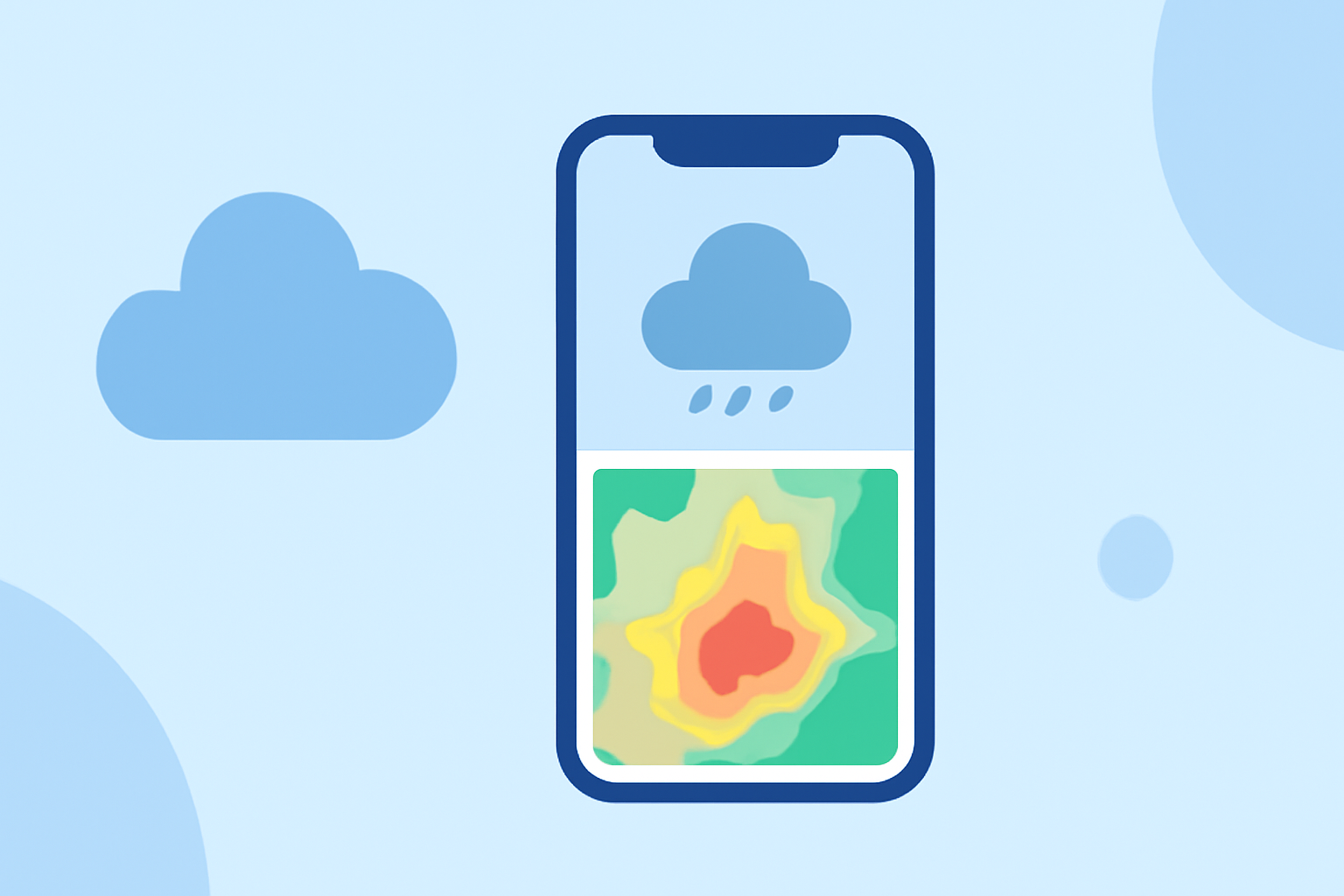
Traveling often means encountering unpredictable weather. Having access to accurate and timely weather information is crucial for planning and safety. Fortunately, your iPhone offers built-in features and apps that provide comprehensive weather radar capabilities.
Understanding Weather Radar on iPhone
Weather radar allows you to visualize precipitation patterns, storm movements, and other atmospheric conditions in real-time. This information is invaluable for travelers, helping you anticipate weather changes and make informed decisions.
Accessing Built-in Weather Maps
Your iPhone's native Weather app includes weather maps that display various conditions, including precipitation, temperature, air quality, and wind patterns. To access these maps:
- Open the Weather App: Launch the Weather app on your iPhone.
- Select a Location: Choose the location you're interested in.
- View the Map: Tap the map icon at the bottom of the screen to view the weather map.
- Choose the Map Layer: Tap the overlay menu in the upper right corner to select the type of map you want to view, such as precipitation, temperature, air quality, or wind.
This feature provides a visual representation of current weather conditions, helping you understand the weather patterns in your area or at your travel destination. (support.apple.com)
Enabling Precipitation Notifications
To receive alerts about upcoming rain or snow, you can enable notifications in the Weather app:
- Open Settings: Go to your iPhone's Settings.
- Select Weather: Scroll down and tap on Weather.
- Enable Notifications: Toggle on "Allow Notifications".
- Set Up Precipitation Alerts: Within the Weather app, tap the list icon in the bottom right corner, then tap "Notifications". Toggle on "My Location" and any other locations you wish to monitor.
This setup ensures you receive timely alerts about precipitation, helping you plan your activities accordingly. (makeuseof.com)
Exploring Third-Party Weather Apps
While the built-in Weather app offers basic radar features, third-party apps can provide more detailed and advanced weather radar capabilities. These apps often include high-resolution radar images, storm tracking, and severe weather alerts. When selecting a third-party app, consider factors such as user reviews, feature set, and compatibility with your iPhone model.
Tips for Using Weather Radar Effectively
- Regularly Check Updates: Weather conditions can change rapidly, so it's important to check the radar frequently, especially before heading out.
- Understand Radar Interpretations: Learn how to interpret radar images, including recognizing different precipitation types and intensities.
- Combine with Local Forecasts: Use radar images in conjunction with local weather forecasts for a comprehensive understanding of upcoming conditions.
Conclusion
Utilizing weather radar on your iPhone equips you with the tools to stay informed about weather conditions during your travels. By leveraging both built-in features and third-party apps, you can enhance your planning and ensure a safer journey.
For a more comprehensive and user-friendly experience, consider exploring Clime's weather radar app, which offers real-time updates and detailed forecasts tailored for travelers.